

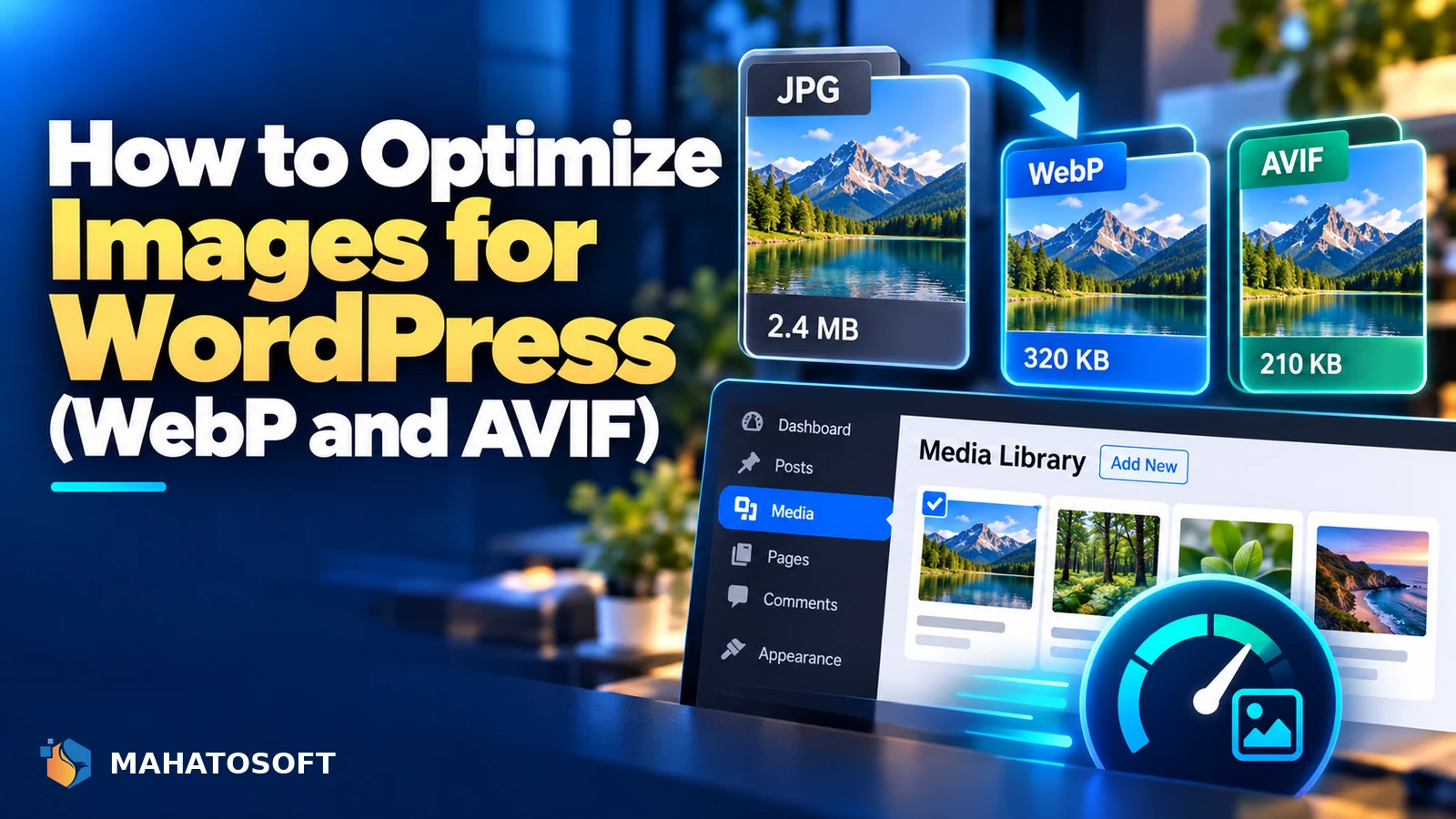
Images are usually the single biggest reason a WordPress page loads slowly. Learning how to optimize images for WordPress properly, covering format, size and delivery, is often the fastest speed win available, faster to fix than caching or hosting changes and more noticeable to visitors.
A page with ten large, uncompressed JPEGs can easily weigh several megabytes before a visitor sees anything useful. The same images, resized and compressed correctly, can shrink that by 80% or more with no visible quality loss on a normal screen. Image weight is one of several factors covered in our wider guide to Core Web Vitals for WordPress.
Check what is actually slow first
Run your homepage and one content page through PageSpeed Insights. If “Largest Contentful Paint” or “Properly size images” appears in the results, images are worth fixing before anything else.
1. Choose the right format for each image
| Format | Best for | Notes |
|---|---|---|
| WebP | Photos and most general images | Supported by every modern browser; roughly 25–35% smaller than JPEG at similar quality |
| AVIF | Photos where maximum compression matters | Often smaller again than WebP; natively supported in WordPress since version 6.5 |
| PNG | Logos, icons, images needing transparency | Larger file size for photos; keep it for graphics with flat colour and transparency |
| SVG | Logos, icons, simple illustrations | Vector format, scales to any size at a tiny file size |
To optimize images for WordPress well, the single biggest format decision is moving photographic content from JPEG or PNG to WebP or AVIF. WordPress can serve AVIF uploads natively, and most image optimization plugins can also generate WebP or AVIF versions of your existing JPEG and PNG library automatically.
2. Resize before you upload, not after
A photo straight from a phone camera can be 4,000 pixels wide. If it displays on your page at 800 pixels wide, the extra data is pure waste, downloaded by every visitor for no visual benefit. Resize images to the largest size they will actually display at before uploading, and let WordPress’s built-in responsive image sizes handle the rest. Getting this one habit right is arguably the highest-leverage step in the whole process to optimize images for WordPress well.
WordPress automatically creates several sizes of every image you upload and serves the right one for the visitor’s screen using the srcset attribute. MDN’s guide to responsive images explains how this mechanism works, but the effect only helps if the original you upload is not needlessly larger than necessary.
3. Compress every image
Compression removes data that makes little or no visible difference at normal viewing sizes. “Lossless” compression keeps every pixel but strips unnecessary metadata; “lossy” compression, used at a sensible quality setting, removes some image data too, usually invisibly.
- A dedicated image optimization plugin (such as ShortPixel, Imagify or EWWW Image Optimizer) compresses images automatically on upload and can bulk-process your existing media library.
- Most of these plugins offer WebP or AVIF conversion at the same time, so this step and format conversion can happen together.
- A quality setting around 70–85% for JPEG or its WebP/AVIF equivalent is usually visually indistinguishable from the original at normal screen sizes.
4. Use lazy loading correctly
WordPress has loaded images with the loading="lazy" attribute by default since version 5.5, which delays loading images until they are close to entering the viewport. This helps pages with many images load faster initially, but it can hurt your Largest Contentful Paint if it is applied to the main hero image at the top of the page, since that image then waits to start loading instead of loading immediately.
Most modern themes and WordPress core already exclude the first image or two from lazy loading automatically. If you use a custom hero image through a page builder, check it is not marked as lazy-loaded, or your Largest Contentful Paint score can suffer even with well-optimised images elsewhere.
5. Serve images through a CDN
A content delivery network caches your images on servers closer to each visitor geographically, which cuts the time it takes an image to arrive, especially for visitors far from your hosting server. Cloudflare’s free tier and most managed WordPress hosts include image caching through a CDN as standard, and it works alongside format and compression fixes rather than replacing them.
6. Set width, height and alt text properly
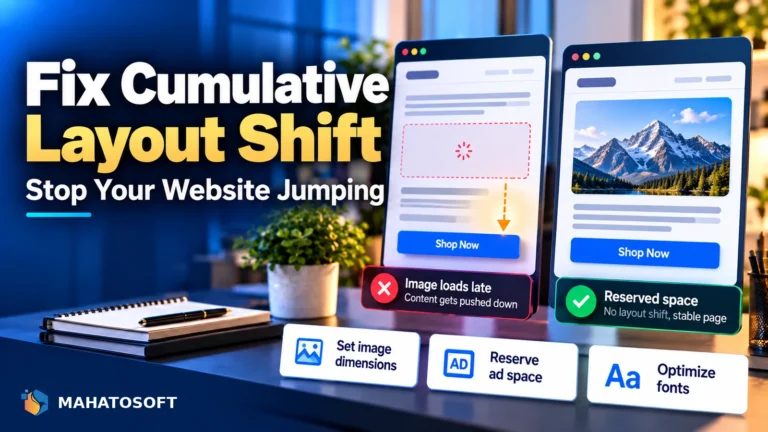
Always let WordPress add width and height attributes to images, or set them yourself in a page builder, rather than leaving them blank. Missing dimensions cause the browser to shift the layout once the image finally loads, hurting your Cumulative Layout Shift score. Write meaningful alt text for every image too; it helps accessibility and gives search engines context, though it has no effect on load speed itself.
Do you still need a JPEG fallback?
Almost every browser in active use now supports both WebP and AVIF, so for most sites a next-generation format alone is enough. Image optimization plugins that generate WebP or AVIF versions typically still keep the original JPEG or PNG available and serve it automatically to the rare browser that cannot display the newer format, so you get the benefit without manually managing two versions of every file. This automatic fallback is one reason modern plugins make it so much easier to optimize images for WordPress than it was a few years ago.
7. Clean up your existing media library
Most sites that have been live for a while have years of unoptimised uploads sitting in the media library. Run a bulk optimization pass with your chosen plugin across the whole library rather than only optimising new uploads going forward, since old, heavy images on popular pages are often costing you more than anything you have uploaded recently.
Check your top landing pages and any page with a hero image or product gallery first, since fixing a handful of high-traffic pages usually delivers more visible improvement than working through the media library alphabetically. Most bulk optimization tools show a before-and-after size for each image, which makes it easy to confirm the pass actually reduced file sizes rather than just running without errors. Cleaning up the media library this way is the last step most sites need to fully optimize images for WordPress across the whole site, not just new uploads.
Want it measured and fixed properly?
We run full Core Web Vitals speed optimisation, including image delivery, from $150, usually 3–6 days, measured before and after. Contact us with your site address for a quote.
Optimize images for WordPress: quick answers
What is the best way to optimize images for WordPress automatically?
An image optimization plugin that compresses on upload and generates WebP or AVIF versions covers most of the work automatically. Combine it with resizing images to a sensible display size before upload for the best result.
Should I convert all my images to WebP or AVIF?
For photographic content, yes, both formats give meaningfully smaller files than JPEG at similar visual quality. Keep PNG or SVG for logos, icons and images that need transparency, since converting those does not always save much space.
Does lazy loading always make a WordPress site faster?
It helps for images further down the page, but applying it to the main image visible when the page loads can slow down how quickly that image appears, which hurts your Largest Contentful Paint score.
Will optimizing images improve my Google ranking?
Page speed and Core Web Vitals are a ranking factor, and images are usually the largest contributor to a slow page, so optimizing them can help indirectly. It will not outrank better content on its own, but it removes a common technical obstacle.

Discussion
Join the conversation
No comments yet. Share a question or what worked for you.