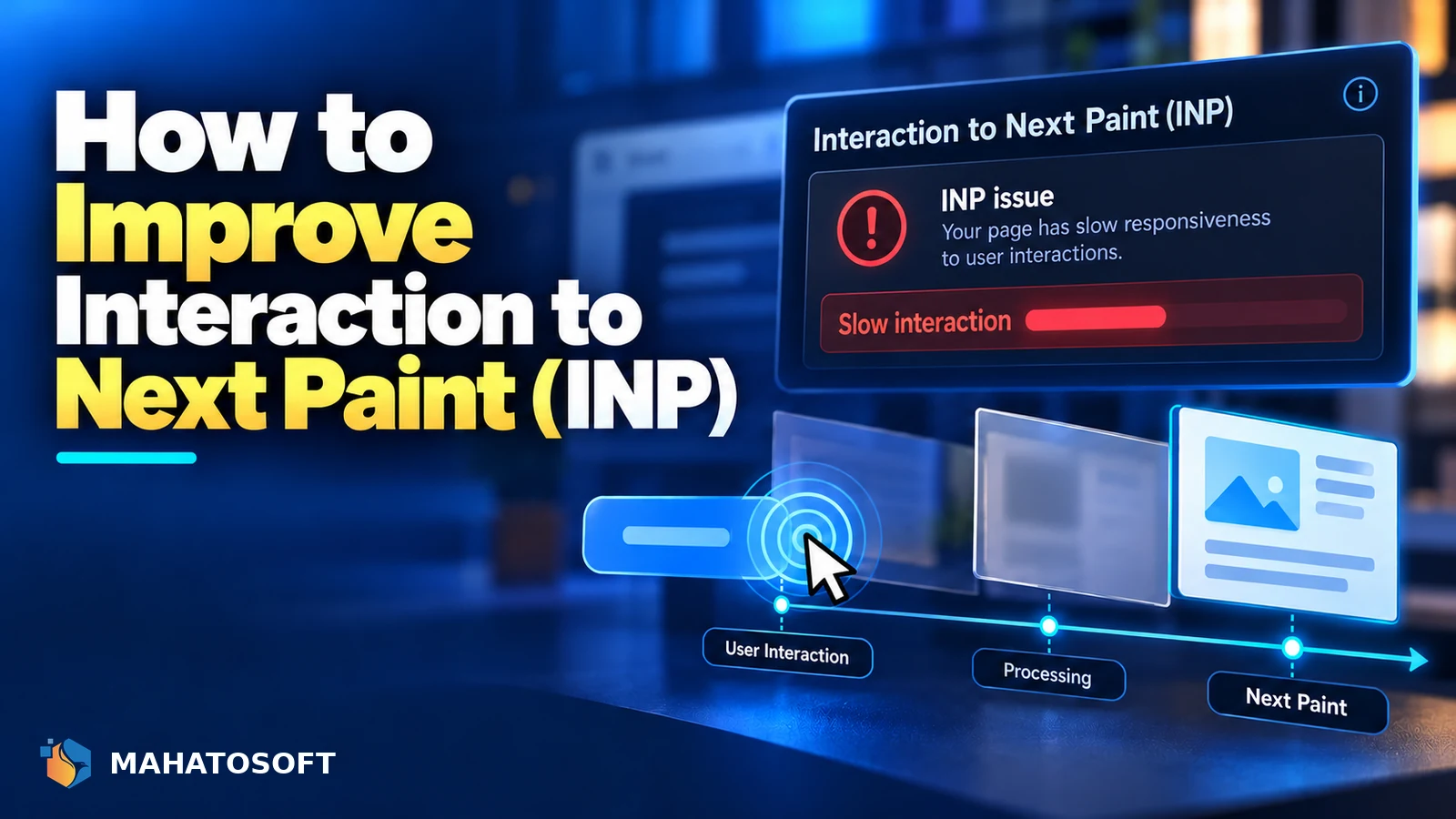
Interaction to Next Paint measures how long it takes your page to visibly respond after someone clicks, taps or types, and a poor score means your site feels sluggish even if it loaded quickly. It replaced First Input Delay as an official Core Web Vital in March 2024, and it is a stricter, more realistic measure of responsiveness. Here is how to bring it down.
Some links in this article are affiliate links. If you buy through them, Mahatosoft may earn a small commission at no extra cost to you.
Unlike its predecessor, which only measured the first interaction on a page, this metric tracks every interaction during a visit and reports the worst one. That makes it much harder to game and a better reflection of what visitors actually experience while browsing.
Check your real-world score first
Open PageSpeed Insights and look at the field data section, which uses real visitor measurements rather than a single lab test. INP problems often only show up under real conditions, like a slower phone or a busy connection.
What counts as a good interaction to next paint score
Google’s published thresholds, from the web.dev Core Web Vitals documentation, are:
| Score | Rating |
|---|---|
| 200 milliseconds or less | Good |
| 200 to 500 milliseconds | Needs improvement |
| Above 500 milliseconds | Poor |
The score is assessed at the 75th percentile of visits, so a handful of bad interactions on a fast device will not tank your score; it is the typical experience across real visitors that counts.
What actually causes poor interaction to next paint
Three phases make up the delay: the time before the browser starts processing your click, the time spent running JavaScript in response, and the time to actually repaint the screen. In practice, the middle phase, JavaScript execution, is responsible for the large majority of poor scores on WordPress sites.
- Large JavaScript bundles that block the main thread while they parse and execute.
- Too many plugins each adding their own scripts, event listeners and DOM queries.
- Heavy third-party scripts: chat widgets, ad networks, analytics tags and social embeds.
- Complex page builder markup with deeply nested elements that are slow to update on interaction.
1. Reduce and defer JavaScript
Audit every script your site loads and remove what you do not actually use. For scripts you keep, defer non-critical ones so they load after the main content is interactive, using the defer attribute or a performance plugin’s script management settings.
<script src="widget.js" defer></script>
A caching plugin such as WP Rocket or LiteSpeed Cache can automate deferring and delaying scripts until user interaction, which often gives the single biggest improvement on a typical WordPress site.
2. Break up long JavaScript tasks
Any single JavaScript task that runs for more than 50 milliseconds blocks the main thread and delays the browser from responding to input. Chrome DevTools’ Performance panel flags these as “long tasks” directly, with the script responsible named next to each one.
If a long task comes from your own theme code, break it into smaller chunks using setTimeout or the newer scheduler.yield() API so the browser gets a chance to handle interactions in between. If it comes from a plugin, check whether the plugin has a setting to defer that specific feature, or whether a lighter alternative plugin exists.
3. Cut down third-party scripts
Chat widgets, heat-map trackers, ad tags and embedded videos each add their own JavaScript that competes for the main thread exactly when a visitor is trying to interact with your page. Audit what is actually earning its keep, and load anything non-essential only after the visitor scrolls or clicks to engage with it, rather than on every page load by default.
4. Simplify what happens on click
Elementor popups, mega menus, and add-to-cart animations often run more work than necessary on a single click. Wherever a page builder gives you an option between a heavier and a lighter interaction style, such as a fade instead of a complex slide animation, the lighter option usually helps responsiveness without a visible difference to most visitors.
5. Use the DevTools attribution panel to confirm the fix
Chrome’s Performance panel can record a real interaction and break down exactly where the time went: input delay, processing time, or presentation delay. This is the most reliable way to find your specific bottleneck rather than guessing from general advice, since the same site can have very different causes depending on the theme and plugins installed.
How this differs from LCP, and why both matter
Largest Contentful Paint measures how long the main content takes to appear on first load, while this metric measures how the page behaves afterward, once a visitor starts clicking around. A page can load its hero image quickly and still feel frustrating to use if every menu click or filter change causes a noticeable pause. Our guide on how to improve LCP in WordPress covers the loading half of the picture; this guide covers what happens after loading finishes.
Sites that fix only one of the two often see visitors bounce anyway, because a fast-loading but sluggish-feeling page still reads as slow overall. Treat both as part of the same speed project rather than tackling them in isolation.
Interaction to next paint on WordPress specifically
Page builders like Elementor add more markup and JavaScript than a hand-coded theme, which is a real trade-off for the convenience they offer. Keep the number of active widgets and plugins reasonable, use a caching and script-optimisation plugin, and test your actual pages rather than only the homepage, since a complex landing page can score very differently from a simple blog post.
Our wider Core Web Vitals guide for WordPress covers LCP and CLS alongside this metric if you are optimising all three together.
Want us to handle it?
Our Core Web Vitals work, including interaction to next paint, starts at $150 and takes 3 to 6 days, with a before-and-after measurement. Get a speed check.
Interaction to next paint: quick answers
What replaced First Input Delay?
Interaction to Next Paint replaced First Input Delay as the official Core Web Vital responsiveness metric in March 2024. It measures every interaction during a visit rather than only the first one, giving a more complete picture.
Why is my interaction to next paint score worse on mobile?
Mobile devices generally have less processing power than desktops, so the same JavaScript takes longer to execute. This is also why field data, collected from real visitor devices, often shows worse scores than a lab test run on a fast development machine.
Can a caching plugin fix interaction to next paint on its own?
A good caching plugin with script optimisation features, such as deferring and delaying JavaScript, fixes a large share of typical cases. Sites with genuinely heavy custom JavaScript or many third-party scripts usually need some manual script auditing on top.
Does interaction to next paint affect Google rankings?
It is one of the three Core Web Vitals that feed into Google’s page experience signals, which is one of many ranking factors. Content quality and relevance still matter far more, but a poor score can be a tie-breaker between otherwise similar pages.