

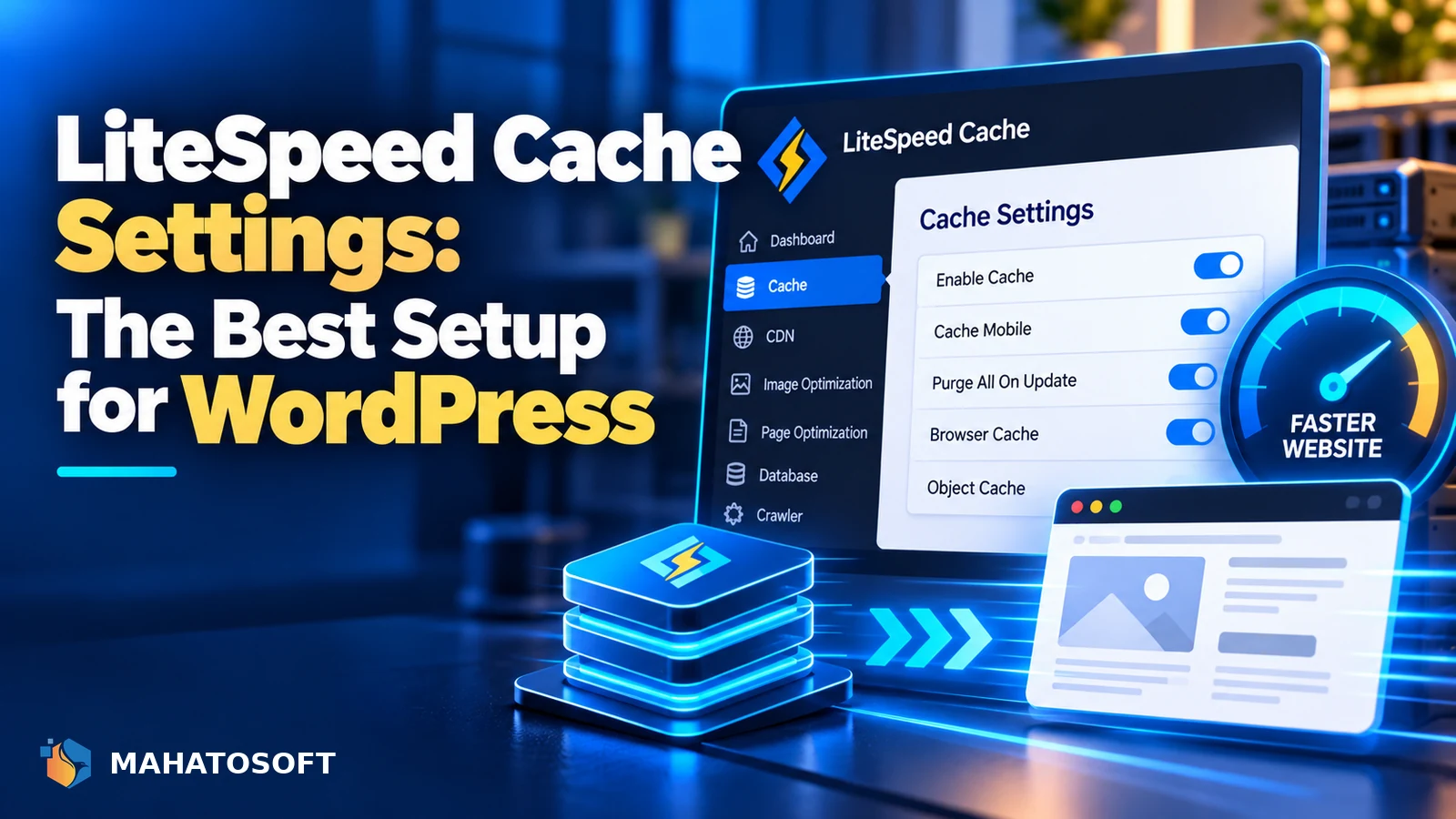
Good LiteSpeed Cache settings can take a WordPress site from a sluggish few seconds to load down to well under a second, without touching your theme or hosting plan. The plugin is free, works on any LiteSpeed-powered server, and its defaults are reasonable, but a handful of specific changes make a real difference beyond what it ships with out of the box.
Some links in this article are affiliate links. If you buy through them, Mahatosoft may earn a small commission at no extra cost to you.
LiteSpeed Cache only unlocks its full page-caching benefit on a server actually running LiteSpeed or OpenLiteSpeed. On other servers it still offers useful image, CSS and JavaScript optimisation, but full-page caching needs the LiteSpeed web server itself underneath it.
Change one setting at a time
Some LiteSpeed Cache settings, especially CSS/JS combining and minifying, can break a page’s layout or JavaScript if your theme or a plugin does not handle it well. Enable one optimisation, check the site, then move to the next.
1. Cache tab: the essentials
| Setting | Recommended |
|---|---|
| Enable Cache | On |
| Cache Logged-in Users | Off for most sites; on only if logged-in visitors need cached pages too |
| Cache Commenters / Cache REST API | On, generally safe defaults |
| Private Cache for Logged-in Users | Consider on for membership or WooCommerce “My Account” pages |
| Cache Mobile | On if your mobile and desktop layouts differ meaningfully |
These LiteSpeed Cache settings on the main Cache tab are the foundation. Everything else builds on top of full-page caching working correctly first.
2. TTL tab: how long cached pages stay valid
The Time To Live settings control how long a cached page is served before LiteSpeed regenerates it. The defaults (a few hours to a day for most content types) work for most sites. Lower the TTL for pages that change often, such as a homepage showing recent posts, and raise it for genuinely static content like an About page.
3. Page Optimization tab: the biggest speed gains, and the biggest risk
This tab controls CSS and JavaScript minification, combining and deferring, which is where most of the visible speed improvement comes from, but also where broken layouts most often happen.
- CSS/JS Minify: generally safe to enable; removes whitespace and comments without changing behaviour.
- CSS/JS Combine: merges multiple files into fewer requests. Test carefully, since some plugins load scripts in a specific order that combining can disrupt.
- Load CSS Asynchronously / Critical CSS: improves perceived load speed but needs the generated critical CSS to actually match your above-the-fold content; check key pages after enabling.
- Defer JS / Delay JS Execution: can meaningfully improve load speed metrics but occasionally delays functionality a visitor needs immediately, such as a mobile menu toggle. Test interactive elements specifically after enabling.
Enable these one at a time and check both the homepage and a page built with a page builder, since page builders like Elementor are more sensitive to script order changes than a simple theme.
4. Image Optimization tab
LiteSpeed Cache can generate WebP versions of your images and serve them automatically to supporting browsers, and can lazy-load images below the fold. Turn on WebP generation and automatic serving, and leave lazy loading on for most content, but check your main hero image is excluded from lazy loading so it does not delay your Largest Contentful Paint. See our guide to optimizing images for WordPress for the wider picture beyond what this plugin handles.
5. Database tab
This tab cleans up post revisions, trashed items, spam comments and orphaned data, and can optimise database tables. Run it periodically rather than constantly, since a bloated database slows down every query, not just caching. Avoid disabling post revisions entirely through this tab if you rely on them for content recovery; limit their number instead.
6. CDN tab
If you use Cloudflare, LiteSpeed Cache has a dedicated integration that can manage Cloudflare’s cache-purging automatically when your WordPress cache clears, keeping the two in sync. Without this, updating a page on WordPress can leave an old version cached at Cloudflare’s edge, and visitors keep seeing the outdated content until it expires there separately.
7. Crawler tab: keep the cache warm
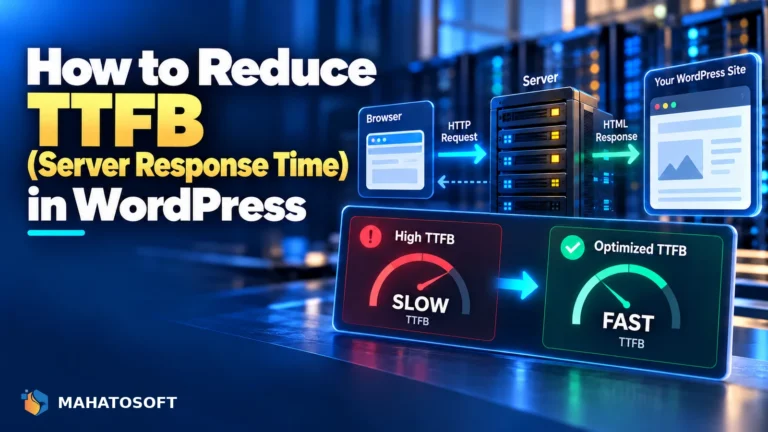
The built-in crawler visits your pages in the background to rebuild the cache before a real visitor arrives, so nobody hits an uncached page and waits for it to generate. Enable it and set a reasonable crawl interval; too aggressive a schedule adds unnecessary server load, while too infrequent leaves pages uncached for longer after they expire. A slow first request to an uncached page also affects your server response time, so keeping the cache reliably warm matters more than it might first appear.
A note for WooCommerce sites
WooCommerce pages that must always be current, such as the cart, checkout and account pages, should generally be excluded from full-page caching, and LiteSpeed Cache detects and excludes these automatically in most configurations. Confirm this is working correctly rather than assuming it, since a cached cart page showing stale contents is a confusing and costly bug on a live store.
Test after every change
Run your homepage and a couple of key content pages through PageSpeed Insights before and after each significant change, and click through the site manually to catch any visual or functional breakage that a speed score alone will not show you. LiteSpeed’s own plugin documentation covers every setting in more technical depth if you want to go further than this guide.
Keep a note of which LiteSpeed Cache settings you have changed from the defaults, either in a document or in the plugin’s own import/export feature. This makes it far easier to identify the cause if a future plugin or theme update introduces a conflict with one specific optimisation, rather than having to re-test every setting from scratch.
Want it tuned and measured properly?
We optimise LiteSpeed Cache and full Core Web Vitals performance from $150, usually 3–6 days, measured before and after. Contact us with your site address for a quote.
LiteSpeed Cache settings: quick answers
What are the best LiteSpeed Cache settings for a WordPress site?
Enable full-page caching, WebP image conversion, CSS and JS minification and the crawler as a solid baseline, then carefully test CSS/JS combining and JS delay, since those two have the biggest potential to break a page if your theme or plugins are sensitive to script order.
Does LiteSpeed Cache work without a LiteSpeed server?
Full-page server-level caching needs an actual LiteSpeed or OpenLiteSpeed server underneath it. On other servers, the plugin still provides useful image optimisation, CSS/JS minification and a browser-level cache, just without its fastest caching layer.
Why did my site break after changing LiteSpeed Cache settings?
CSS/JS combining or aggressive JS delay settings are the most common cause, since they can change the order scripts load in. Disable the most recently changed setting first, retest, and re-enable optimisations one at a time from there.
Is LiteSpeed Cache better than WP Rocket?
LiteSpeed Cache is free and gives excellent results specifically on LiteSpeed servers, including server-level features WP Rocket cannot replicate. WP Rocket works well on any server and requires less manual tuning, so the better choice depends mainly on which server you are hosted on.


Discussion
Join the conversation
No comments yet. Share a question or what worked for you.