

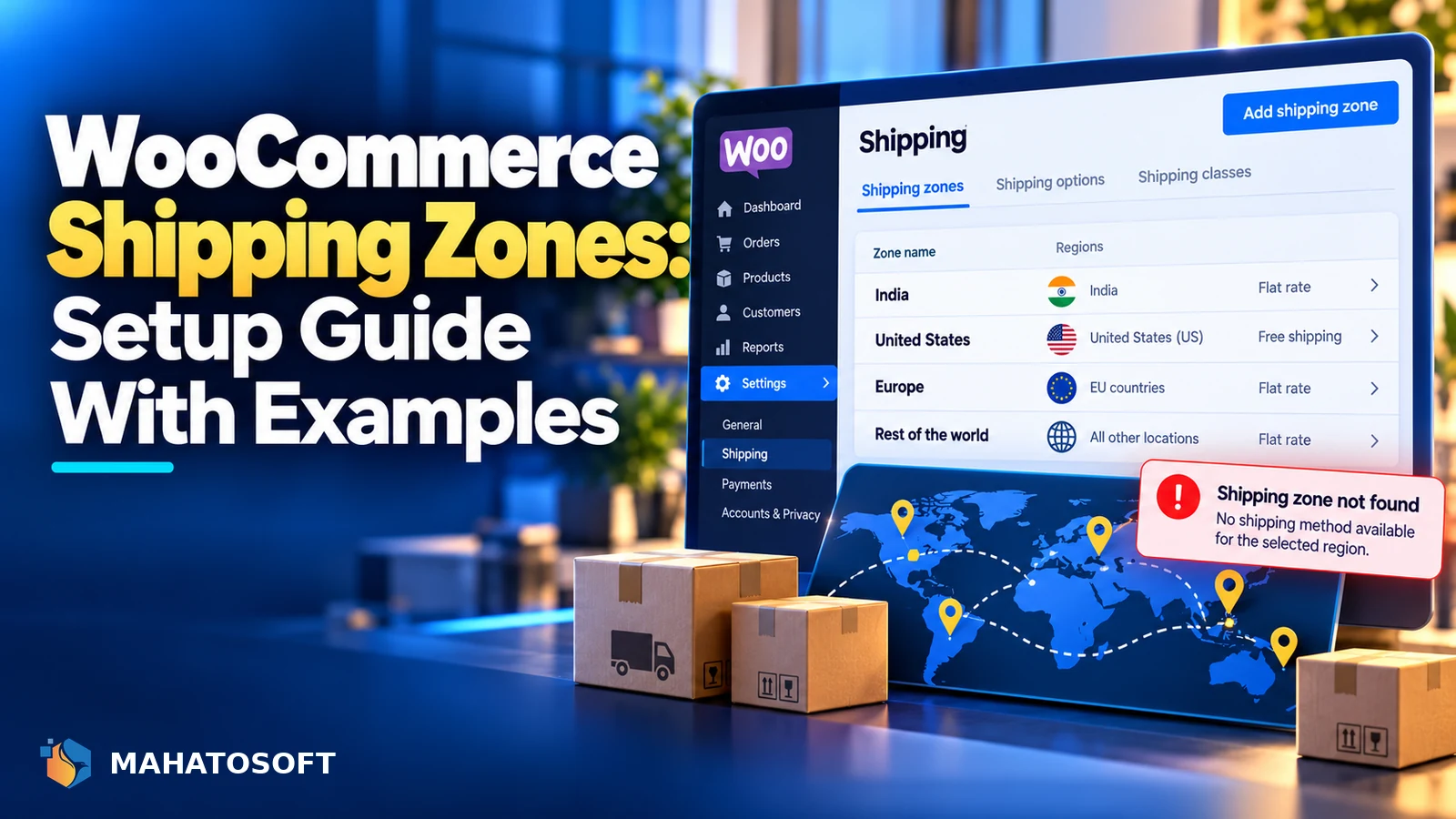
WooCommerce shipping zones let you charge different shipping rates, or offer different shipping methods entirely, based on where a customer is ordering from. Setting them up correctly the first time avoids the two most common shipping mistakes: charging the wrong customer the wrong amount, and shipping methods that do not appear at checkout at all.
A shipping zone is a geographic region, anything from a single postcode to an entire continent, with its own set of shipping methods and rates attached. WooCommerce checks a customer’s shipping address against your zones, top to bottom, and uses the first matching zone.
Zone order matters more than most people expect
WooCommerce checks zones in the order they appear in your list and stops at the first match. Put your most specific zones above your more general ones, or a broad zone can swallow orders meant for a more specific one beneath it.
Where to set up WooCommerce shipping zones
Go to WooCommerce → Settings → Shipping. Each zone you create appears in a list, and clicking one opens its region and its shipping methods, as covered in WooCommerce’s official shipping zones guide. A default “Locations not covered by your other zones” catch-all exists automatically; use it to define what happens for a customer outside every zone you have specifically configured.
1. Create a zone
Click Add zone, give it a clear internal name (customers do not see this name), and choose the region it covers. You can select whole countries, specific states or provinces within a country, or in many countries, individual postcodes or postcode ranges.
| Zone type | Example use |
|---|---|
| Country-level | “United Kingdom” as one zone with UK-wide rates |
| State/region-level | Separate rates for different states within one country |
| Postcode-level | Free local delivery for postcodes near a physical store |
| Catch-all | A fallback rate, or a message that you do not ship there, for everywhere else |
2. Add shipping methods to the zone
Inside each zone, add one or more shipping methods: Flat rate, Free shipping, Local pickup, or a method from a shipping carrier extension that calculates live rates. A zone can have several methods at once, letting the customer choose between, for example, a cheaper slower option and a faster paid one.
- Flat rate: a fixed cost, optionally varying by the cart’s weight, item count or a per-item cost you configure in the method’s settings.
- Free shipping: often set with a minimum order value requirement, which you configure in the method’s own settings.
- Local pickup: useful for stores that also serve local walk-in customers alongside online orders.
3. Get the zone order right
Since WooCommerce stops at the first matching zone, order zones from most specific to least specific. A common mistake is placing a broad “Europe” zone above a more specific “Germany” zone; German customers would then always match the broader Europe zone first and never see the German-specific rates underneath it. Drag zones into the correct order directly on the Shipping settings screen.
4. Test checkout from each zone’s perspective
Add a product to the cart and go through checkout, entering an address from each of your major zones in turn, to confirm the right shipping methods and rates actually appear. It is easy to set zones up correctly in the settings screen and still have a configuration error only visible from the customer’s side at checkout, so this test step matters.
If shipping options do not appear at all for a valid address, check the address genuinely falls inside one of your zones and that the zone has at least one enabled shipping method, since a zone with no methods shows nothing at checkout rather than an error. If checkout itself is failing beyond just shipping, our guide to WooCommerce checkout not working covers the wider list of causes.
5. Remember tax on shipping
Depending on your tax settings, shipping cost itself may need tax applied to it, separately from the products in the cart. This is set in WooCommerce → Settings → Tax, under the shipping tax class setting, and is easy to overlook since it lives in a different settings tab entirely from shipping zones. WooCommerce’s own tax setup documentation covers this in full.
6. International shipping considerations
If you ship internationally, consider whether customs duties and import tax are included in your price or collected separately on delivery, and communicate this clearly, since an unexpected customs bill at delivery is one of the most common causes of a bad customer experience after an otherwise smooth purchase. Some shipping carrier extensions can calculate and collect these costs at checkout directly.
It is also worth reviewing your international WooCommerce shipping zones separately from domestic ones, since delivery times, carrier reliability and cost structures usually differ enough between countries that a single blended rate rarely reflects the real cost accurately for every destination.
7. Rates that vary by product
Not every product should ship at the same rate within a zone. WooCommerce’s shipping classes let you group products, such as “Oversized” or “Fragile,” and set a different flat rate cost for each class within the same zone and shipping method. This is useful when a handful of products genuinely cost more to ship than the rest of your catalogue, without needing a separate zone just for those items.
Common WooCommerce shipping zones mistakes
- Overlapping zones in the wrong order, so the wrong rate applies to some customers.
- Forgetting the catch-all zone, leaving customers outside your defined zones with no shipping option and an incomplete checkout.
- Setting a flat rate that does not actually cover your real shipping cost for heavier or bulkier items.
- Not testing checkout after a change, so a broken zone goes unnoticed until a customer reports it, or an order sits uncompleted.
Want your shipping set up correctly the first time?
We build WooCommerce stores from $700, shipping zones included, and fix shipping configuration issues on existing stores from $45. Contact us or see the website fix service.
WooCommerce shipping zones: quick answers
Can a customer’s address match more than one WooCommerce shipping zone?
No. WooCommerce checks zones in the order they are listed and uses the first one that matches the customer’s address, then stops. This is exactly why zone order matters so much.
Why are no shipping options showing at checkout?
Usually either the customer’s address does not fall inside any configured zone and there is no catch-all zone, or the matching zone exists but has no enabled shipping methods attached to it.
How many WooCommerce shipping zones can I create?
There is no fixed limit in WooCommerce itself. Most stores need somewhere between three and a dozen zones, depending on how differentiated their shipping costs are by region.
Can I offer free shipping only above a certain order value?
Yes, the Free Shipping method has a minimum order amount setting built in, which you configure per zone, so you can require a different minimum in different regions if your shipping costs vary by zone.


Discussion
Join the conversation
No comments yet. Share a question or what worked for you.