

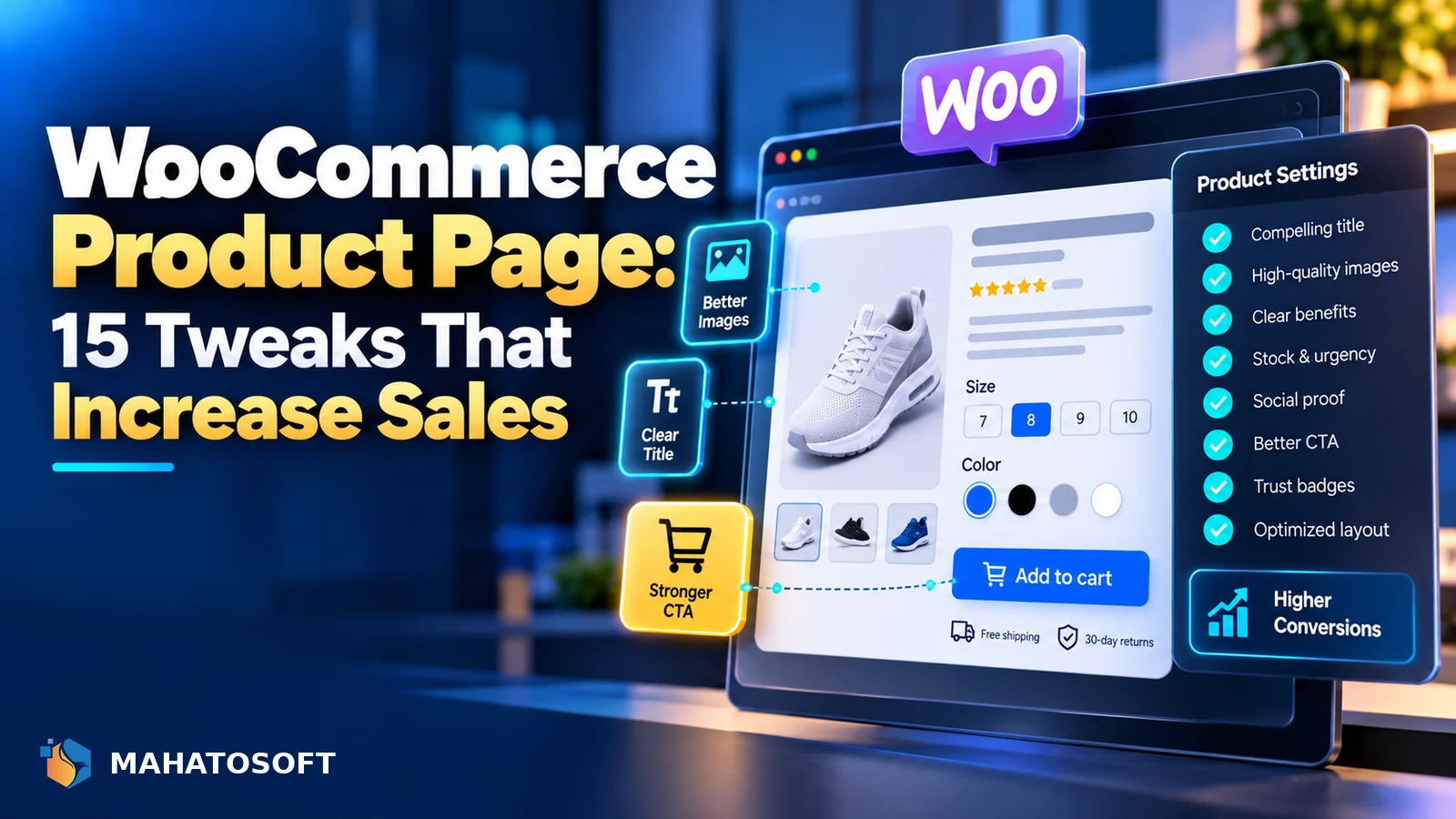
A visitor who reaches your WooCommerce product page is already interested; the page’s only job is to remove the doubts stopping them from buying. WooCommerce product page optimization is less about redesigning everything and more about a series of small, specific changes that each remove one point of friction.
Some links in this article are affiliate links. If you buy through them, Mahatosoft may earn a small commission at no extra cost to you.
These tweaks apply whether you are using the default WooCommerce theme templates, a page builder like Elementor, or a dedicated product page plugin. None require rebuilding your store from scratch.
Start with your best-selling product
Apply changes to your single highest-traffic product page first, measure the effect on its own conversion rate for two to four weeks, then roll the same changes out to the rest of the catalogue.
1. Product images that answer real questions
- Show the product from multiple angles, including scale against a common object where size is not obvious.
- Use a zoom or lightbox feature so shoppers can check fine detail, especially for textiles, jewellery or anything with visible texture.
- Add a short video where it genuinely helps, such as showing an item in use, rather than as decoration.
- Compress and resize every image; a slow-loading gallery costs you sales before a visitor even reads your description. See our guide to optimizing images for WordPress for the specifics.
2. Product titles and descriptions that sell
A title should tell a shopper what the product is and the one detail that differentiates it, such as size, material or a key feature, without turning into a keyword-stuffed sentence. Descriptions work best in two parts: a short, scannable paragraph covering the main benefit, followed by a detailed specification list for shoppers who want to check exact dimensions, materials or compatibility.
| Weak | Better |
|---|---|
| “High quality cotton t-shirt” | “100% combed cotton t-shirt, pre-shrunk, true to size” |
| “Great for any occasion” | Specific use cases the product actually fits |
| Manufacturer’s copy pasted directly | Rewritten copy that also helps the page rank, since duplicate content across many stores ranks poorly |
3. Trust signals near the buy button
Shoppers decide whether to trust an unfamiliar store largely from the product page itself. Near the Add to Cart button, show your returns policy in one line, accepted payment methods, and estimated delivery time. If you have any genuine security or payment badges from your processor, they belong here too, not buried in the footer.
Reviews, where you have real, unedited ones, do more for trust than almost anything else on the page. WooCommerce’s built-in reviews are enabled per-product under the Product Data panel if they are currently switched off; the official WooCommerce documentation covers the review settings in full.
4. Shipping cost and delivery clarity
Unexpected shipping costs at checkout is one of the most common reasons for abandoned carts, and the product page is where you can prevent it. Show shipping cost or a clear “free shipping over $X” threshold, and a realistic delivery estimate, directly on the product page rather than leaving shoppers to discover it at checkout.
5. A clear, singular call to action
The Add to Cart button should be the most visually prominent element on the page, in a colour that stands out from your theme’s palette, not blended into it. Avoid competing calls to action near it, such as a newsletter signup or an unrelated promotion, which pull attention away from the purchase decision at the exact moment it matters most.
6. Simplify product variations
If a product has size, colour or other variations, make the selection process fast and visually clear. Swatches for colour, rather than a dropdown of colour names, and a visible stock or availability status per variation both reduce the back-and-forth that causes shoppers to give up. Disable variations that are permanently out of stock rather than leaving them selectable and then showing an error.
7. Related products and cross-sells, used sparingly
WooCommerce shows related products automatically based on shared categories and tags, and you can set manual up-sells and cross-sells per product, as covered in WooCommerce’s guide to related products, up-sells and cross-sells. Keep this section below the main product information, not competing with it, and limit it to genuinely relevant items rather than a wall of unrelated products that dilutes focus on the item the shopper came to see.
8. Speed and mobile layout
Slow product pages lose sales directly, and most shopping traffic now arrives on mobile. Check that your gallery, variation selectors and Add to Cart button are all easy to use with a thumb on a phone screen, not just functional on a mouse-driven desktop layout. If checkout itself has problems, fix that before investing further in WooCommerce product page polish, since a broken checkout undoes every improvement upstream of it.
9. Answer common questions on the page itself
A short FAQ section on the WooCommerce product page, covering sizing, care instructions or compatibility questions your support inbox sees repeatedly, reduces the number of shoppers who leave to search for an answer and never come back. It also gives search engines more genuinely useful text to index, which can help the page rank for long-tail questions related to the product.
Measure what actually changed
Use WooCommerce Analytics or your analytics platform to track the product page’s view-to-cart and cart-to-purchase rates before and after each change, rather than judging by feel. Change one or two things at a time on your test product where possible, so you can tell which change actually mattered.
It is also worth checking whether the same problem shows up across several products, or is specific to one. A drop in conversion on a single item often points to that product’s own images or copy, while a store-wide drop is more likely a checkout, speed or trust issue that no amount of individual woocommerce product page optimization will fix on its own.
Want a professional review of your store?
We build WooCommerce stores from $700 and fix conversion and technical issues on existing stores from $45. Contact us or see the website fix service.
WooCommerce product page optimization: quick answers
What is the highest-impact WooCommerce product page optimization?
Clear product images with zoom, an obvious Add to Cart button, and visible shipping and returns information near the purchase decision tend to move the needle the most, since they remove the specific doubts that stop a ready buyer from completing a purchase.
Should every product page look identical?
The structure and trust elements should be consistent, but the content, especially images and descriptions, needs to genuinely fit each product. A template applied without real product-specific detail reads as generic and converts worse.
How long should a WooCommerce product description be?
Long enough to answer the real questions a shopper has and cover your specifications fully, and no longer. A short benefit-led opening followed by a detailed spec list usually serves both quick scanners and careful readers.
Does product page speed really affect WooCommerce sales?
Yes. A slow-loading gallery or a page that feels sluggish on mobile increases the chance a shopper leaves before deciding, especially since they can usually find a similar product elsewhere with one more search.


Discussion
Join the conversation
No comments yet. Share a question or what worked for you.