
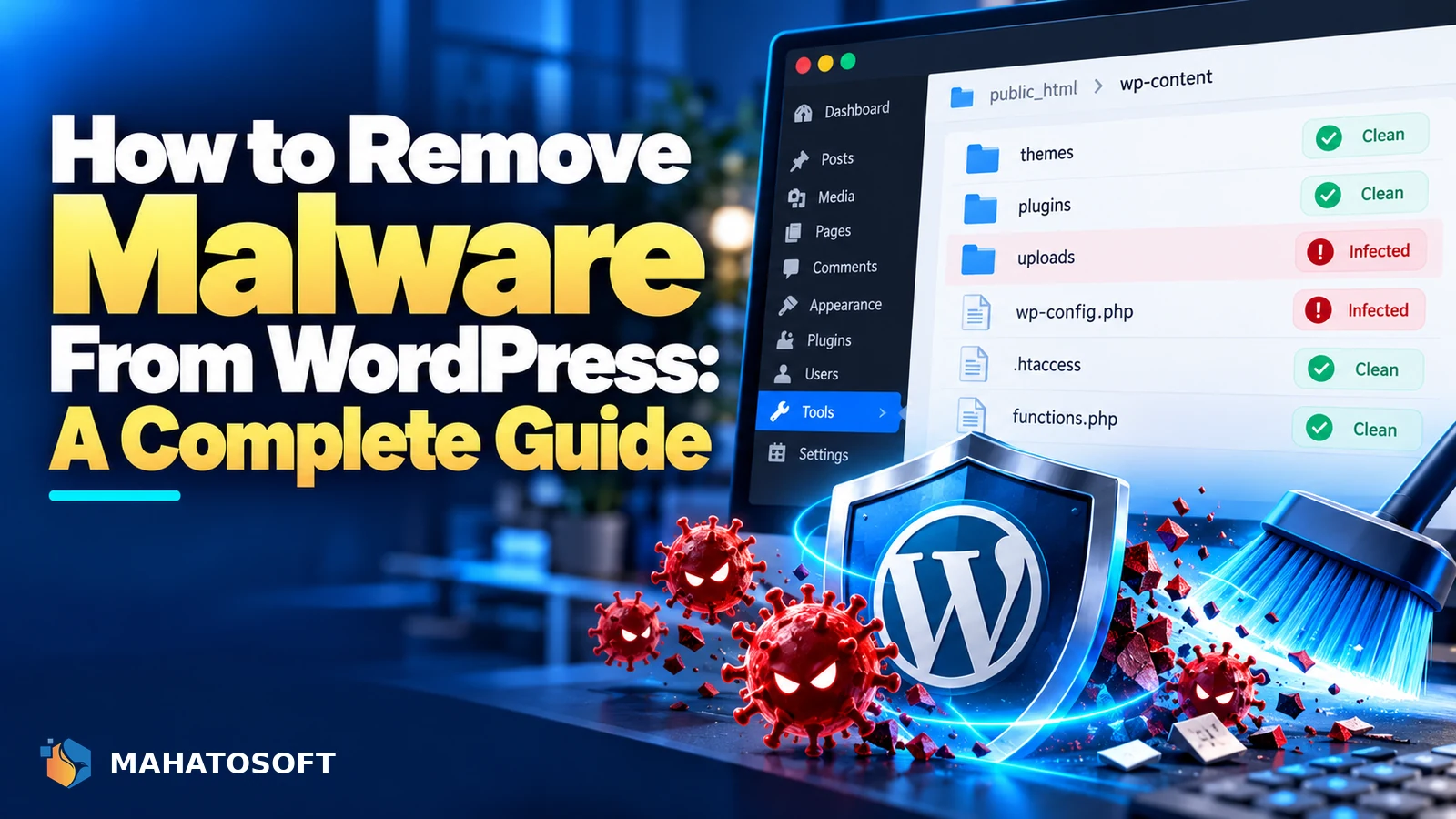
To remove malware from WordPress properly, you need to do more than delete a few suspicious files: you need to find every place the infection left something behind, close the hole it used to get in, and confirm it is genuinely gone before bringing the site back. This guide walks through the full process a thorough clean-up actually involves.
If you have not yet worked through the immediate first-hour steps, our guide on what to do when a WordPress site is hacked covers those first: taking the site offline, changing passwords, and identifying obvious signs. This guide picks up from there with the actual clean-up.
Keep a copy of the infected state
Before deleting anything, take a full backup of the site exactly as it is now. If the clean-up goes wrong, or you need to check what was there later, this is the only record you will have.
Where WordPress malware typically hides
| Location | What to look for |
|---|---|
| wp-config.php | Unfamiliar code added above or below the normal configuration lines |
| .htaccess | Redirect rules you did not add, often sending search engines to spam pages |
| Theme functions.php | Injected code that runs on every page load, often base64-encoded |
| Uploads folder | .php files that should never exist among images and media |
| Database, wp_options table | Rogue entries under active_plugins, or injected scripts in widget content |
| Database, wp_users table | An extra administrator account you did not create |
Step 1: scan with a dedicated security tool
A malware scanner such as Wordfence, Sucuri or MalCare checks your files against known malware signatures and flags anything suspicious. This catches most common infections quickly, but no scanner catches everything, especially custom or well-hidden code, so treat a clean scan as a starting point rather than proof the site is safe.
Step 2: compare core files against a known-clean copy
WordPress core files should never be modified directly. Download a fresh copy of the same WordPress version from wordpress.org and compare it against your live files, either with a diff tool or by simply replacing wp-admin and wp-includes entirely, since nothing in those folders should be custom.
Step 3: check every theme and plugin file
Replace your active theme and every plugin with fresh copies downloaded directly from WordPress.org or the original vendor, not copies from your infected install. If you use a premium theme or plugin from outside the official repository, download it again from the vendor’s own account area rather than trusting the version already on your server.
Delete any plugin or theme you do not actively recognise using. Unused, outdated software is one of the most common ways attackers get back in after a first clean-up. Skipping this step is why some site owners try to remove malware from WordPress once and see it return within days.
Step 4: inspect the uploads folder for hidden PHP files
The /wp-content/uploads/ folder should only ever contain images, documents and media, never executable PHP files. Search it specifically for any file ending in .php, .phtml or similar, since attackers often hide backdoors here precisely because site owners rarely look.
Step 5: clean the database, not just the files
Malware often injects itself into the database too, most commonly in the wp_options table’s widget or theme settings, or directly into post content as a hidden script. Search the database for suspicious patterns such as eval(, base64_decode(, or unfamiliar iframe tags, using phpMyAdmin’s search function or a plugin built for this. Remove anything you did not add yourself, after confirming it is not a legitimate use by a plugin you trust.
Step 6: remove unfamiliar admin users and check user roles
Go to Users → All Users and delete any administrator account you did not create, including ones with names close to legitimate-looking usernames. Check remaining accounts have the correct role too, since an attacker can sometimes upgrade an existing low-privilege account instead of creating a new one, which is easy to miss.
Step 7: change every credential and regenerate security keys
Change your WordPress admin password, hosting control panel password, database password, and FTP/SFTP credentials. Then regenerate the security keys and salts in wp-config.php using the WordPress.org secret key generator, which invalidates any stolen session cookies immediately.
Step 8: find and close the entry point
Cleaning malware without fixing how it got in is the single biggest reason it comes back. Check your host’s access logs around the time the infection started for the specific file or request that introduced it, and check whether an outdated plugin’s version at that time had a known, published vulnerability.
Step 9: confirm the site is actually clean
Run a fresh scan after finishing the steps above, and check Google Search Console’s Security Issues section if the site was flagged. Request a review once you are confident the infection is fully removed; reviews typically take a few days, and requesting one before the site is genuinely clean only delays recovery further.
How long a proper clean-up takes
A straightforward infection caught early, with a recent clean backup available, can often be resolved in a few hours by restoring the backup and confirming the entry point is closed. A deeper infection spread across many files, or one with no reliable backup to fall back on, can take a day or more to clean thoroughly and verify, since every file and database table needs checking rather than just the obvious ones.
Preventing reinfection
- Keep WordPress core, every plugin and your theme updated at all times.
- Use strong, unique passwords and add two-factor authentication for every admin account.
- Remove plugins and themes you are not actively using, rather than just deactivating them.
- Keep a security plugin running continuously for ongoing scanning, not just for the one-time clean-up.
- Keep offsite backups so a future infection can be resolved by restoring a clean copy quickly.
Want it cleaned properly, the first time?
We remove malware from WordPress sites from $120, with an emergency lane on WhatsApp (+880 1722 859059) for sites actively serving malicious content. Get help now, or ask about our ongoing maintenance plan to stop it happening again.
Remove malware from WordPress: quick answers
Can I remove malware from WordPress myself without technical skills?
A security plugin’s scan-and-clean feature handles common infections without much technical knowledge. A deeper or custom infection, especially one hidden in the database or a backdoor file with an unusual name, is harder to catch without file comparison skills and usually worth getting help for.
Will a security plugin alone remove malware from WordPress completely?
It catches most known malware signatures reliably, but not everything, particularly custom code written specifically for your site. Combining a scanner with a manual check of core files, the uploads folder and the database gives far more confidence the site is genuinely clean.
How do I know if I successfully removed malware from WordPress?
Run a fresh scan after finishing every step, check your file modification dates for anything recent you cannot explain, and monitor for a few days afterward. If Google flagged the site, only request a review once you are confident every trace is gone.
Why does malware keep coming back after I remove it?
Almost always because the entry point was never closed: an outdated plugin, a weak password, or a backdoor file missed during clean-up. Removing the malware without fixing how it got in only buys a temporary reprieve. That is why every step above matters if you want to remove malware from WordPress for good, not just for the next few weeks.