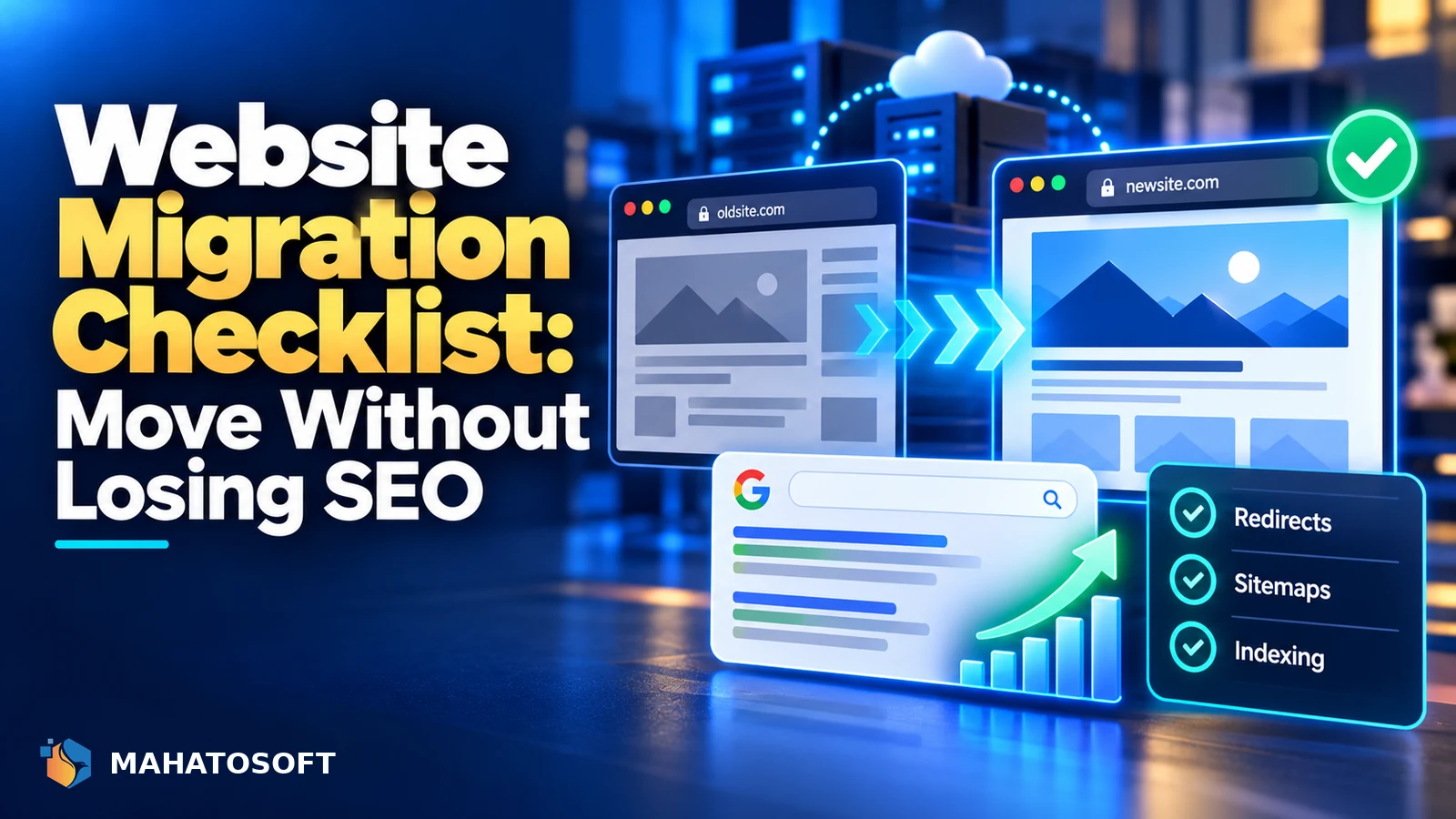
A website migration checklist matters because the risk in moving a site is almost never the move itself; it is the small details that get forgotten under time pressure: a missed redirect, a DNS record left behind, or SEO rankings that quietly drop weeks later. This guide covers every stage, from before you touch anything to what to check for weeks after the migration is done.
“Migration” covers a few different situations here: moving to a new host, moving to a new domain, or both at once. Most of the checklist applies to all three; a few steps are specific to a domain change and are marked as such.
Never delete the old site until the new one is confirmed working
Keep the old hosting account and files live, even if paused, for at least two to four weeks after the move. It is your only fallback if something is wrong on the new site that you have not noticed yet.
Before the migration
- Take a full backup of files and database from the current site, and confirm the backup actually opens or restores correctly.
- Document current DNS records: A records, MX records, TXT records including SPF, DKIM and DMARC, and any CNAME records for subdomains.
- Make a list of every URL that gets significant traffic, using Google Analytics or Search Console, so you know what to check first after the move.
- Note any custom configuration: cron jobs, redirects already in place, SSL certificate details, and any server-level rules in
.htaccessor equivalent. - Choose a low-traffic time to run the migration, and tell anyone who needs to know in advance.
During the migration
| Step | Detail |
|---|---|
| Move files and database | Use your host’s migration tool, a plugin like Duplicator or All-in-One WP Migration, or manual SFTP and export/import |
Update wp-config.php |
New database name, user, password and host if the database also moved |
| Update site URL | Under Settings → General, or directly in the database if wp-admin is not accessible |
| Test on a temporary URL or by editing your local hosts file | Confirms the site works before DNS actually points there |
| Re-check file and folder permissions | New servers sometimes apply different default permissions |
Updating DNS (domain change or new host)
Point the domain’s A record to the new server’s IP address, and update any CNAME records the same way. If email is hosted separately from the website, which is common, do not touch the MX records; only change what actually needs to move.
DNS changes take time to propagate, typically minutes to a few hours depending on the record’s TTL. Lower the TTL a day or two in advance if you can, so the cutover happens faster once you make the change. Cloudflare’s DNS records documentation is a useful reference regardless of which registrar or DNS host you actually use, since the underlying record types are the same everywhere.
Use a tool like dig or an online DNS checker to confirm the new records have actually propagated to the resolvers you care about before assuming the cutover is complete everywhere. DNS is the step of a website migration checklist most people rush, and it is the one most likely to leave visitors on the old server briefly.
Redirects: the step most likely to be forgotten
If any URL structure is changing, whether due to a new domain or a new permalink structure, set up 301 redirects from every old URL to its new equivalent. Skipping this loses both direct traffic to bookmarked links and the SEO value built up on those pages over time.
For a same-domain host migration with no URL changes, redirects are usually unnecessary since the URLs stay identical; the main risk there is DNS and configuration, not redirects.
Protecting SEO during a website migration checklist
- Keep the exact same URL structure wherever possible; changing URLs unnecessarily is the single biggest avoidable SEO risk in a migration.
- Submit the updated XML sitemap in Google Search Console once the new site is live.
- If the domain changed, use Search Console’s Change of Address tool to tell Google directly.
- Check that
robots.txton the new site is not accidentally blocking search engines, which is a common mistake when a staging site’s restrictive robots.txt gets carried over to production.
Google’s own guidance on site moves with URL changes is worth reading in full if your migration includes a domain change.
Email and email deliverability
A hosting migration is a common moment for SPF to break, since the new server’s outgoing mail settings are not automatically included in your existing SPF record. Re-check SPF, DKIM and DMARC with our free checker after the move, especially if the new host sends WordPress notification emails through its own server.
If the site now sends email through a different method entirely, our guide on WordPress not sending emails covers the usual causes.
After the migration: weeks one to four
- Monitor Search Console for a spike in crawl errors or a drop in indexed pages.
- Check Core Web Vitals on the new server, since hosting quality directly affects speed.
- Test every form, checkout flow if applicable, and any third-party integrations again after a few days, not just immediately after the move.
- Watch organic traffic in analytics for an unexpected drop, which can indicate a missed redirect or indexing issue.
- Cancel the old hosting only once everything above has stayed stable for at least two to four weeks.
Common website migration checklist mistakes
The most frequent problems we see are DNS records copied incompletely, especially email-related TXT records; a robots.txt file accidentally left blocking search engines; and redirects set up for only the most obvious pages while deeper, less-visited URLs are missed entirely and quietly lose their ranking.
A less obvious one: forgetting that some third-party services, such as a payment gateway or an embedded booking widget, are configured with your old domain or IP address on their end too. These need updating on the service provider’s side, not just in your own DNS or WordPress settings, or they will quietly stop working even though your own website migration checklist looks complete.
Consider a staging environment for anything complex
For a simple brochure site, migrating directly is usually fine. For an online store, a membership site, or anything with custom functionality, migrate to a staging URL first and test everything thoroughly there before pointing the live domain at it. This turns migration day into a DNS change alone, rather than a DNS change and a first-time test happening at once under time pressure.
Rather have it handled for you?
We handle website migrations, including DNS, redirects and email deliverability, as part of our web development work from $450. Book a free 15-minute call or get a quote.
Website migration checklist: quick answers
How long should a website migration take?
The technical move itself, files and database, often takes under an hour for a typical small business site. Full DNS propagation and confirming everything works properly can reasonably take a few days on top of that.
Will I lose SEO rankings during a website migration?
A well-executed migration following a proper website migration checklist, with correct redirects and unchanged URLs where possible, typically causes minimal or temporary ranking fluctuation. Rankings dropping and staying down usually points to a missed redirect or an indexing problem.
Do I need to update SPF, DKIM and DMARC when I migrate hosting?
Often yes, especially if the new host sends any mail on your behalf, such as WordPress notification emails. Re-check your records with a free checker after the move rather than assuming they still apply.
Should I migrate on a Friday or over a weekend?
Avoid it if possible. If something goes wrong, you want your host’s support and your own team available quickly, which is harder on a weekend or right before one.