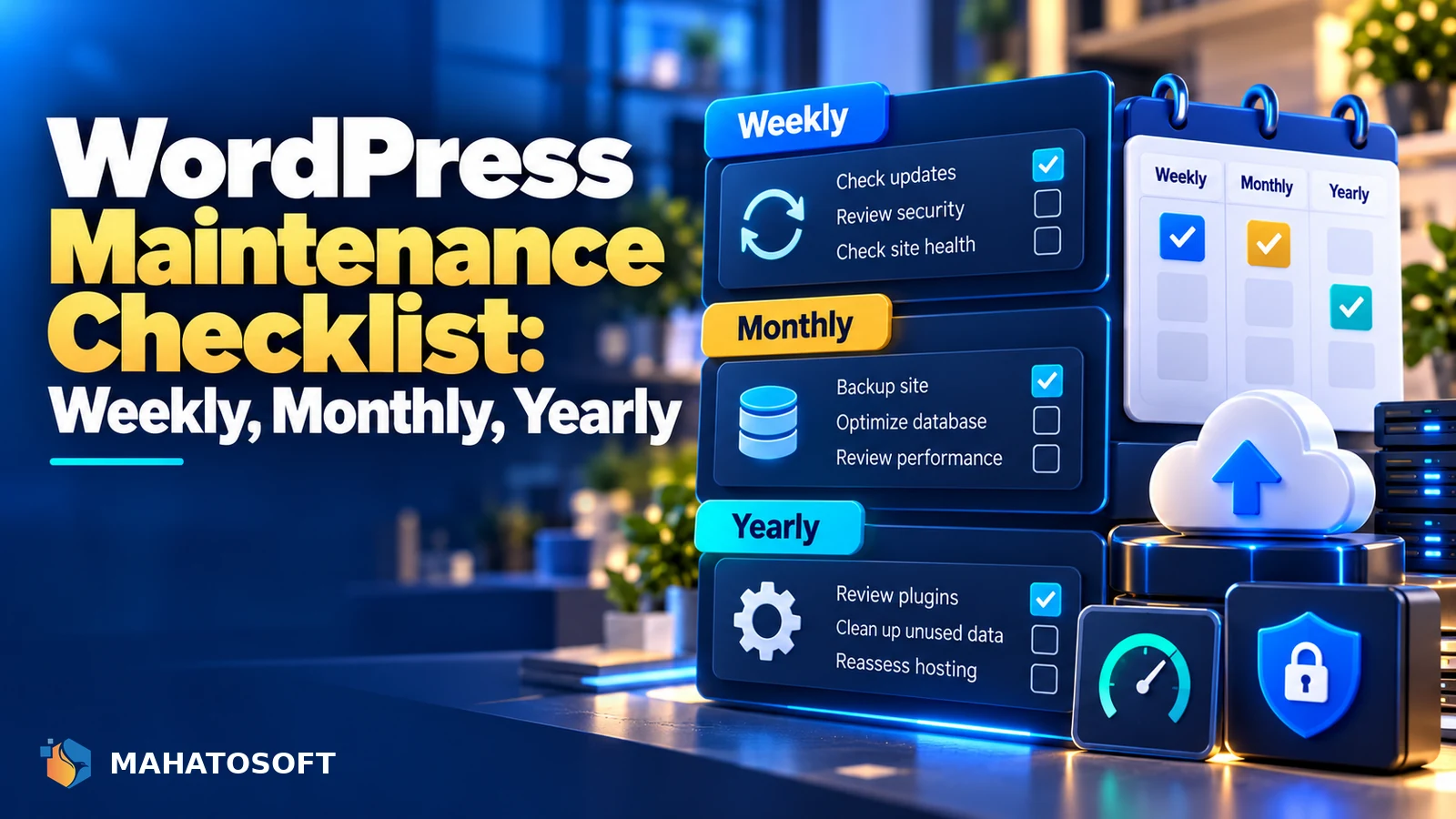
A wordpress maintenance checklist you actually follow prevents most of the emergencies that turn into an expensive same-day fix. Most tasks take a few minutes, and none of them need to happen every day. This guide splits everything into weekly, monthly and yearly tasks so you know exactly what to check and when.
Skipping maintenance does not usually break a site immediately; it accumulates. An outdated plugin sits fine for months until it is the one with the security hole an attacker finds, or the update that finally breaks compatibility with everything else.
Start with what you do not already have
Before working through the checklist, confirm you actually have automated backups running and can find them. Everything else on this list is far less urgent if a real backup already protects you from the worst outcomes.
Weekly WordPress maintenance tasks
| Task | Why it matters |
|---|---|
| Check for plugin and theme updates | Security patches are often released between major versions |
| Review Site Health under Tools → Site Health | Flags critical issues WordPress itself can detect |
| Check comment spam and moderate the queue | Prevents spam links from building up and hurting SEO |
| Scan uptime monitor or check the site loads correctly | Catches outages before customers report them |
| Glance at analytics for unusual traffic drops | Can be an early sign of an indexing or hack issue |
Monthly WordPress maintenance tasks
- Run a full backup restore test, at least to a staging environment, to confirm your backups actually work rather than assuming they do.
- Update WordPress core if a new version has been released and your host has not applied it automatically.
- Review installed plugins and remove any you are no longer actively using; unused plugins are still a security surface even when deactivated.
- Check broken links using a plugin or an external checker, since accumulated 404s hurt both user experience and SEO.
- Review user accounts under Users, removing access for anyone who no longer needs it.
- Check page speed with PageSpeed Insights, since a plugin update can occasionally slow the site down without an obvious symptom.
Every few months
- Review your PHP version under Site Health, and update it if you are more than one major version behind the current release.
- Test the contact form and checkout, if applicable, end to end as a real visitor would, since these quietly break more often than people expect.
- Check email deliverability with our free SPF, DKIM and DMARC checker, since DNS settings can drift when other services are added or removed.
- Run a security scan with a plugin such as Wordfence or Sucuri, even without a specific symptom prompting it.
Yearly WordPress maintenance tasks
- Review your hosting plan against your current traffic and needs; a plan that fit two years ago may now be too small, or you may be overpaying for capacity you do not use.
- Audit every plugin’s development activity on wordpress.org; abandoned plugins with no updates in over a year are a growing security risk.
- Renew and check your domain and SSL certificate auto-renew correctly rather than assuming they do.
- Review your backup strategy itself: where backups are stored, how many versions are kept, and whether that still matches how critical the site has become to the business.
- Update copyright year, expired offers and outdated content that quietly signals a neglected site to visitors.
Who should own each part of the checklist
On a small business site, one person can usually run this entire wordpress maintenance checklist without much trouble. Once several people publish content, or the site generates real revenue through e-commerce or lead forms, it helps to assign clear ownership: one person responsible for updates and security, another for content accuracy, and someone who actually reviews analytics rather than just glancing at a dashboard number.
Without a named owner, maintenance tasks tend to drift, since “someone should update the plugins” rarely gets done as reliably as “you update the plugins every Monday morning.”
What to automate instead of doing manually
Not everything on a maintenance list needs a human to run it every time. Automated daily backups, uptime monitoring with alerts, and automatic minor WordPress core updates are all things most hosts or a simple plugin can handle without you thinking about them. Save your own time for the tasks that genuinely need judgment: deciding whether an update is safe to apply, reviewing what a security scan actually found, or testing a checkout flow as a real customer would.
The WordPress handbook’s upgrade guidance and the handbook’s backup guidance are both worth a read if you want the fuller reasoning behind these recommendations.
Tools that make a wordpress maintenance checklist easier to follow
An uptime monitor that emails or texts you the moment the site goes down turns “check the site loads” from a manual weekly task into something that alerts you within minutes. A security plugin’s weekly email digest does the same for scans. Most backup plugins can send a confirmation after every successful run, which is the easiest way to actually notice if backups silently stop working, rather than discovering it only when you need one.
Signs your site has outgrown DIY maintenance
If updates are starting to feel risky because the site is complex enough that something usually breaks, if you genuinely do not have time to run this checklist even monthly, or if you have already had one hack or major outage, a maintenance plan is often cheaper than the cost of the next emergency. Ongoing plans also typically include the judgment calls: someone actually reviewing what a scan found, deciding whether an update is safe to apply this week, and following up when a task on the checklist gets missed, rather than just running through the list mechanically.
Rather have it handled for you?
Our WordPress maintenance plans start at $80/month and cover updates, backups and monitoring so this checklist runs itself. See the maintenance plan or book a free 15-minute call.
WordPress maintenance checklist: quick answers
How often should I actually update WordPress plugins?
Check weekly, and apply security updates promptly since they patch known vulnerabilities that attackers actively scan for. Larger feature updates are safer to test on staging first if the site is complex or heavily customised.
Is a wordpress maintenance checklist enough, or do I need a plugin too?
A checklist tells you what to check; a security and backup plugin does the actual work in the background between your checks. Use both together rather than relying entirely on either one.
What is the single most important item on a WordPress maintenance checklist?
Working, tested backups. Every other maintenance task reduces risk, but backups are what actually saves you when something goes wrong despite everything else being done correctly.
How long does monthly WordPress maintenance actually take?
For a straightforward site with a handful of plugins, usually 30 to 60 minutes a month once you have a routine. Larger sites, e-commerce stores, or sites with many plugins take longer and benefit more from a dedicated maintenance plan.