

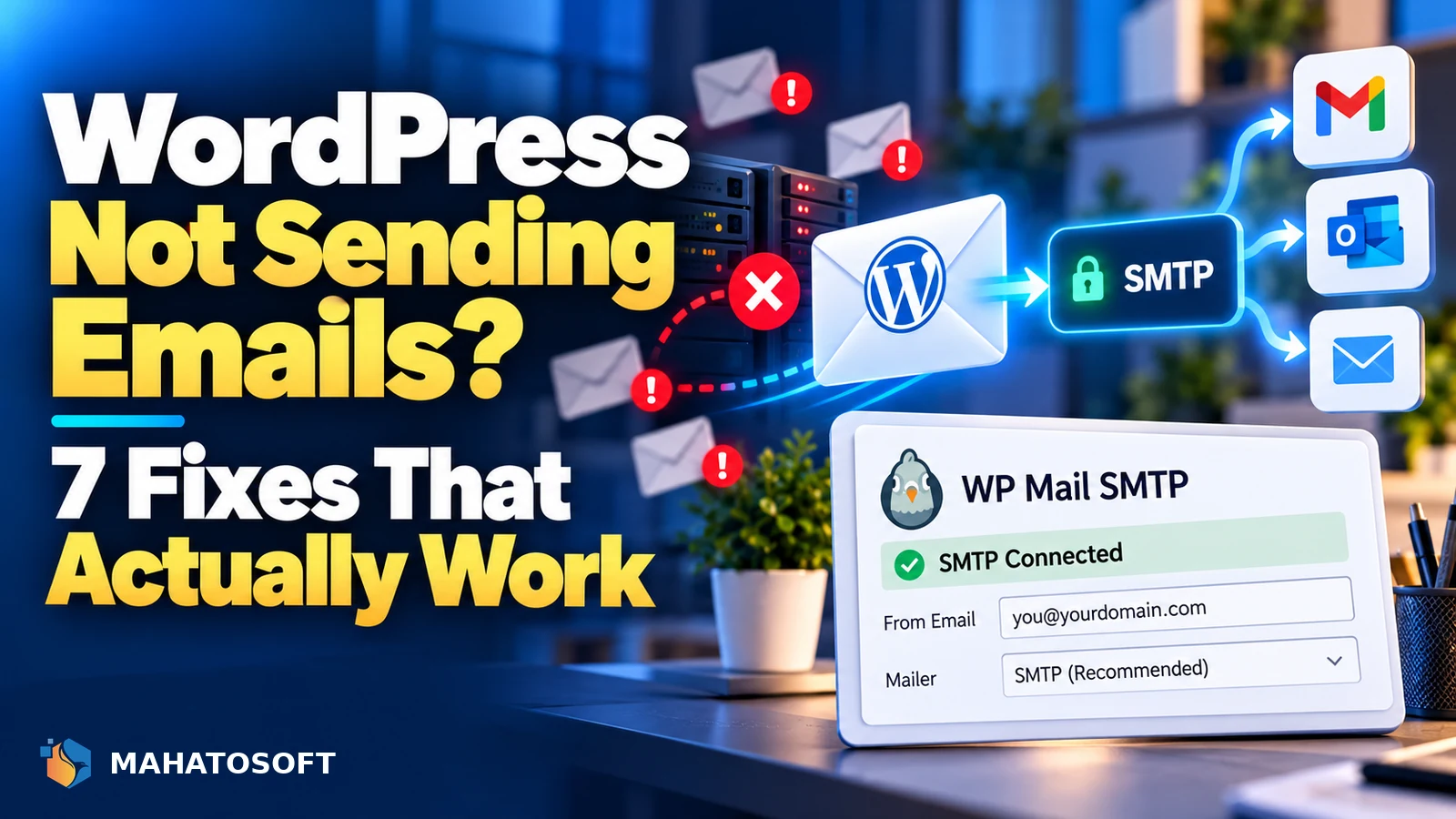
WordPress not sending emails, whether that is password resets, contact form notifications, or WooCommerce order confirmations, is almost always caused by the same root issue: WordPress sends mail through PHP’s built-in mail function by default, which most receiving servers no longer trust. The fix is not to debug that function endlessly, but to replace it with proper authenticated SMTP. Here are the seven fixes that actually resolve it.
Before changing anything, confirm the emails are genuinely not sending, rather than being sent but landing in spam or being silently rejected. Check the spam folder of the receiving address first, since the fix is different depending on which one you are actually dealing with.
Check your domain’s authentication first
Put your domain into our free SPF, DKIM and DMARC checker. If these are missing, that alone explains most cases of WordPress not sending emails reliably.
Why WordPress not sending emails is so common
By default, WordPress calls PHP’s mail() function, which sends mail directly from your hosting server rather than through a real, authenticated mail provider. That server is rarely listed in your domain’s SPF record and nothing signs the message with DKIM, so receiving servers like Gmail and Outlook either reject it outright or filter it straight to spam. Many hosts also block or heavily restrict PHP’s mail function entirely because it is so commonly abused for spam.
1. Install an SMTP plugin
This is the single most effective fix. Plugins such as WP Mail SMTP, FluentSMTP, or Post SMTP replace WordPress’s default mail function with proper SMTP, sent through a real mail account or transactional service instead of your hosting server directly. Install one, then follow its setup wizard to connect a sending method.
2. Connect to a real mail provider or transactional service
Connect the SMTP plugin to Google Workspace, Microsoft 365, or a transactional email service built for this purpose, such as Brevo, Postmark, SendGrid or Amazon SES. Transactional services are usually the better fit for automated site emails specifically, since they are built to handle high volumes of password resets and order confirmations reliably, separate from your everyday inbox.
3. Set the From address to match your own domain
Set the “From” email address in your SMTP plugin to an address on your own domain, not a generic address at your hosting provider or a free email service. This matters for authentication: your SPF and DKIM records only cover your own domain, so mail claiming to be from an address they do not cover fails those checks regardless of how it was sent.
4. Send a real test email
Every major SMTP plugin includes a built-in test email feature. Use it after setup, and check the test message arrives, including checking the spam folder specifically. If the test succeeds but real site emails still fail, the problem is likely a specific plugin or theme bypassing the SMTP configuration rather than the SMTP setup itself.
5. Check for a plugin conflict overriding mail settings
Some plugins, particularly older ones or security plugins with their own mail handling, can override or conflict with an SMTP plugin’s configuration. If test emails work but specific notifications, such as WooCommerce order emails, do not, check that plugin’s own email settings for a separate, conflicting configuration.
6. Check whether your host blocks outgoing mail ports
Some hosts, particularly budget shared hosting, block or restrict outgoing connections on the ports SMTP needs, commonly 587 or 465. If mail still fails after correct SMTP setup, ask your host directly whether outgoing SMTP connections on these ports are permitted from your account, and which port and encryption method they recommend.
7. Fix the underlying SPF and DKIM authentication
Even with SMTP correctly configured, mail still needs to pass authentication to reliably reach the inbox rather than spam. Confirm your SPF record lists your sending provider and stays under the 10-lookup limit, and that DKIM signing is switched on with that provider, not just published in DNS.
A note on WooCommerce order emails specifically
WooCommerce sends its own order confirmations, shipping notifications and admin alerts through the same WordPress mail system, so the same SMTP fix covers those too. If only WooCommerce emails fail while other WordPress emails work, check WooCommerce → Settings → Emails for a disabled email type or a custom “from” address that does not match your SMTP configuration.
Quick checklist
| Symptom | Start with |
|---|---|
| No emails arrive at all, anywhere | Fix 1 and Fix 2, install SMTP |
| Emails land in spam, not missing entirely | Fix 3 and Fix 7, From address and authentication |
| Only one type of email fails (e.g. WooCommerce) | Fix 5, plugin conflict |
| Test email works, real emails do not | Fix 5, check the specific plugin’s own settings |
| SMTP set up correctly, still fails | Fix 6, ask your host about blocked ports |
If you are seeing a specific rejection error
If mail is bouncing with a specific error rather than silently failing, the exact code narrows it down further. Our guides on Gmail’s 550 5.7.26 error and Outlook’s 550 5.7.515 error cover the two most common rejection codes for authentication failures in detail.
Testing tools worth using
Beyond your SMTP plugin’s own test feature, mail-tester.com gives a one-off test address and returns a full score with every authentication and content issue listed. For checking header-level detail on a real message, Gmail’s “Show original” view under the three-dot menu on any received email shows exactly which checks passed or failed.
Rather have it fixed for you?
We set up SPF, DKIM, DMARC and authenticated SMTP correctly for $49 flat, usually the same day. Get it fixed, with a passing test sent back to you as proof, or browse our step-by-step setup guides for your registrar and mail provider.
WordPress not sending emails: quick answers
Why is WordPress not sending emails after I moved hosts?
A new host often has different, sometimes stricter, rules around PHP’s mail function, and your SPF record almost certainly does not list the new server. Installing an SMTP plugin and connecting it to a real provider avoids relying on the hosting server’s mail function at all.
Is WordPress not sending emails the same as emails going to spam?
No, they are different problems with overlapping fixes. Not sending means the message never left your server successfully at all; going to spam means it was sent and delivered but filtered. Check your SMTP plugin’s activity log to tell the two apart.
Do I need a paid service to fix WordPress not sending emails?
Not necessarily. Connecting to a Google Workspace or Microsoft 365 account you already pay for works well for lower volumes. Transactional services often have a generous free tier for smaller sites, so cost is rarely the deciding factor.
Can a caching plugin cause WordPress not sending emails?
Rarely directly, since email sending happens server-side rather than through cached page output. It is worth ruling out only after checking SMTP configuration and authentication first, which are far more common causes.

Discussion
Join the conversation
No comments yet. Share a question or what worked for you.