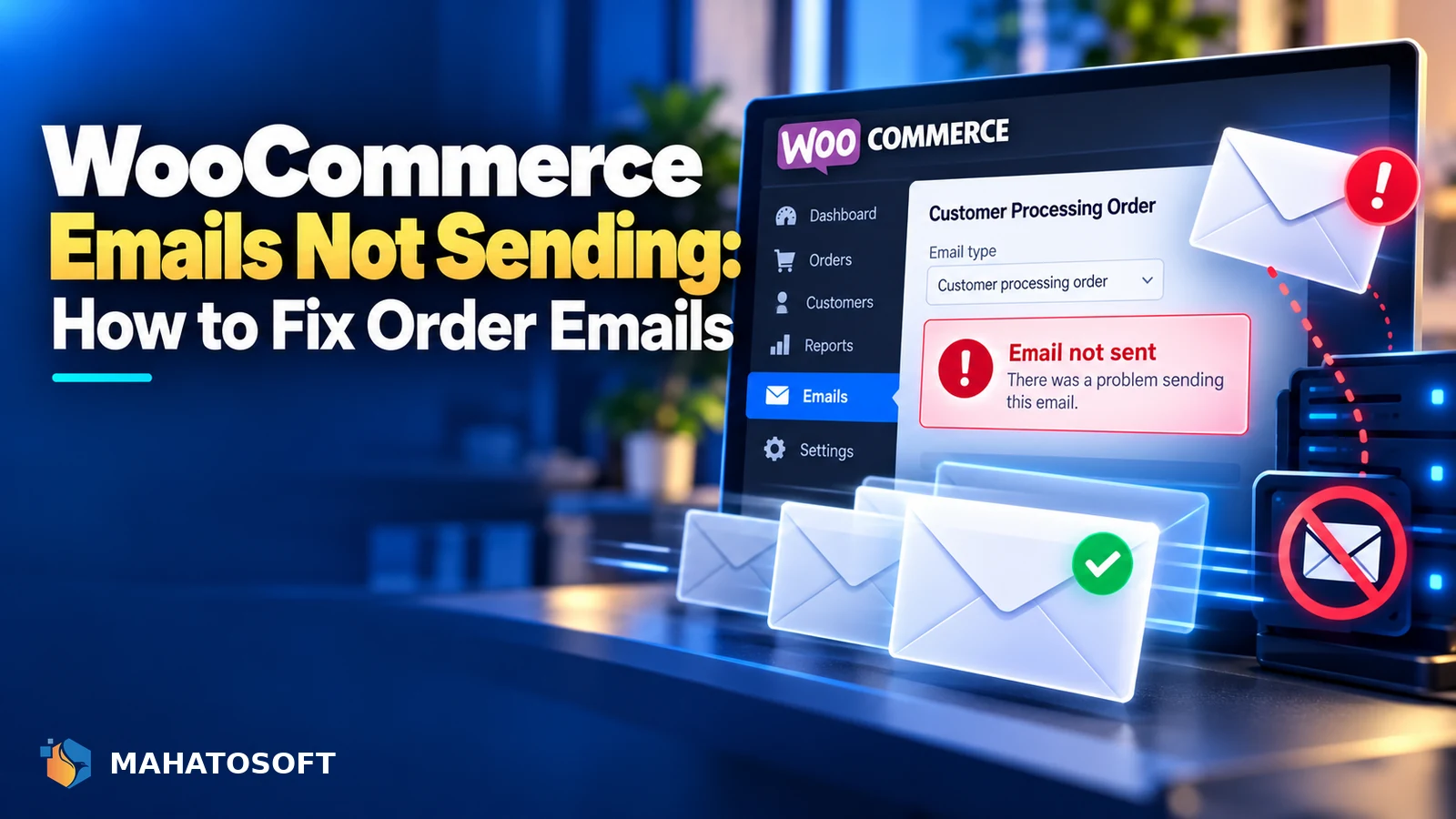
WooCommerce emails not sending means customers never get their order confirmation, and you often do not notice until someone emails asking where their receipt is. The root cause is almost always the same as any WordPress email problem: the store is trying to send through PHP mail instead of authenticated SMTP. Here is how to confirm that and fix it properly.
WooCommerce relies entirely on WordPress’s built-in wp_mail() function to send order emails, password resets and admin notifications. By default, that function uses PHP’s mail handler, which sends from your web server directly rather than through a real mail provider, and most receiving servers do not trust it.
Confirm it is actually an authentication problem
Send a test order to your own Gmail address, open it, click the three dots and choose Show original. If SPF or DKIM show FAIL or missing, that confirms the cause and you can skip straight to the SMTP fix below.
Step 1: Check WooCommerce’s own email settings first
Before assuming it is an authentication issue, rule out the simple settings problem. Go to WooCommerce → Settings → Emails and check each email type, such as “New order” or “Processing order”, is actually enabled. It is easy to accidentally toggle one off while editing templates.
Also check the “From” name and address at the bottom of the Emails settings page. Using an address on a domain you do not actually control, such as a personal Gmail address as the “From”, causes authentication to fail even with everything else configured correctly.
Step 2: Check whether the email is actually being sent
Install a free plugin such as WP Mail SMTP or FluentSMTP, even before configuring it fully, since both include an email log that shows every attempted send and whether it succeeded or failed at the server level. This immediately tells you whether the problem is WordPress failing to send, or the email arriving but landing in spam.
| What the log shows | What it means |
|---|---|
| Send failed / error shown | Server-level problem: PHP mail disabled, or SMTP misconfigured |
| Send succeeded, customer says nothing arrived | Almost always spam filtering or authentication failure |
| No log entry at all for the order | WooCommerce’s email trigger itself may be disabled, back to Step 1 |
Step 3: Set up real SMTP
Install WP Mail SMTP or FluentSMTP and connect it to an actual mail provider rather than PHP mail. Good options include:
- Your existing business email, such as Google Workspace or Microsoft 365, if you already use one and send volume is modest.
- A transactional email service such as Brevo, Postmark or Amazon SES, built specifically for order confirmations and password resets at higher volume with better delivery rates.
During setup, set the “From” address to one on your own domain, matching what you set in WooCommerce’s email settings, and complete the plugin’s authentication step, which typically uses OAuth or an API key rather than a stored password.
Step 4: Make sure SPF, DKIM and DMARC actually cover this sender
Whichever SMTP service you connect, it needs to be included in your domain’s SPF record, and ideally signs outgoing mail with its own DKIM key. If you switch from PHP mail to Google Workspace SMTP, for example, and Google Workspace is already in your SPF record for regular mailbox use, WooCommerce emails now authenticate correctly using the exact same record.
If you added a new transactional service instead, add its SPF include and set up its DKIM record following its own setup instructions. Check everything with our free SPF, DKIM and DMARC checker once configured. The SPF standard (RFC 7208) explains why a domain can only carry one SPF record, which matters if you already had SPF set up before adding this new sending source.
Step 5: Send a full test order
Place a real test order through the store, all the way to a completed payment if possible, rather than only using a plugin’s “send test email” button, since the actual order-confirmation email template can behave differently. Check that both the customer email and the admin new-order notification arrive, and check the Gmail “Show original” headers again to confirm SPF and DKIM now pass.
Other things that can stop WooCommerce emails specifically
- An email template plugin conflict: a heavily customised email template can sometimes break the send process if it has invalid HTML; test with the default WooCommerce template temporarily to rule this out.
- Caching plugins that cache AJAX or checkout pages: can occasionally interfere with the order-completion hook that triggers the email; exclude checkout and cart pages from caching.
- A plugin that disables wp_mail entirely for security reasons without you realising; check any security or firewall plugin’s settings for a mail-blocking option.
The WordPress developer reference for wp_mail() documents exactly how the underlying function behaves if you want to understand what WooCommerce is calling under the hood.
Which WooCommerce emails matter most to get right
Not every email carries equal weight. Order confirmation and shipping notification emails directly affect customer trust and support volume, since a customer who never received confirmation will often assume the order failed and either contact you or simply order elsewhere. Admin notifications matter for your own operations, since a missed “New order” email can delay fulfilment. Password reset and account emails matter less day to day but become urgent the moment a customer is actually locked out, so it is worth testing all of them, not only the order confirmation.
If checkout itself is broken, not just the emails
An order not completing at all is a different problem from WooCommerce emails not sending for an order that did complete. If orders are not going through in the first place, see our broader WooCommerce checkout not working guide before assuming it is an email issue.
Rather have it fixed for you?
We fix WooCommerce emails not sending and set up SPF, DKIM and DMARC correctly for $49 flat, usually the same day. Get it fixed.
WooCommerce emails not sending: quick answers
Why are WooCommerce emails not sending only to some customers?
This pattern usually points to spam filtering rather than a total send failure, since some receiving providers are stricter than others. Gmail and Outlook.com tend to enforce authentication checks more aggressively than smaller providers.
Do I need a paid SMTP service, or is a free plan enough?
Most small stores fit comfortably within the free tiers of services like Brevo or Amazon SES, which allow a meaningful number of emails per day at no cost. Only high-volume stores typically need a paid plan.
Will fixing WooCommerce emails not sending also fix my contact form emails?
Yes, if both use WordPress’s wp_mail() function, which most contact form plugins do by default. Setting up SMTP correctly fixes deliverability for every plugin that sends mail through the same underlying function.
How do I know if an email actually failed versus just landed in spam?
Check the email log in WP Mail SMTP or FluentSMTP. A “sent successfully” status there means the problem is on the receiving end, most likely spam filtering; an error status means WordPress itself failed to send it.