

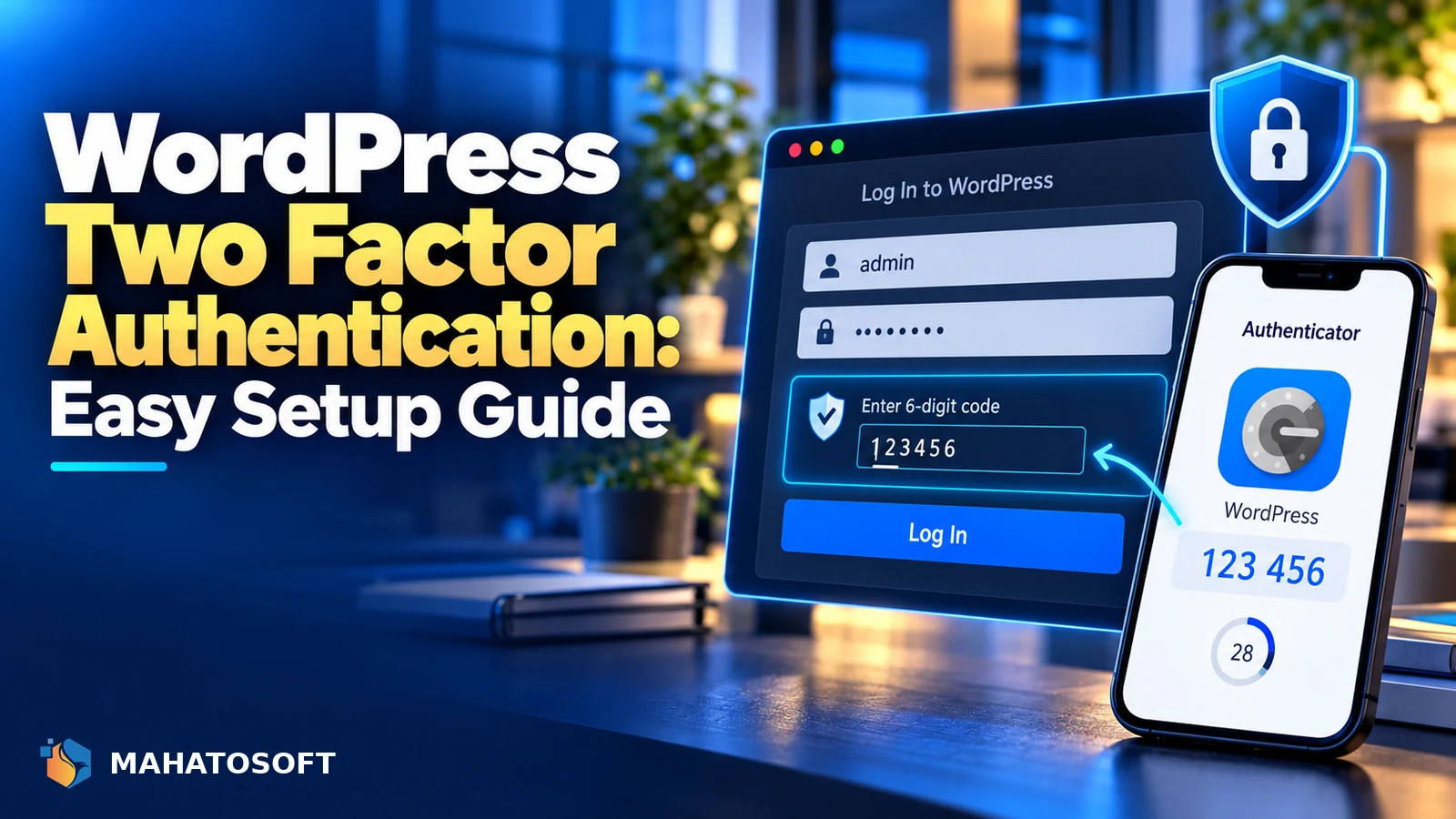
WordPress two factor authentication adds a second check, usually a six-digit code from your phone, on top of your password when logging in. It is one of the highest-value, lowest-effort security changes you can make, since a leaked or guessed password alone is no longer enough for an attacker to get into your dashboard.
WordPress core does not include two-factor authentication out of the box, so you need a plugin. The good news is that setup for most sites takes under ten minutes and does not require any technical skill beyond installing a plugin and scanning a QR code.
Start with your highest-privilege accounts
If you cannot enable this for everyone immediately, prioritise every Administrator account first. These are the accounts an attacker gains the most from, and where a compromised password does the most damage.
How WordPress two factor authentication works
After entering your username and password as normal, you are asked for a second piece of proof before WordPress lets you in. The most common methods are:
| Method | How it works | Good for |
|---|---|---|
| Authenticator app (TOTP) | A time-based six-digit code from an app like Google Authenticator or Authy | Most users; works offline, no SMS cost |
| Email code | A one-time code sent to your registered email | A simple fallback, weaker if the email account itself is not well protected |
| Security key (hardware) | A physical USB or NFC key, such as a YubiKey | The strongest option, best for high-value accounts |
| Backup codes | A set of one-time codes generated in advance | Recovery when your usual device is unavailable |
An authenticator app is the best balance of security and convenience for most site owners and editors, with a hardware security key as a step up for the accounts that matter most.
1. Choose a two-factor authentication plugin
Several well-regarded free plugins add WordPress two factor authentication support, differing mainly in how many methods they support and whether they can enforce 2FA for other users, not just yourself. Look for a plugin that supports authenticator apps at minimum, lets you require 2FA for specific roles (such as Administrator and Editor), and provides backup codes in case a device is lost. Both the community-maintained Two Factor Authentication plugin and other well-reviewed options on WordPress.org cover these basics.
2. Set it up for your own account first
Install and activate the plugin, then go to your own user profile in Users → Profile or a dedicated settings page the plugin adds. Choose an authenticator app method, scan the QR code shown with an app like Google Authenticator, Authy or your phone’s built-in authenticator, and enter the six-digit code it generates to confirm the pairing.
Save your backup codes somewhere safe and separate from the device you use for 2FA, such as a password manager, not a note on the same phone. Losing both your authenticator device and your backup codes at once can lock you out of your own site.
3. Enforce it for other users, gradually
Most 2FA plugins let you require it for specific roles rather than every user at once. Start by requiring it for Administrators, then Editors, giving each group a grace period to set it up rather than locking everyone out immediately on the day you enable enforcement. Communicate the change in advance so nobody is caught by surprise mid-task.
4. Test the recovery process before you need it
Before relying on WordPress two factor authentication in production, deliberately test what happens if you lose access to your authenticator app: does a backup code work, can an admin reset another user’s 2FA from the dashboard, and is there a documented process your team knows about? Discovering this during an actual lockout is far more stressful than testing it once, calmly, in advance.
5. Combine it with the rest of your login security
- Two-factor authentication does not replace strong, unique passwords; it adds a second layer on top of them, and OWASP’s Top Ten lists broken authentication among the most common web application risks for exactly this reason.
- Pair it with a login attempt limiting plugin to slow down automated password-guessing before it even reaches the 2FA step.
- Remove unused accounts rather than relying on 2FA to secure logins nobody actually needs any more.
If your site has already shown signs of compromise, such as an unfamiliar admin account, adding 2FA now is still worthwhile, but read our guide on what to do when a WordPress site is hacked first, since a compromised site needs cleanup before login hardening alone can secure it.
A note on passkeys and passwordless login
Passkeys, a newer standard built on the same technology as hardware security keys, are increasingly supported by individual WordPress two factor authentication and login-security plugins as an additional option, letting you log in with your device’s built-in fingerprint or face recognition instead of typing a code. Support varies by plugin, so check the specific plugin you choose if this matters to you, rather than assuming every plugin supports it.
A note for stores and multi-user sites
WordPress two factor authentication does not need to be one-size-fits-all across every account. On a WooCommerce store or any site with several content editors, weigh convenience against risk per role. A content editor’s account being compromised is disruptive; an Administrator’s account being compromised on a store can mean stolen customer data or a hijacked payment setup. It is reasonable to require the strongest method, such as a security key, only for your highest-privilege accounts while using authenticator apps for the rest.
Document who has access to what, and review it periodically. A former contractor’s account left active, even with two-factor authentication enabled, is still an unnecessary point of access that should be removed rather than merely secured.
Rather have it set up properly for your whole team?
We set up WordPress security, including two-factor authentication and account hardening, as part of our security services from $120. Contact us, or see our ongoing maintenance plans for continuous protection.
WordPress two factor authentication: quick answers
Does WordPress have built-in two factor authentication?
Not in core. You need a plugin to add two-factor authentication to a WordPress login, though setup for most plugins is quick and does not require technical expertise.
Is an authenticator app better than SMS or email for two factor authentication?
Generally yes. An authenticator app works offline and is not vulnerable to SIM-swapping or an intercepted text message, which are real, if less common, risks with SMS-based codes.
What happens if I lose my phone and cannot access two factor authentication?
This is what backup codes are for; use one to log in and then set up 2FA again on a new device. If you did not save backup codes, an administrator with dashboard access can usually disable 2FA for your account from the plugin’s settings, or you can reset it via database access as a last resort.
Should every user on my WordPress site have two factor authentication?
Ideally yes, but prioritise Administrator and Editor accounts first if you are rolling it out gradually, since those roles cause the most damage if compromised.


Discussion
Join the conversation
No comments yet. Share a question or what worked for you.