

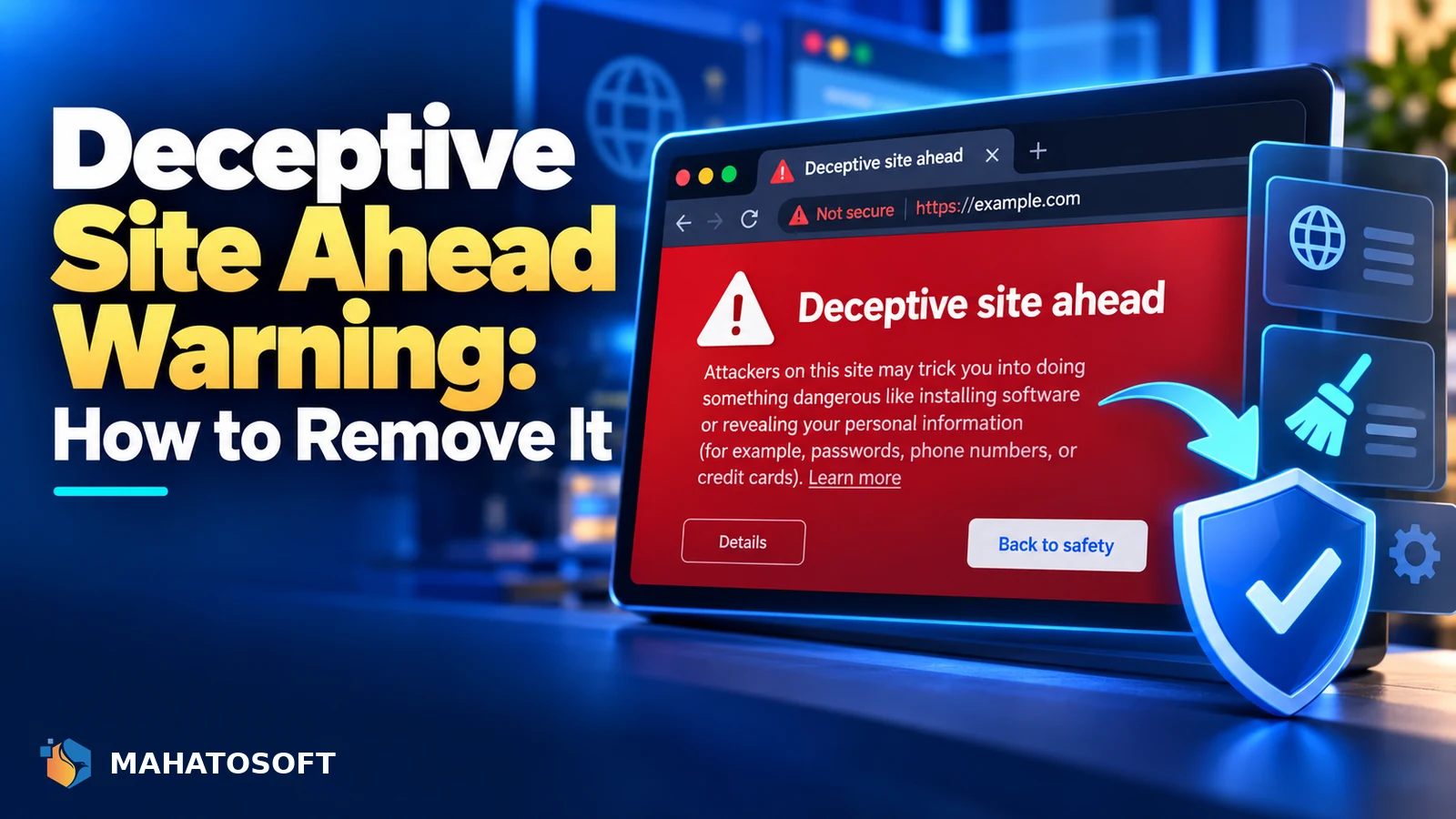
A deceptive site ahead warning stops visitors before they ever reach your site, shown by Chrome and other browsers using Google’s Safe Browsing system when it believes your site hosts phishing content or tries to trick visitors into giving up personal information. Traffic and trust drop to zero the moment it appears. Here is how to confirm the cause, clean it up, and get the warning removed.
This warning is different from a general “hacked” message; it specifically means Google’s Safe Browsing system detected social engineering content, such as a fake login page, a fraudulent download, or misleading content designed to trick a visitor into an unwanted action.
Confirm the warning first
Check Google’s Safe Browsing site status tool and search your domain directly. It confirms whether Google currently flags your site and gives a general reason, without needing to trigger the warning in your own browser.
What triggers a deceptive site ahead warning
| Trigger | Typical cause |
|---|---|
| Fake login or payment forms | A hacked site hosting a phishing page mimicking a bank or well-known service |
| Misleading download buttons | Injected ads or a compromised plugin serving deceptive “Download” prompts |
| Content mimicking a trusted brand | Malicious code impersonating a real company to steal credentials |
| Hidden or disguised links | Content designed to trick visitors into clicking something unintended |
Almost always, this means the site has been compromised and something was injected without the owner’s knowledge, rather than a deliberate choice by the site owner.
Step 1: Check Search Console for details
If you have Google Search Console set up for the domain, go to Security & Manual Actions → Security Issues. This usually gives far more specific detail than the browser warning alone, including example URLs on your site that triggered the flag, which saves significant time in the clean-up.
If you do not have Search Console verified yet, set it up now and verify ownership; it is free and is also how you will request a review once the site is clean.
Step 2: Find the injected content
Work through the same checks used for any WordPress hack, since a deceptive content flag is usually a symptom of the same underlying compromise:
- Compare WordPress core files against a clean download from wordpress.org for the same version.
- Check theme files, especially
functions.php, for unfamiliar code, particularly anything usingeval(,base64_decodeor similar obfuscation. - Check the
wp_postsandwp_optionsdatabase tables for injected content, especially around any URL Search Console flagged specifically. - Check for unfamiliar files in
wp-content/uploads, which should never contain executable PHP. - Review Users for any administrator account you do not recognise.
Our fuller guide on how to remove malware from WordPress walks through this process in more depth.
Step 3: Remove it completely
Delete every unfamiliar file and database entry you found, remove any admin account you did not create, and delete plugins and themes you do not actually use rather than just deactivating them. A partial clean-up is the most common reason this warning reappears within days of what looked like a successful fix.
Update WordPress core, every theme and every plugin to their current versions once the clean-up is done, since an outdated component is the usual entry point.
Step 4: Request a review
Once you are confident the site is genuinely clean, go to Search Console’s Security Issues report and click Request a Review. Describe specifically what you found and what you fixed; a vague “it’s fixed now” request is less likely to be approved quickly than a clear explanation.
Reviews typically take anywhere from a day to around a week. Avoid submitting multiple review requests in quick succession if the first has not been processed yet, since this does not speed things up.
Step 5: Lock the site down so it does not come back
- Change every password connected to the site: WordPress admin, database, and hosting/SFTP.
- Regenerate WordPress security keys, which instantly invalidates any existing session an attacker might still hold.
- Add two-factor authentication to every admin account.
- Install a security plugin that scans for file changes on a schedule, so a reinfection is caught within days rather than resurfacing as another deceptive site ahead warning weeks later.
Why this warning tends to come back if the clean-up is rushed
Attackers who plant phishing content often leave more than one way back in: a hidden admin account, a small backdoor file that recreates the malicious page, or a scheduled task that reinjects the content on a timer. Removing only the page or link that Search Console pointed to, without checking for these underlying mechanisms, is the most common reason a deceptive site ahead warning reappears within days of a site owner believing it was resolved.
Take the time to work through the full clean-up checklist above even if you have already found and deleted the obvious phishing page. The visible symptom and the actual point of compromise are often two different things.
The warning may take time to clear in other browsers
Safe Browsing data is shared by Chrome, Firefox and several other browsers, but each has its own caching and update schedule, so the warning can persist slightly longer in one browser than another even after Google’s review clears the flag. This is normal; give it a day or two across different browsers before assuming the fix did not work. If a browser still shows the warning well beyond that window, double-check that Search Console genuinely shows the Security Issues report as cleared, rather than assuming the browser alone is simply slow to update.
Note that shared-hosting neighbours can also matter here: on some shared hosting plans, a warning was occasionally reported against a shared IP address rather than your domain specifically. If your own domain shows clean in Search Console but a warning still appears intermittently, ask your host whether the IP itself has any outstanding reputation issues from another account.
Rather have it fixed for you?
We remove deceptive site ahead warnings and other malware from $120, with an emergency lane on WhatsApp (+880 1722 859059) for sites actively blocking visitors. Get it cleaned up, and consider our maintenance plan to catch the next one before it reaches this point.
Deceptive site ahead warning: quick answers
How long does a deceptive site ahead warning stay up after I fix the site?
Once you request a review through Search Console, it typically takes anywhere from a day to about a week for Google to recheck and clear the flag if the clean-up was genuinely thorough.
Will a deceptive site ahead warning hurt my Google rankings?
Yes, both directly through the Security Issues flag and indirectly since almost no visitor will click through a browser warning to reach your site, which affects traffic and engagement signals while it is active.
Can I remove the warning myself without a developer?
Yes, if you are comfortable working with WordPress files and a database directly. Many site owners can follow the steps above themselves; the main risk is an incomplete clean-up that lets the warning return.
Is a deceptive site ahead warning the same as a malware warning?
They are related but distinct classifications within Google Safe Browsing. Deceptive site warnings specifically flag phishing or trick content, while a separate malware warning flags content that tries to install harmful software on a visitor’s device.


Discussion
Join the conversation
No comments yet. Share a question or what worked for you.