

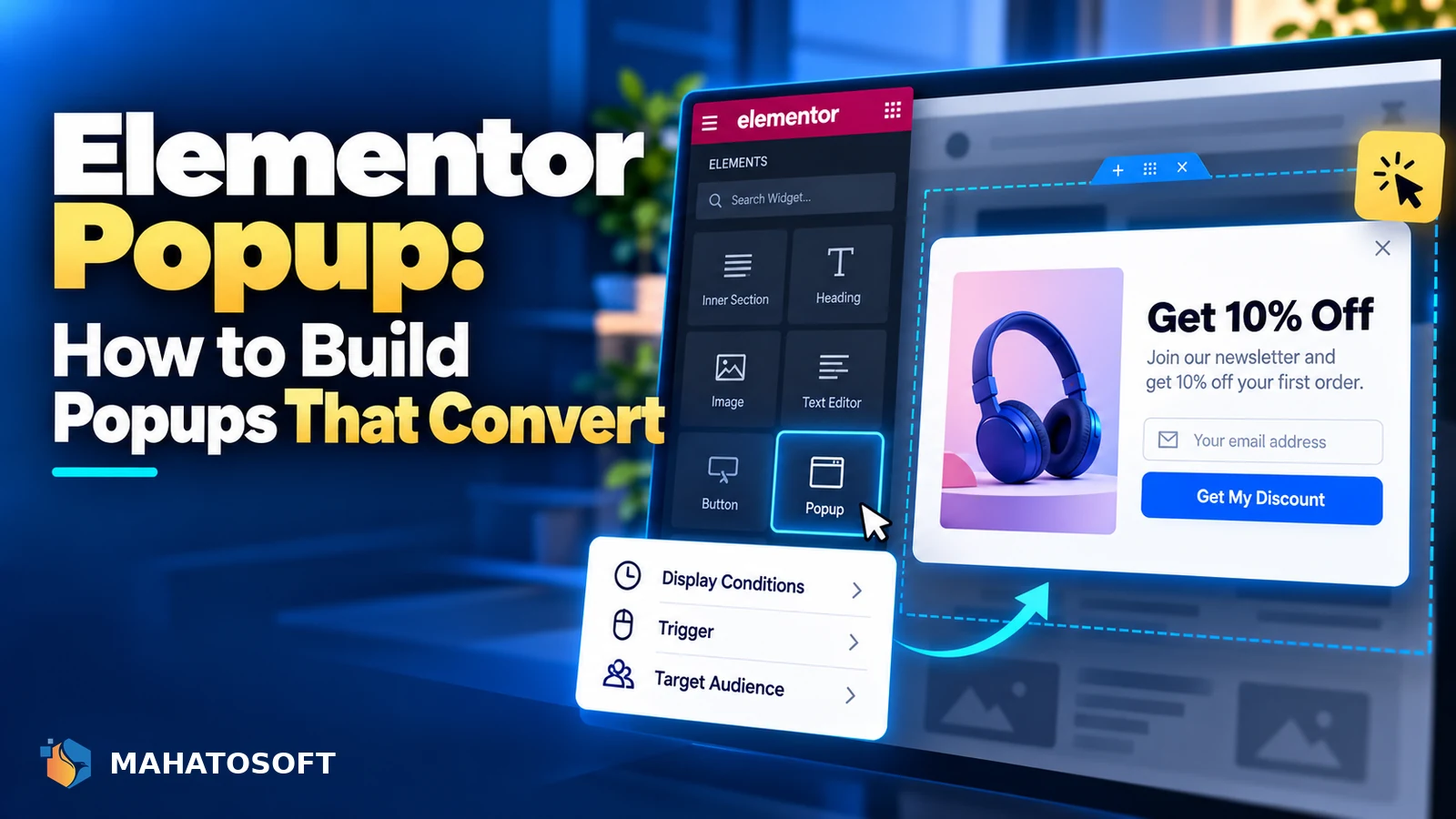
An Elementor popup can turn casual visitors into subscribers, leads or buyers, but only if it appears at the right moment and does not annoy the person reading your page. This guide covers how to build one, which triggers actually convert, and the display rules that stop a popup from hurting your Core Web Vitals or your visitors’ patience.
Some links in this article are affiliate links. If you buy through them, Mahatosoft may earn a small commission at no extra cost to you.
Elementor’s Popup Builder is part of Elementor Pro. It lets you design a popup with the same drag-and-drop editor you use for pages, then decide exactly when, where and to whom it should appear. There is no separate plugin to install.
Start with one goal per popup
Before you open the editor, decide what a single popup is for: an email signup, a discount code, a cookie notice, or an announcement. Popups that try to do two jobs at once almost always convert worse than one with a single, clear offer.
What you need before you build an Elementor popup
You need Elementor Pro active on the site, since Popup Builder is not part of the free version. You also need somewhere for the submitted data to go, such as an email marketing tool connected through Elementor’s form widget, or a simple webhook.
If you only want a plain announcement bar or a cookie notice with no form, you can build that with free widgets inside the same popup template, so Pro is still required for the popup mechanism itself but not for every element inside it.
How to create an Elementor popup
Go to Templates → Popups → Add New in your WordPress admin, name the template, and pick a starting layout: full screen, center box, left or right, bottom or top bar. A center box works well for signup offers; a bar suits announcements and cookie notices.
Elementor opens the popup in the normal editor. Build it with standard widgets: heading, text, image, form. Keep it short. A popup with a headline, one sentence of benefit, a single form field and a button converts better than a wall of text.
- Add a close button (X icon) in the top corner; do not rely only on clicking outside.
- Keep the form to one or two fields for the best completion rate.
- Make sure the popup looks right on mobile using the responsive preview before publishing.
Common Elementor popup types and when to use them
| Popup type | Best use |
|---|---|
| Center box / modal | Email signup offers, lead magnets, discount codes |
| Full screen | Age gates, one-time announcements, big promotions |
| Top or bottom bar | Cookie notices, shipping deadlines, site-wide announcements |
| Slide-in (left or right) | Secondary offers that should not block reading |
Triggers that decide when a popup shows
Under the popup’s Advanced → Popup Settings → Triggers tab, you choose what makes it appear. The trigger you pick matters more for conversions than the design does.
- On page load: fires immediately or after a delay in seconds. Best for cookie notices and time-sensitive announcements, worst for sales offers shown before a visitor has read anything.
- On scroll: appears once the visitor scrolls past a percentage of the page. Good for content upgrades on blog posts, since the reader has already shown interest.
- On click: attaches the popup to a button or link elsewhere on the page. This is the least intrusive option and usually has the best conversion rate, because the visitor asked for it.
- On inactivity: shows after the visitor has not interacted for a set number of seconds.
- Exit intent: shows when the cursor moves toward the browser’s close or back button on desktop. This does not work on mobile, since there is no cursor to track, so pair it with a scroll or inactivity trigger for mobile visitors.
Display conditions and advanced rules
The Display Conditions tab controls where a popup can appear: the entire site, specific pages, a category, or the whole site except a few pages such as your checkout. Set this narrowly. A discount popup on your checkout page can undercut a sale that was about to complete anyway.
Advanced Rules add conditions such as device type, logged-in status, or how many times a visitor has already seen the popup. Frequency is worth setting deliberately: showing the same popup on every visit trains people to close it without reading it.
Elementor’s own documentation on building popups with Popup Builder covers each setting screen in detail if you want the full reference.
Design choices that improve conversion
- Match the popup’s headline to what brought the visitor there, such as the blog post they were reading.
- Use one clear call-to-action button, not several competing options.
- State the benefit before you ask for anything, for example “10% off your first order” rather than “Join our newsletter.”
- Give the close button real size and contrast; a popup that is hard to dismiss frustrates people even when the offer is good.
- Avoid auto-playing sound or video inside a popup.
Do not let a popup hurt your Core Web Vitals
A popup that loads a large background image or shifts other content when it appears can hurt Cumulative Layout Shift (CLS), one of Google’s Core Web Vitals. Since a well-built popup is hidden until its trigger fires and overlays the page instead of pushing content down, it normally does not affect CLS, but an oversized background image inside it can still slow the page.
Keep popup images compressed, and avoid an on-page-load trigger with no delay, since that competes with your main content for the browser’s attention during the page’s first paint. If your site already loads slowly, fix that first; our guide to Core Web Vitals for WordPress covers the common causes.
Common mistakes that hurt conversion
- No exit or close option that is easy to find. This is the single biggest driver of visitors leaving the site entirely rather than closing the popup.
- Showing the popup instantly on every page. A short delay or a scroll trigger almost always converts better.
- Asking for too much. Name and phone number on a first popup will lose people that a single email field would have kept.
- Never testing on mobile. A popup that covers the whole screen with no visible close button on a phone is a common, easily missed bug.
Elementor popup not showing? Quick checks
If a popup you built refuses to appear on the live page, check the Publish Settings panel first; a popup template must be published, not just saved as a draft. Confirm the display conditions actually match the page you are testing on, and clear any caching plugin, since a cached page will not show a popup added after the cache was built.
If you use a page or object cache alongside Elementor, our guide to fixing Elementor when it is not loading covers the caching and conflict checks that also apply here.
Want a popup and landing page built for you?
We design and build Elementor Pro landing pages with popups configured to convert, or a full WordPress website if you are starting from scratch. Tell us what you need and we will quote a fixed price.
Elementor popup: quick answers
Do I need Elementor Pro to build an Elementor popup?
Yes. Popup Builder is a Pro feature and is not available in the free version of Elementor. Everything inside the popup, such as forms and buttons, uses the same widgets as the rest of the editor.
Why is my Elementor popup showing on every page visit?
Check the frequency setting under Advanced Rules in the popup’s settings; without it, the popup can reappear on every page load or every visit. Set a cookie-based limit, such as once per session or once every few days.
Can an Elementor popup hurt my SEO?
An oversized, hard-to-close popup that covers the main content on mobile can count against you under Google’s intrusive interstitial guidance, which affects search ranking on mobile. A small, easily dismissed popup with clear content is not a problem.
Why does my Elementor popup not show up after I published it?
The most common causes are a caching plugin serving an old version of the page, a display condition that does not match the page you are testing, or the popup template still being in draft rather than published.

Discussion
Join the conversation
No comments yet. Share a question or what worked for you.