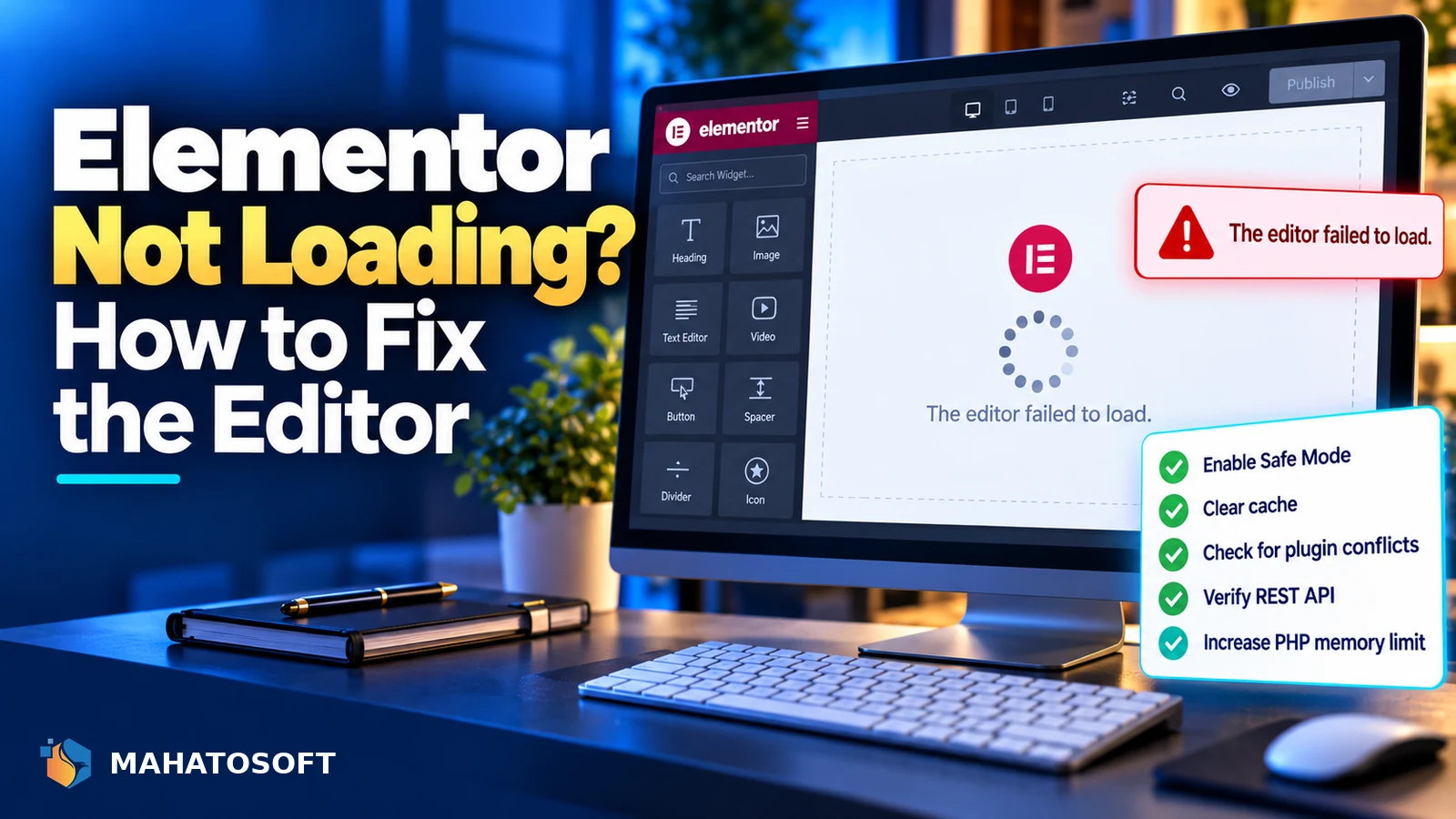
Elementor not loading usually shows up as a blank editor screen, an endless spinner, or a “The editor failed to load” message right when you need to make a quick edit. It is almost always caused by a conflict, a caching issue, or a resource limit rather than anything wrong with your actual page content. This guide works through the fixes in the order that resolves it fastest.
Some links in this article are affiliate links. If you buy through them, Mahatosoft may earn a small commission at no extra cost to you.
Before anything else, check whether the front end of your site still loads normally. If it does, the problem is isolated to the editor itself, which points at a JavaScript conflict or a caching issue rather than a broken page.
Try Elementor’s built-in Safe Mode first
Go to Elementor → Tools → Safe Mode and switch it on. This loads the editor with all other plugins and your active theme paused, so you can tell in seconds whether something else on your site is the cause.
Match your symptom to the likely cause
| What you see | Most likely cause |
|---|---|
| Editor spins forever, never appears | Plugin conflict or a JavaScript error |
| “The editor failed to load” message | REST API blocked, or a version mismatch |
| Editor loads but widgets panel is empty | Elementor Pro and Elementor core version mismatch |
| Editor loads slowly, then times out | PHP memory limit or slow hosting |
| Works in one browser but not another | Browser cache or an extension |
1. Turn on Safe Mode
Safe Mode is built specifically for this. With it on, the editor loads with only Elementor active, no other plugins and the default theme. If the editor loads fine in Safe Mode, something else on your site is the cause; if it still fails, the problem is with Elementor, your server, or your browser itself, not a conflict.
2. Clear your browser cache and try another browser
The Elementor editor runs almost entirely in JavaScript, so stale cached scripts are a common and easy-to-miss cause. Hard refresh the page (Ctrl+Shift+R or Cmd+Shift+R), then try a different browser or an incognito window with extensions disabled. Ad blockers and privacy extensions sometimes block scripts the editor needs.
3. Clear every caching layer on your site
A caching plugin or your host’s server-level cache can serve an old, broken version of editor scripts. Clear your caching plugin’s cache, then clear any CDN cache such as Cloudflare, and confirm the editor URL itself (containing ?elementor) is excluded from caching rules entirely.
4. Match Elementor and Elementor Pro versions
Elementor Pro depends on a compatible version of the free Elementor plugin. If one updated and the other did not, the editor can fail to load or show an empty widgets panel. Go to Plugins and update both together, and check the version numbers listed against each other in their changelogs if problems continue.
5. Check for a plugin conflict manually
If Safe Mode fixed it, narrow down the cause by deactivating your other plugins one at a time and reloading the editor after each, rather than leaving Safe Mode on permanently. Security plugins, other page builders, and SEO plugins with their own editor hooks are the most frequent culprits.
6. Check whether the REST API is blocked
Elementor’s editor relies on the WordPress REST API to save changes and load data. A security plugin, a firewall rule, or a restrictive .htaccess file can block it without any obvious error message. Test by visiting yoursite.com/wp-json/ directly; if it returns an error instead of JSON data, the WordPress REST API is blocked and needs to be allowed for logged-in editors.
7. Raise the PHP memory limit
A complex page with many widgets and dynamic content can need more memory to load in the editor than it does on the live front end. Add this to wp-config.php:
define( 'WP_MEMORY_LIMIT', '256M' );
If the editor loads further before failing, or loads correctly afterward, memory was the constraint. Ask your host to confirm the server-level PHP limit matches, since WordPress cannot exceed it.
8. Check your PHP and server requirements
Elementor publishes minimum PHP and WordPress version requirements for each release. Check Elementor → Tools → System Info against the Elementor hosting requirements page, especially after a hosting change or a PHP upgrade your host applied automatically.
9. Regenerate CSS and clear Elementor’s own cache
Elementor keeps its own generated CSS files, separate from any caching plugin. Go to Elementor → Tools → Regenerate CSS to rebuild them from scratch. This fixes cases where a corrupted CSS file, not the editor’s JavaScript, is the real cause of a broken-looking page.
When none of this fixes it
If the editor still will not load after Safe Mode, a clean browser and updated plugins, check your site’s error log for a PHP fatal error the same way you would for a critical error on the front end, since the underlying cause is often identical, just surfacing differently inside the editor.
At this point it is also worth ruling out your hosting environment itself. Shared hosting with tight resource limits can time out the editor’s initial load even when nothing is technically broken, especially on pages with many nested sections or dynamic widgets. Ask your host whether any PHP execution time or process limits were hit around the time the editor failed, since that detail rarely shows up anywhere in WordPress itself.
Preventing Elementor not loading in future
A few habits keep this from becoming a recurring problem:
- Update Elementor, Elementor Pro and your theme together, on the same day, rather than letting them drift apart.
- Test major updates on a staging copy before applying them to a live site, especially for stores or sites with heavy custom CSS.
- Keep browser extensions to a minimum on the computer you use for editing, since ad blockers and privacy tools are a disproportionately common cause.
- Review your site’s PHP error log occasionally, not just when something visibly breaks, since small warnings often precede a full failure.
Rather have it fixed for you?
We fix Elementor issues and build Elementor Pro landing pages and full WordPress sites. Contact us with your site address and what you are seeing.
Elementor not loading: quick answers
Why is Elementor not loading only for one page?
A single broken page usually means corrupted page data, a specific widget causing a conflict, or a plugin that only runs on that page template. Try creating a new test page to confirm the editor works elsewhere first.
Why is Elementor not loading after a WordPress update?
Check that Elementor and Elementor Pro are both updated to versions that support your new WordPress version. A gap of even one release behind can be enough to break editor compatibility.
Can a security plugin cause Elementor not loading?
Yes, most often by blocking the REST API or flagging the editor’s AJAX requests as suspicious traffic. Check the security plugin’s logs for blocked requests around the time you try to open the editor.
Does Elementor not loading mean I lost my page design?
No. Your page content and layout are stored safely in the database regardless of whether the editor itself loads. Fixing the underlying cause restores full editing access without affecting what is already published.