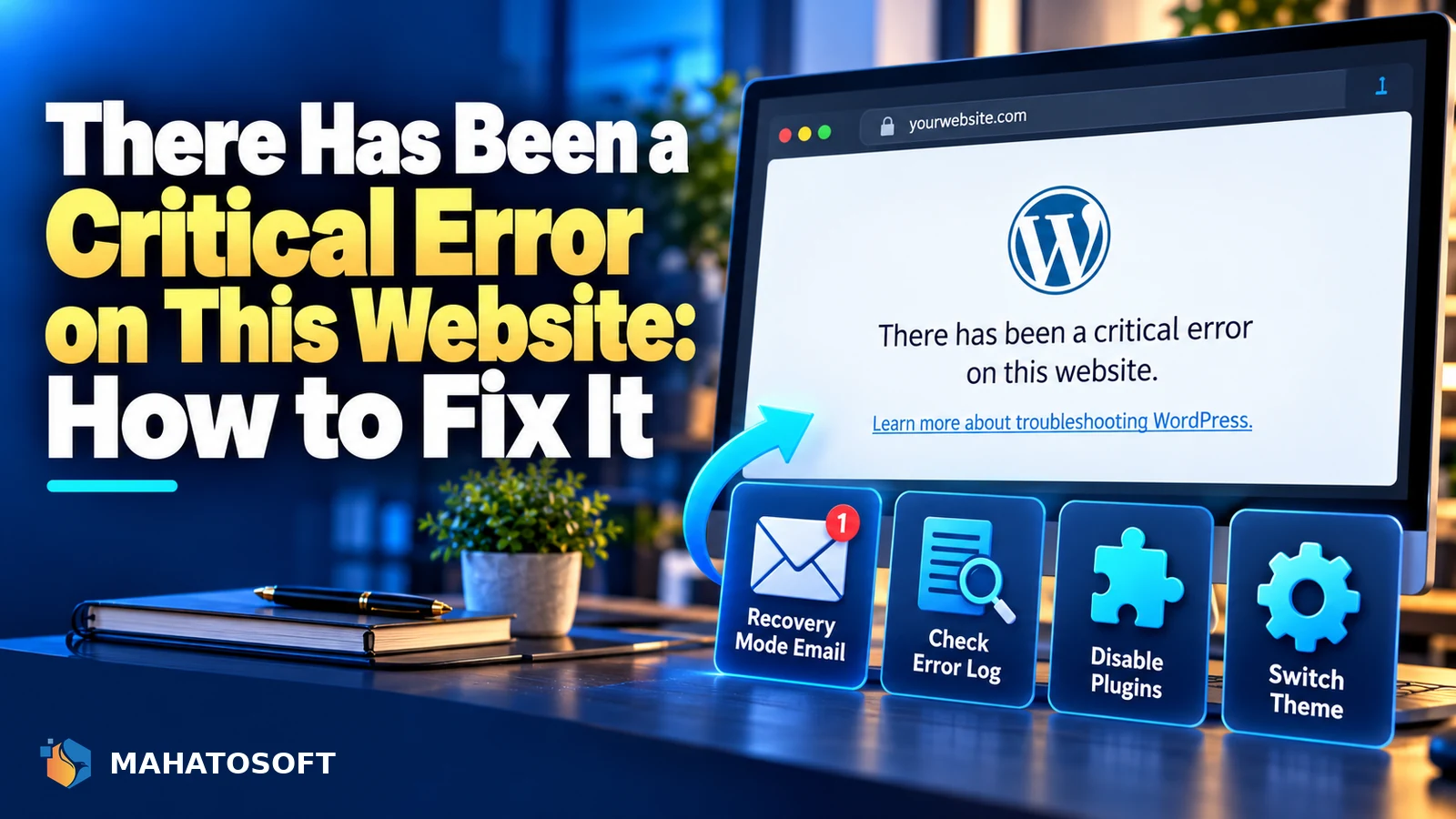
There has been a critical error on this website is WordPress telling you that PHP hit a fatal error it could not recover from, usually right after a plugin or theme update. It looks alarming, but in most cases nothing in your database has changed and the fix takes ten minutes once you find the file causing it. This guide walks through the fastest path to finding and fixing it.
WordPress added this friendlier message in version 5.2, replacing the old white screen with no explanation at all. If you have an email address associated with the site, WordPress usually sends a recovery mode link the moment the error happens, which is the fastest way in if you are locked out of wp-admin too.
Check your email before doing anything else
Search your inbox for a message from WordPress with the subject “Your Site is Experiencing a Technical Issue.” It contains a one-time recovery mode link that lets you log in and see exactly which plugin or theme caused the error, without touching any files.
What there has been a critical error on this website actually means
This message appears when PHP hits a fatal error during a page load, most often a function that no longer exists, a syntax error in a file, or a plugin calling something incompatible with your current PHP version. WordPress catches the crash and shows this generic message instead of a blank screen, but it deliberately does not say which file caused it unless you are logged in as an administrator or use recovery mode.
Common causes, roughly in order
| What just happened | Most likely cause |
|---|---|
| Updated a plugin or theme | Incompatibility with WordPress or PHP version |
| Nothing, it just appeared | A plugin auto-updated in the background, or a hosting PHP upgrade |
| Installed a new plugin | Conflict with an existing plugin or the theme |
| Edited theme files directly | A syntax error in functions.php or a template file |
| Migrated or restored the site | Missing files, or a plugin left in an inconsistent state |
Fix 1: use WordPress recovery mode
If you received the recovery mode email, click the link inside it. WordPress will log you in with the offending plugin or theme paused, show you exactly what caused the crash, and let you deactivate it properly from within wp-admin. This is by far the safest and fastest fix when it is available, since it needs no FTP access at all.
Fix 2: turn on WP_DEBUG to see the exact error
If recovery mode is not available, connect by SFTP and open wp-config.php. Add these lines just above “That’s all, stop editing!”:
define( 'WP_DEBUG', true );
define( 'WP_DEBUG_LOG', true );
define( 'WP_DEBUG_DISPLAY', false );
Reload the site, then check /wp-content/debug.log for the newest entries. The log names the exact file and line the fatal error came from, which tells you precisely which plugin or theme to deactivate. Remove these lines once you are done, since leaving debug display on can expose file paths to visitors.
Fix 3: deactivate plugins by renaming the folder
Without admin access, connect by SFTP or your host’s file manager and go to /wp-content/plugins/. Rename the whole folder to something like plugins-disabled, then reload the site. WordPress cannot find any plugins, so it disables them all, and the site should load again.
If it does, rename the folder back, then rename each plugin’s own subfolder one at a time, reloading the site after each, until it breaks again. That plugin is the cause. Delete or replace it, then rename the rest back.
Fix 4: switch the theme if plugins are not the cause
If disabling all plugins does not fix it, the theme is the likely culprit, especially after a recent edit to functions.php. Rename your active theme’s folder in /wp-content/themes/ to force WordPress to fall back to a default theme. If the site loads, the problem is in your theme’s code.
Fix 5: raise the PHP memory limit
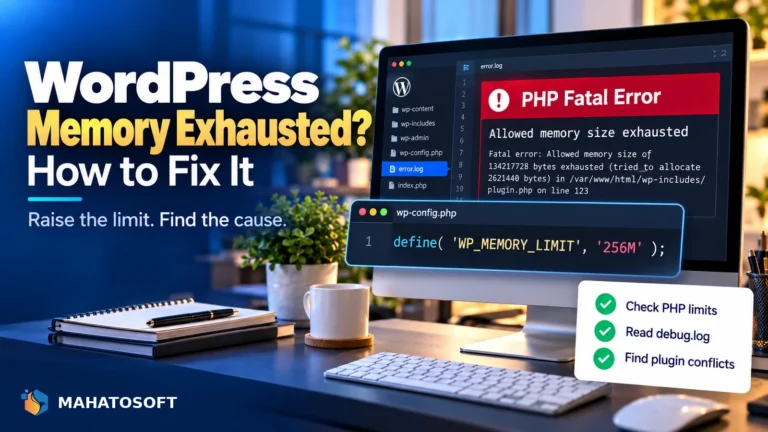
Some fatal errors are simply an “allowed memory size exhausted” error wearing the critical error message. Add this line to wp-config.php:
define( 'WP_MEMORY_LIMIT', '256M' );
If the error clears, your site genuinely needs more memory, often because of a heavy plugin, a page builder, or a lot of content on one page. Ask your host to raise the server-level PHP memory_limit too, since the WordPress constant cannot exceed what PHP itself allows.
Fix 6: check your PHP version
Plugins occasionally use functions removed in newer PHP releases, or syntax that older PHP cannot parse. Check your current PHP version in your hosting panel or under Tools → Site Health → Info, and compare it against what the plugin or theme’s documentation says it supports. The wp-config.php handbook page covers this and other core constants in detail.
Fix 7: restore from a backup if nothing else works
If the error appeared after a migration and you cannot isolate a single file, restoring your most recent clean backup is often faster than continuing to debug. Confirm the backup predates the error, and check that the restore includes both files and the database, since a mismatch between the two can itself cause fatal errors.
How to avoid a repeat critical error
- Test plugin and theme updates on a staging copy before applying them to a live site.
- Turn off auto-updates for anything not from a source you trust completely.
- Keep a recent backup and a way to restore it without needing wp-admin, in case the site will not load at all.
- Review your error establishing a database connection guide too, since some hosting issues can produce either error depending on timing.
Rather have it fixed for you?
We fix “there has been a critical error on this website” and other WordPress errors from $45, usually the same day, and tell you what caused it. Get your website error fixed or contact us.
There has been a critical error on this website: quick answers
Will there has been a critical error on this website delete my content?
No. This is a PHP-level crash in how a page is built, not a problem with your database or your content. Content is restored automatically once the plugin, theme or memory issue causing the crash is fixed.
Why does there has been a critical error on this website only show sometimes?
An intermittent error often points to a memory limit being hit only on heavier pages, or a plugin conflict that only triggers under specific conditions, such as a particular page template or logged-in state. Check the debug log across several occurrences to spot the pattern.
Can I fix there has been a critical error on this website without FTP access?
Sometimes. If you received the recovery mode email, you can log in and fix it entirely from wp-admin. Without that email, and without file access, your only option is your host’s file manager or a support ticket asking them to check the error log for you.
Does a critical error mean my WordPress site was hacked?
Rarely. It is far more often a plugin update or a memory limit than malicious activity. If wp-config.php or core files show unfamiliar code once you investigate, treat it as a possible hack and check for other signs before assuming otherwise.