

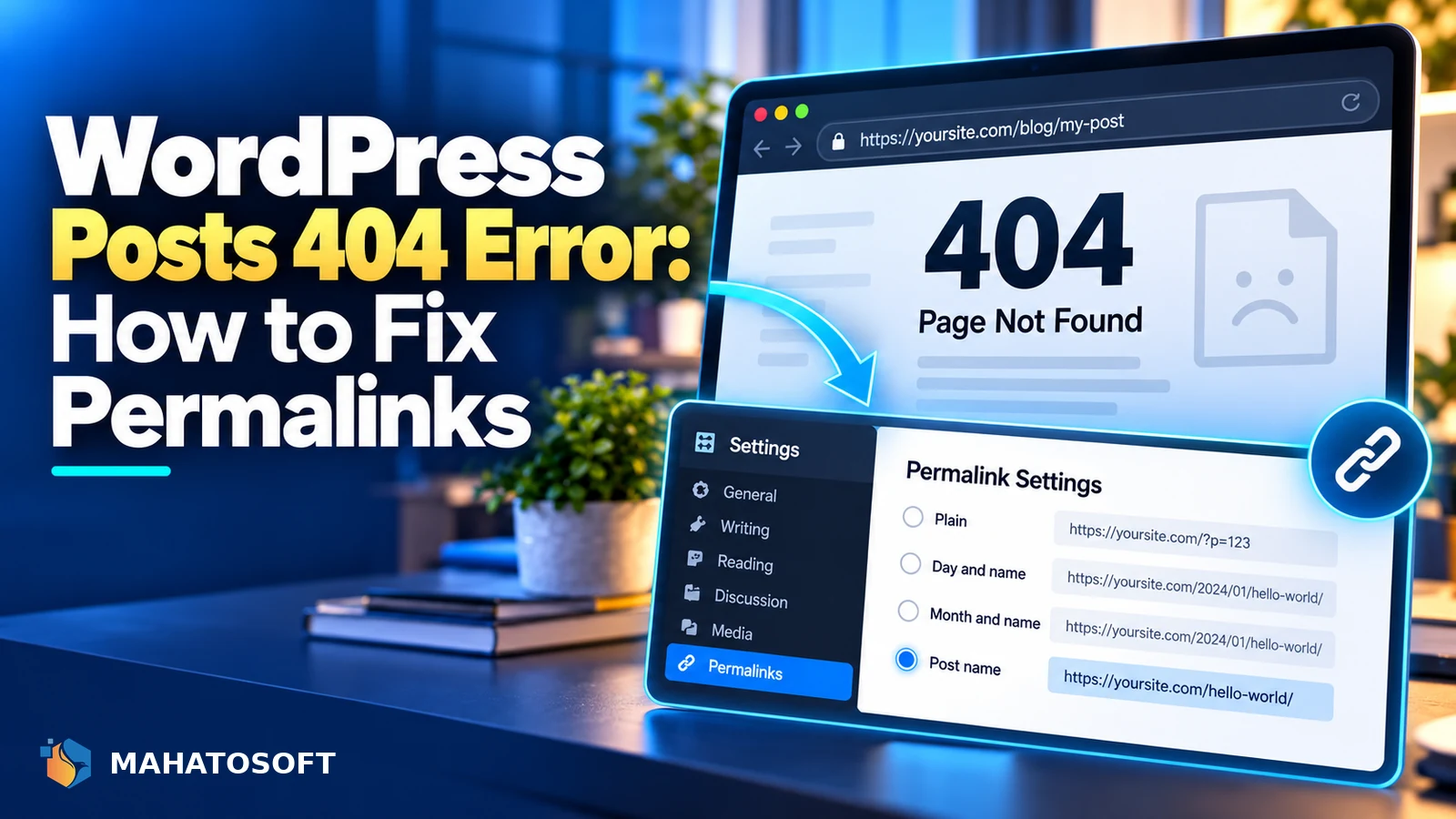
WordPress posts 404 errors almost always mean the permalink structure and the server’s rewrite rules have gone out of sync, not that the post itself is missing. The homepage and dashboard usually still work fine, which is the biggest clue. This guide walks through the fix in the order that solves it fastest.
WordPress builds “pretty” URLs like /2026/09/my-post/ using rewrite rules that your web server has to know about. When those rules do not match what WordPress expects, the server has no idea where to send the request, and you get a 404.
Try the two-click fix first
Go to Settings → Permalinks and click Save Changes without changing anything. This forces WordPress to rewrite its rules and fixes the problem more often than any other single step.
Why WordPress posts return a 404 error
A 404 on individual posts, while the homepage loads fine, points to one of a small number of causes:
| What you see | Likely cause |
|---|---|
| All posts 404, homepage works | Rewrite rules out of sync; start with Permalinks resave |
| Only posts published after a recent change 404 | Permalink structure or category base changed |
| 404 only after moving hosts or servers | Missing or wrong .htaccess rules (Apache) or server config (Nginx) |
| 404 only for posts in one category or custom post type | A plugin registering that type incorrectly, or a conflicting rewrite rule |
| 404 straight after a plugin or theme update | Plugin conflict; deactivate to test |
1. Resave your permalink structure
Go to Settings → Permalinks, and even if the structure already looks correct, click Save Changes again. This regenerates the rewrite rules WordPress stores and pushes them out to your server configuration. It takes ten seconds and fixes a large share of 404 cases on its own.
If you recently changed the permalink structure itself, for example from “Plain” to “Post name”, every old link built on the previous structure will 404 unless you also set up redirects, since the URL format has genuinely changed.
2. Check and rebuild .htaccess (Apache hosting)
On Apache servers, WordPress writes its rewrite rules into the .htaccess file in your site’s root folder. If that file is missing, was overwritten, or has incorrect permissions, pretty permalinks stop working. It should contain a block starting with # BEGIN WordPress and include lines like these:
<IfModule mod_rewrite.c>
RewriteEngine On
RewriteBase /
RewriteRule ^index.php$ - [L]
RewriteCond %{REQUEST_FILENAME} !-f
RewriteCond %{REQUEST_FILENAME} !-d
RewriteRule . /index.php [L]
</IfModule>
Resaving permalinks (Fix 1) normally recreates this block automatically. If it does not, check the file is writable, or add the block manually using your host’s file manager. Be careful editing this file: a broken rule here can just as easily produce a redirect loop as a 404, so change one line at a time and reload the site after each edit.
3. Check Nginx rewrite rules
Nginx does not read .htaccess files at all, so on Nginx hosting the equivalent rewrite rule has to live in the server block configuration, usually maintained by your host or hosting control panel. If WordPress posts 404 after a migration to an Nginx-based host, ask support to confirm the WordPress rewrite rule is present, since this is not something WordPress itself can fix from the dashboard.
4. Rule out a plugin conflict
SEO plugins, custom post type plugins, and caching plugins can all register their own rewrite rules, and a conflict between two plugins is a common cause of 404s on specific content types rather than the whole site.
Deactivate plugins one at a time, resaving permalinks after each deactivation, until the 404 stops. Start with any plugin that adds custom post types, custom taxonomies, or its own URL rewriting, since those are the most likely to clash. Reactivate them one by one afterwards and test again each time, so you know exactly which plugin was responsible before you look for an alternative or an update. If deactivating a plugin instead produces a white screen or a critical error, reactivate it and troubleshoot with debugging turned on instead.
5. Clear every layer of cache
A cached 404 page can keep showing even after the underlying rewrite rules are fixed. Clear your caching plugin, your host’s server-level cache, and any CDN cache such as Cloudflare, then reload the affected post in a private browser window to rule out your own browser cache too.
6. Check custom post types and taxonomies
If WordPress posts 404 for one custom post type, such as products or portfolio items, but standard blog posts are fine, the post type’s rewrite rules are the likely cause. This usually happens when a plugin’s post type registration changes, for example if 'rewrite' or 'has_archive' arguments are altered by an update, or if two plugins register overlapping URL slugs. Resave permalinks again after checking for plugin updates, since this regenerates rules for custom post types too.
7. Check the post’s status and date in the database
Occasionally the “post” is not actually missing a rewrite rule at all: it is scheduled for the future, saved as a draft, or its post date was accidentally changed. WordPress serves a genuine 404 for a future-dated or unpublished post to a logged-out visitor. Open the post in the editor and confirm the status is Published and the date is correct.
8. After a migration or domain change
If the 404s started right after moving to a new host or changing your domain, confirm the Site Address (URL) in Settings → General matches the new domain exactly, and that the database siteurl and home options were updated during the move, not left pointing at the old address. A mismatch here can cause 404s alongside other odd behaviour like broken images and CSS.
Prevent it from happening again
A little prevention avoids WordPress posts 404 errors after the next migration or update. Keep a note of your permalink structure before any migration, theme change or bulk import, and resave permalinks as a standard step after each one. If you maintain redirects for changed URLs, a plugin that manages 301 redirects makes it much easier to avoid a wave of 404s whenever a URL structure changes. The WordPress handbook’s page on common WordPress errors is a useful reference for related issues you might meet along the way, and Google’s guidance on HTTP and network errors explains how search engines treat pages that return a 404.
Rather have it fixed for you?
We fix WordPress 404 errors and permalink problems from $45, usually the same day. Get your website error fixed or contact us with your site address.
WordPress posts 404: quick answers
Why do my WordPress posts 404 but pages work fine?
Posts and pages can use different rewrite rule patterns, especially if you have a category base or custom permalink structure, so it is possible for one to break while the other keeps working. Resaving permalinks usually fixes both at once.
Will changing my permalink structure break existing links?
Yes, if the structure genuinely changes, for example from including the category to not including it. Any link built on the old structure will 404 unless you add redirects from the old URLs to the new ones.
Why do WordPress posts 404 only after I moved hosts?
Migrations often lose the .htaccess file, move you to a server type with different rewrite handling, such as Nginx instead of Apache, or leave the site URL pointing at the old domain. Check all three before assuming it is a plugin issue.
Can a security plugin cause WordPress posts to 404?
Occasionally, if it blocks certain URL patterns as a firewall rule, or conflicts with the rewrite rules another plugin registers. Temporarily deactivating a security plugin is a reasonable diagnostic step, as long as you re-enable it immediately afterwards.

Discussion
Join the conversation
No comments yet. Share a question or what worked for you.