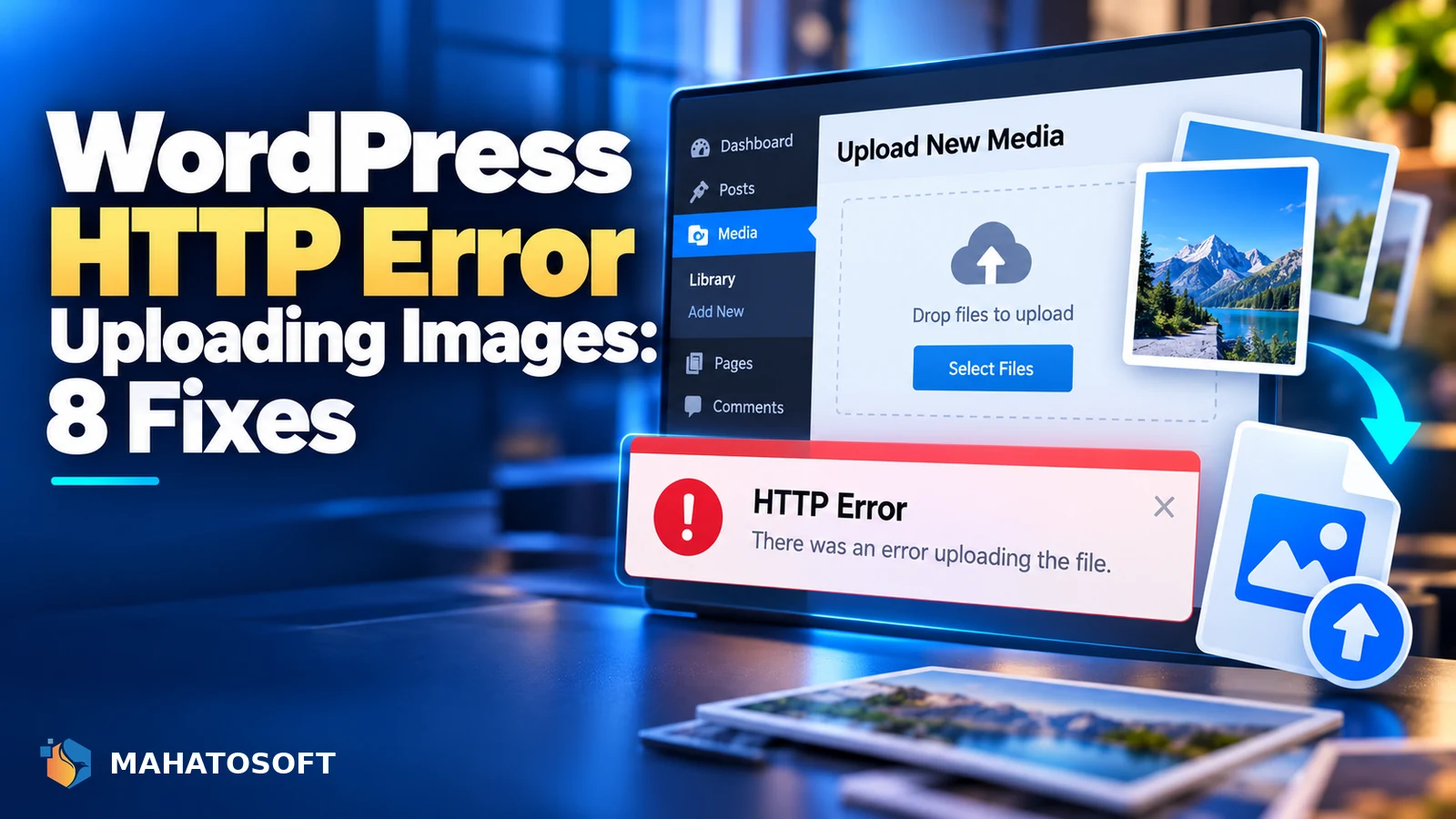
The wordpress http error uploading images message is one of the least specific errors in WordPress: it just means the upload failed, without saying why. Most of the time it is a memory limit, a file permission problem, or a plugin conflict, and each has a clear fix. This guide works through them in the order that resolves it fastest.
You will usually see this exact message, “HTTP error”, appear right where the image should show a progress bar, either in the Media Library uploader or inside the block editor when adding an image directly to a post.
Try the simplest cause first
Before anything else, try uploading a small, plain JPEG under 1MB. If that works but your original large file does not, you are almost certainly looking at a memory or file-size limit, not a deeper configuration problem.
Quick checks before digging deeper
- Reload the page and try again; a single failed request can be a temporary server hiccup.
- Try a different, smaller image to rule out a file-size limit.
- Try uploading from a different browser or device to rule out a local network or extension issue.
- Check whether the image filename has unusual characters or is extremely long, and rename it if so.
1. PHP memory limit reached during processing
WordPress generates several resized versions of every image you upload, which uses noticeably more memory than the original file size suggests, especially for large photos from a modern phone camera. If the site is already close to its memory limit, this extra step can push it over.
Add these lines to wp-config.php above the “stop editing” comment:
define( 'WP_MEMORY_LIMIT', '256M' );
define( 'WP_MAX_MEMORY_LIMIT', '512M' );
Our fuller guide on the allowed memory size exhausted error covers checking and raising memory limits in more depth if this alone does not fix it.
2. File size or upload limits set too low
Check Settings → Media, and also Tools → Site Health → Info → Media Handling, which shows your current upload_max_filesize and post_max_size values from PHP. The PHP manual’s upload settings reference explains how these two directives interact if you want the underlying detail. If your image is larger than either limit, the upload fails before WordPress can even process it.
| Where to raise it | How |
|---|---|
| Hosting panel PHP settings | Look for “PHP Configuration” or “Select PHP Version” with editable limits |
| .htaccess (Apache) | php_value upload_max_filesize 64M and php_value post_max_size 64M |
| php.ini (if you have access) | Edit the values directly and restart PHP if required |
Some managed hosts do not allow raising this yourself; contact support and ask them to increase it.
3. Image editing library (GD or Imagick) running out of resources
WordPress uses either the GD or Imagick PHP extension to resize images, and both can hit their own memory or timeout limits separately from the general PHP memory limit, especially on very large, high-resolution photos. Check Site Health → Info → Media Handling for which library is active.
If Imagick is enabled and causing problems, some hosts let you switch to GD instead, or vice versa, through a plugin like “Enable or Disable GD and Imagick” or a hosting panel setting. Neither is universally better; whichever one is causing the timeout on a specific server is the one worth switching away from.
4. File and folder permissions are wrong
WordPress needs to write the uploaded file into wp-content/uploads. If permissions are too restrictive, the HTTP error can appear instead of a clearer permissions message. The generally recommended values are 755 for folders and 644 for files, though your host’s own recommendation should take priority if it differs.
Check via SFTP or your file manager that wp-content/uploads and its year/month subfolders are writable by the web server user. The WordPress handbook’s file permissions guide covers the correct values and how to check them.
5. A plugin conflict
A plugin conflict is one of the more common causes of a wordpress http error uploading images. Image optimisation plugins, security plugins that scan uploads, and some page builders can all interfere with the upload process. Deactivate all plugins except WooCommerce (if you use it) and try uploading again. If it works, reactivate plugins one at a time to find the one responsible.
Image compression plugins that process files during upload are a particularly common cause, since they add an extra processing step exactly at the point where the error occurs.
6. Server-level security or firewall blocking the request
A blocked request is another way a wordpress http error uploading images shows up. A web application firewall, including some hosting-level security layers, can occasionally block an image upload request that looks unusual to it, especially for larger files. Check your security plugin’s activity log for a blocked request around the time of the failed upload, and check with your host if you use a server-level firewall or CDN like Cloudflare.
7. Corrupted image file
Occasionally the file itself is the problem: a corrupted export from an editing tool, or an unusual colour profile some servers’ image libraries cannot process. Try opening and re-saving the image in a different program, or converting it to a standard JPEG or PNG, then upload again.
Preventing this error going forward
- Resize and compress images before uploading rather than relying on WordPress to shrink very large originals.
- Keep the site’s PHP memory limit reasonably generous if you regularly upload high-resolution photography.
- Keep image-related plugins updated, since compatibility issues with new WordPress or PHP versions are a recurring cause.
Smaller, well-compressed images also help page speed once they are live, not just the upload itself. Our guide to improving LCP in WordPress covers image sizing from the performance side if that is your next concern after getting uploads working reliably again.
Bulk uploads and imports behave differently
A wordpress http error uploading images that only appears in bulk is usually a different cause again. If the error only appears when uploading many images at once, such as through a theme demo import or a bulk media upload, the cause is often a server execution time limit rather than memory or permissions specifically. Large batches processed through wp-admin can run past a host’s PHP timeout even when a single image uploads fine on its own. For genuinely large batches, uploading via SFTP directly into wp-content/uploads and then using the “Add Media” auto-scan, or a WP-CLI media import command, avoids the web server timeout entirely.
Rather have it fixed for you?
We fix wordpress http error uploading images and other website errors from $45, usually the same day. Get your website error fixed.
WordPress HTTP error uploading images: quick answers
Why does the HTTP error only happen with large images?
Larger images need more memory and processing time to generate WordPress’s resized versions, so they are far more likely to hit a memory or timeout limit than a small file. Testing with a small image is the fastest way to confirm this is the cause.
Can a caching plugin cause the wordpress http error uploading images?
Rarely directly, but an aggressive security or optimisation plugin bundled alongside caching features can occasionally interfere with the upload request. Deactivating plugins one at a time will reveal it if that is the cause.
Does switching from GD to Imagick fix upload errors?
Sometimes, since the two libraries handle memory and certain image formats differently, and one may simply perform better on your specific server. It is worth trying if raising memory limits and checking permissions did not resolve the error.
Is it safe to raise the upload file size limit myself?
Yes, raising upload_max_filesize and post_max_size is a safe, standard change. Just remember that images should still be reasonably sized and compressed for page speed, even once the technical limit is raised.