

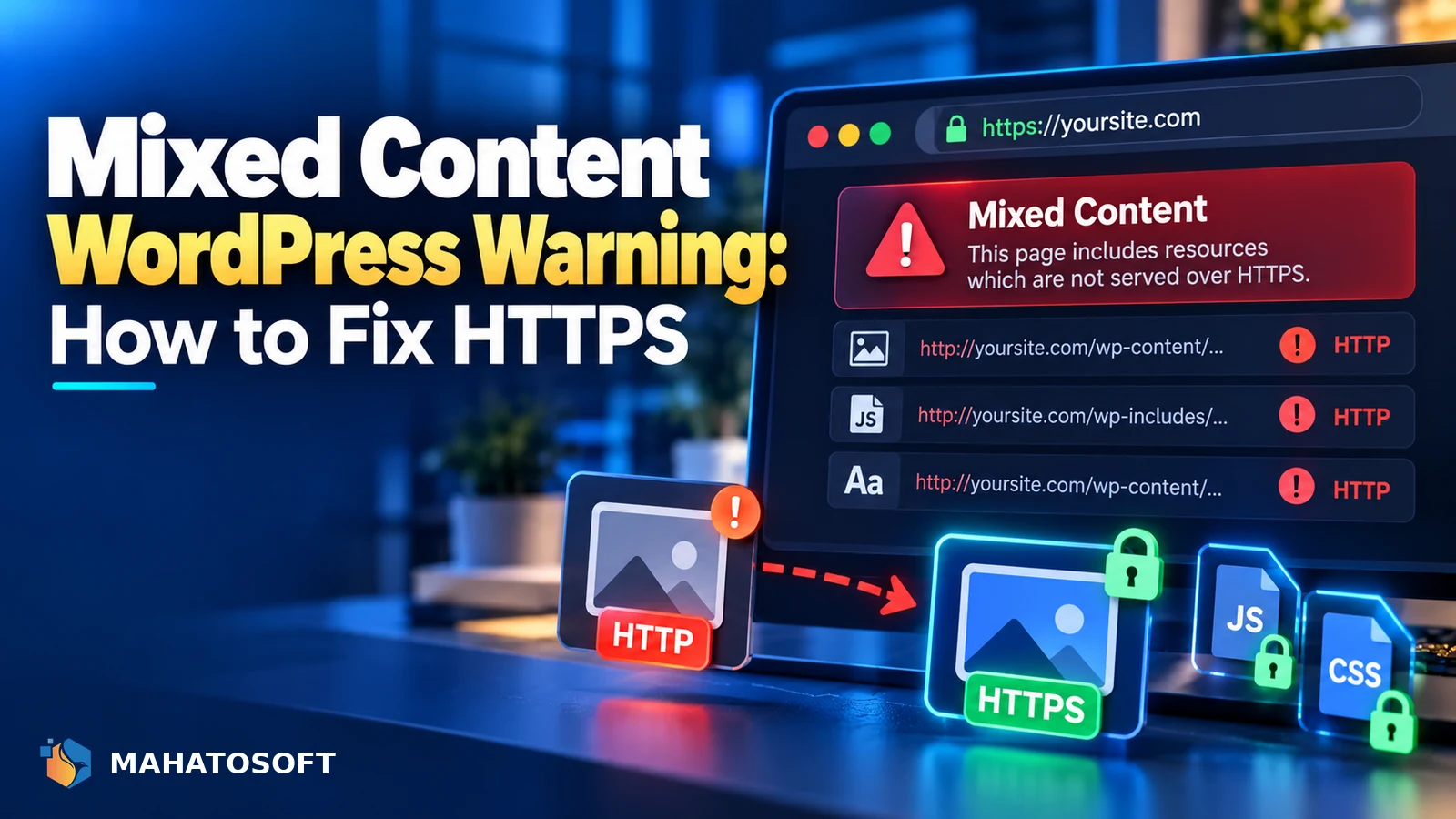
A mixed content WordPress warning means the padlock in the browser is not fully secure, because your HTTPS page is still loading an image, script or stylesheet over plain HTTP. It looks alarming, but it is almost always a leftover HTTP link somewhere in your content or settings, not a sign of a hack. Here is how to find and fix every source.
Some links in this article are affiliate links. If you buy through them, Mahatosoft may earn a small commission at no extra cost to you.
Browsers block or flag anything that breaks a secure page’s encryption, so a single old http:// link is enough to trigger the warning even if the rest of the site is fully HTTPS.
Find it with the browser first
Open your site in Chrome, right-click and choose Inspect, then open the Console tab and reload the page. Every mixed content warning lists the exact file URL that is loading over HTTP, which saves you guessing.
What a mixed content wordpress warning actually means
Browsers group mixed content into two kinds. Active content, such as scripts, stylesheets and iframes, is blocked outright because it could be used to change the page. Passive content, mainly images, is usually still loaded but flagged with a “not fully secure” warning. The MDN mixed content reference covers exactly what each browser does with each type.
Either way, the fix is the same: change the HTTP reference to HTTPS, or to a protocol-relative or root-relative path.
Common causes of a mixed content WordPress warning
| Cause | Where it hides |
|---|---|
| Old post and page content | Images or links pasted with http:// before the SSL move |
| Theme or plugin settings | Logo, favicon or background image fields storing a full HTTP URL |
| Site or Home URL | Settings → General still set to http:// |
| Hardcoded theme files | A theme enqueueing scripts or fonts with a hardcoded http:// path |
| External embeds | YouTube, maps or ad scripts pasted years ago with the old protocol |
| CDN or cache | A CDN zone or cached page still serving assets over HTTP |
1. Fix the WordPress and Site Address first
Go to Settings → General and confirm both WordPress Address (URL) and Site Address (URL) start with https://. If they still say http://, WordPress will keep generating HTTP links throughout the site. WordPress’s own guide on changing the site URL covers what to do if the setting itself will not save because the dashboard is unreachable.
2. Update hardcoded HTTP links in your content
This is the most common cause of a mixed content WordPress warning after a site moves from HTTP to HTTPS. Old posts, pages and widget content keep the original http:// image and link URLs from before the switch.
The safe way to fix this at scale is a database search-and-replace, not editing posts one by one. Options, in order of how careful they are:
- A search-and-replace tool built into your backup or security plugin, which lets you preview matches first.
- WP-CLI’s
wp search-replace 'http://example.com' 'https://example.com' --skip-columns=guid, run after a full backup. - A direct phpMyAdmin find-and-replace, only if you are comfortable with SQL and have a fresh backup.
Excluding the guid column matters: WordPress uses it as a historical identifier for RSS feeds, and rewriting it can cause feed readers to treat every post as new.
3. Check theme and plugin settings for hardcoded URLs
Logo uploads, favicon fields, custom CSS, and page builder settings sometimes store the full URL rather than a relative path. Page builders such as Elementor keep global settings, including the site logo and custom fonts, in their own options, so check the theme’s Customizer and the page builder’s global settings alongside Settings → General.
4. Update old embeds and external scripts
YouTube videos, Google Maps embeds, and third-party widget scripts added years ago sometimes still use an http:// source. Re-embed them using the platform’s current embed code, which is HTTPS by default now for almost every mainstream service.
5. Make sure your CDN and cache serve HTTPS
If you use Cloudflare or another CDN, confirm the SSL/TLS mode is set correctly and that any “always use HTTPS” style setting is switched on, so cached copies of your assets are not served over plain HTTP. Then clear your page cache and CDN cache together; a stale cached page can keep showing old HTTP links even after the database is fixed.
6. Force HTTPS at the server level as a safety net
Once every known HTTP reference is fixed, add a server-level redirect from HTTP to HTTPS so nothing can load the plain HTTP version of a page by accident. Most hosts offer a one-click “Force HTTPS” toggle in cPanel or the hosting panel; where that is not available, a rule in .htaccess or the Nginx config does the same job. Get the redirect rule wrong and you can end up with too many redirects instead, so change one setting at a time and test after each one.
Stop it happening again
Once you have cleared the current mixed content WordPress warning, a few habits keep it from coming back. Always paste new embed codes from the platform’s current share dialog rather than reusing an old one saved in a document. Set any new CDN zone to HTTPS-only rather than allowing both protocols. And if you run a staging site on a different domain, check its URLs are not copied into production content during a deploy or sync.
It is also worth a quick check after any bulk import, whether that is a CSV product import, a theme demo import, or restoring an old backup onto a site that has since moved to HTTPS. Imports commonly carry the exact HTTP URLs that were saved at export time.
7. Verify the fix
Reload the site with the browser console open and confirm the warnings are gone. Check a handful of key pages, not just the homepage: the checkout page on a store, a page built with a page builder, and any page with an old embed are the ones most likely to still have an issue. If a page still shows a warning after clearing every cache, the console will name the exact file left to fix.
If the browser instead shows a full-page Deceptive Site Ahead warning rather than a mixed content notice, that is a different, more serious problem involving flagged malware, not an HTTP link. Confusing the two wastes time, since a genuine mixed content WordPress warning never blocks the whole page the way a malware flag does.
Rather have it fixed for you?
We fix mixed content warnings and other WordPress errors from $45, usually the same day, and we tell you exactly what caused it. Get your website error fixed or contact us with your site address.
Mixed content WordPress warning: quick answers
Is a mixed content wordpress warning a security risk?
Passive mixed content, like an image, is a minor risk on its own. Active mixed content, like a script, is blocked by the browser because it could otherwise be used to inject malicious code into an otherwise secure page, so it is worth fixing quickly either way.
Why does the mixed content warning appear after I install an SSL certificate?
Installing the certificate only makes HTTPS available. It does not rewrite the HTTP links already saved in your content, settings and theme files, which is why the warning shows up right after the move.
Will a plugin fix mixed content warnings automatically?
An SSL or “force HTTPS” plugin can rewrite HTTP links on the fly as pages are served, which hides the warning without touching the database. It is a reasonable quick fix, but running a proper search-and-replace afterwards is more reliable long term.
Can mixed content hurt my SEO?
Search engines do not penalise mixed content directly, but the “not secure” warning it can trigger reduces visitor trust and can raise your bounce rate, which affects rankings indirectly.

Discussion
Join the conversation
No comments yet. Share a question or what worked for you.