
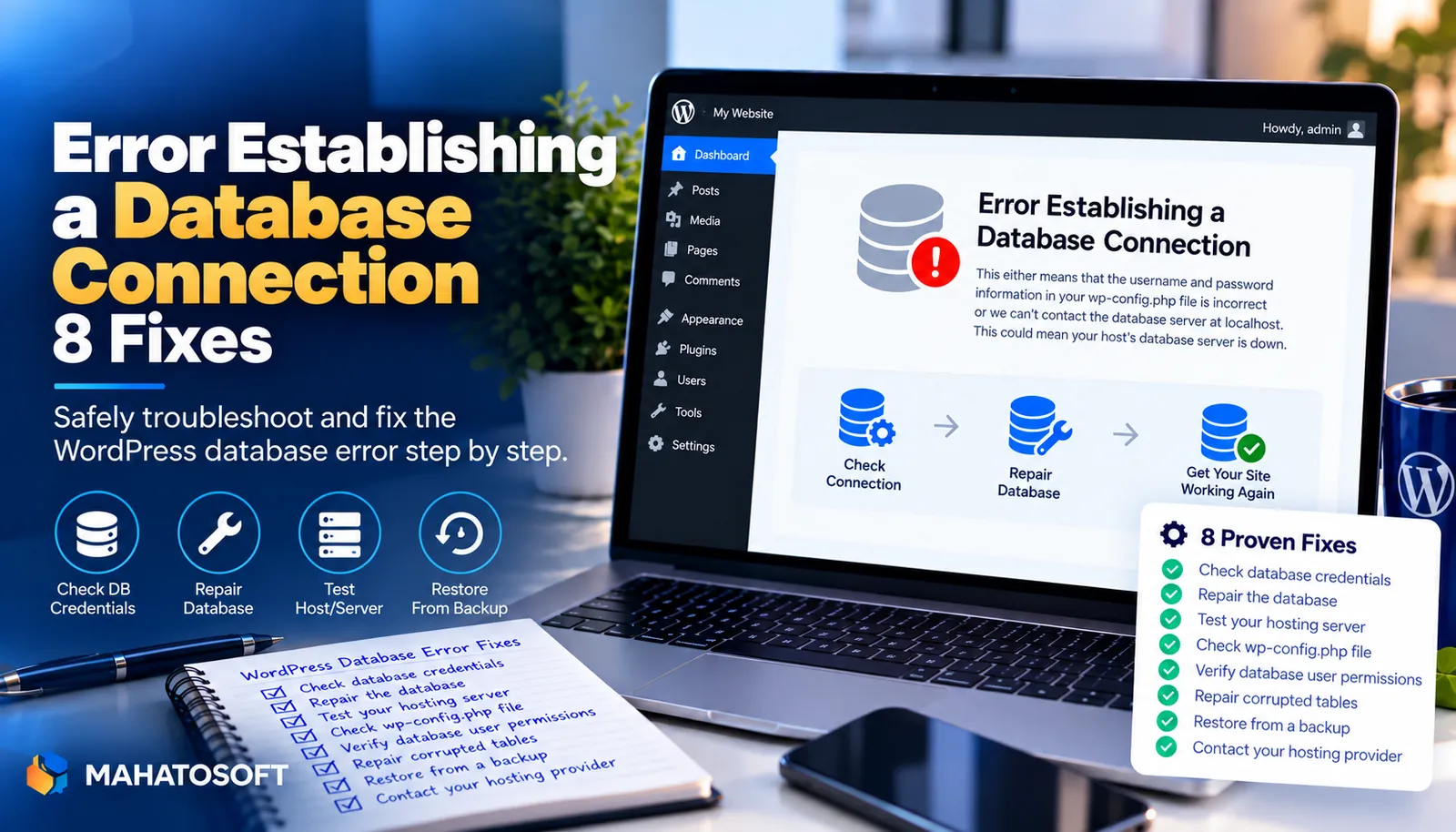
“Error establishing a database connection” means WordPress tried to reach its database and got no answer, so it cannot build a single page. Your posts, products and settings are almost always still there. This guide walks through the eight fixes in the order that finds the cause fastest, most of which take a few minutes.
WordPress keeps everything except your media files in a MySQL or MariaDB database. On every page load it connects using four values from wp-config.php: database name, username, password and host. If any of those is wrong, or the database server is not responding, you get this message instead of your site.
Back up before you change anything
Download a copy of
wp-config.phpbefore editing it, and take a database backup from your hosting panel if it will let you. Every fix below is reversible as long as you keep the original file.
What the error establishing a database connection tells you
The message only says the connection failed. It does not say why. The clues around it narrow it down quickly:
| What you see | Most likely cause | Start with |
|---|---|---|
| Site worked, then broke with no changes | Database server down or overloaded | Fix 1 and Fix 7 |
| Broke right after a migration or password change | Wrong credentials or host in wp-config.php | Fix 2 and Fix 4 |
/wp-admin/ says “One or more database tables are unavailable” | Corrupted tables | Fix 6 |
| Comes and goes during busy periods | Too many connections | Fix 7 |
wp-config.php changed and nobody edited it | Possible hack | Fix 8 |
1. Check whether the database server is down
On shared hosting, the database often runs on a separate server that you do not control. If it goes down, every site on it shows the same error. Check your host’s status page, and look at any other sites you have on the same account.
Next, try logging in to phpMyAdmin from your hosting panel. If phpMyAdmin cannot connect either, the problem is on the host’s side. Open a support ticket and include the exact time the error started. There is nothing to fix in WordPress until they bring the server back. A shared database server going down is one of the few causes of an error establishing a database connection that is entirely outside your control.
2. Check the database details in wp-config.php
This is the most common cause after moving a site or changing a database password. Open wp-config.php in the root of your WordPress install using your host’s file manager or SFTP, and find these four lines:
define( 'DB_NAME', 'example_wp' );
define( 'DB_USER', 'example_user' );
define( 'DB_PASSWORD', 'your-password-here' );
define( 'DB_HOST', 'localhost' );
Compare each value with what your hosting panel shows. In cPanel that is MySQL Databases. Many hosts add a prefix to names, such as account_wp instead of wp, and a missing prefix is an easy mistake to make. Watch for stray spaces and “smart” quotes pasted from a word processor, which break the line.
The WordPress handbook’s page on editing wp-config.php explains each setting if you want to check the syntax.
3. Test the connection with a small script
If the details look right but the error persists, test them outside WordPress. Create a file called dbtest.php in the same folder as wp-config.php, paste this in, and fill in your four values:
<?php
mysqli_report( MYSQLI_REPORT_ERROR | MYSQLI_REPORT_STRICT );
try {
    $db = new mysqli( 'localhost', 'example_user', 'your-password-here', 'example_wp' );
    echo 'Connected OK';
} catch ( mysqli_sql_exception $e ) {
    echo 'Failed: ' . $e->getMessage();
}
Visit yoursite.com/dbtest.php in your browser. The message tells you far more than WordPress does:
- Access denied for user: the username or password is wrong, or the user has no rights on that database. Go to Fix 5.
- Unknown database: the database name is wrong, or the database no longer exists.
- Connection refused, No such file or directory or a host lookup error: the host value is wrong, or the server is down. Go to Fix 4 or Fix 1.
- Too many connections: the server is overloaded. Go to Fix 7.
Delete dbtest.php as soon as you are done, because it contains your database password. This small script usually pinpoints an error establishing a database connection faster than guessing which of the four values is wrong.
4. Use the right DB_HOST value
localhost works on most shared hosting, but not everywhere. Some hosts run the database on a separate hostname, or on a non-standard port, which you write as hostname:port. Managed and cloud hosts often show the correct value in the database section of their dashboard.
If you recently migrated, the old host’s value will not work on the new server. Copy the host value exactly from your new host’s panel or ask their support.
5. Reset the database user’s password and privileges
When you are not sure what the password is, set a new one. In cPanel, go to MySQL Databases, find the user under Current Users and choose Change Password. Put the same new password in DB_PASSWORD.
On the same screen, check under Add User To Database that the user is attached to the right database with All Privileges. A user that exists but is not linked to the database gives an “Access denied” error, even with the correct password.
6. Repair corrupted database tables
If the front end shows the error but /wp-admin/ says tables are unavailable, WordPress can repair them. Add this line to wp-config.php, just above the line that says “That’s all, stop editing!”:
define( 'WP_ALLOW_REPAIR', true );
Then open yoursite.com/wp-admin/maint/repair.php and click Repair Database. Remove the line straight afterwards. The repair page works without a login, so anyone could load it while it is enabled.
You can also repair tables from phpMyAdmin: select the database, tick all tables and choose Repair table. If you have WP-CLI access, wp db repair does the same from the command line.
7. Deal with traffic spikes and “too many connections”
A database server accepts a limited number of connections at once. A traffic spike, an aggressive bot, a brute-force attack on your login page or a badly written plugin can use them all up. The error then comes and goes, often at busy times.
- Check your hosting panel for CPU and memory limits being hit.
- Look at your access logs for one IP address or bot hammering
wp-login.phporxmlrpc.php, and block it. - Add page caching, so most visitors are served a stored page with no database query.
- If the site has simply outgrown its plan, move to a plan with more resources.
Connection limits being hit is one of the more frustrating causes, since an error establishing a database connection can appear and disappear within minutes without you changing anything.
8. Restore wp-config.php or the database from a backup
If wp-config.php has changed and nobody on your team edited it, treat it as a possible hack. Compare it with a backup copy. Look for unfamiliar code at the top or bottom of the file, and for database details you do not recognise.
If the database itself was deleted or badly damaged, restore it from your most recent backup, either your host’s daily backup or your backup plugin’s copy. After a restore, change the database password and all admin passwords. The WordPress handbook’s list of common WordPress errors covers related problems you may meet along the way.
How to stop the error coming back
- Keep daily off-site backups of both files and database, and test a restore once.
- Use an uptime monitor, so you hear about the error before your customers do.
- Use page caching and block abusive bots, so the database is not overwhelmed.
- Keep WordPress, plugins and PHP up to date. Our WordPress maintenance plan covers updates, backups and monitoring if you would rather not manage them yourself.
- Store the database details somewhere safe, so the next migration does not start with a guessing game.
Following these steps will not guarantee you never see an error establishing a database connection again, but it removes most of the causes that are within your control.
Rather have it fixed for you?
We fix database connection errors and other WordPress errors from $45, usually the same day, and we tell you what caused it. Get your website error fixed or contact us with your site address.
Error establishing a database connection: quick answers
Will fixing the error establishing a database connection delete my content?
No. The fixes above change how WordPress connects to the database, not what is in it. The only step that replaces data is restoring a backup, and you only need that when the database itself is damaged or missing.
Why does the error only happen sometimes?
An error that comes and goes usually means the database server is overloaded, not misconfigured. Wrong credentials fail every time. Look for traffic spikes, bots or resource limits on your hosting plan.
Why do I get the database error after moving my site to a new host?
The new host has a different database name, user, password and often host value. Copy all four from the new host’s panel into wp-config.php and make sure the database was actually imported.
Can a plugin cause an error establishing a database connection?
Rarely directly, because WordPress connects before plugins load. A plugin can still cause it indirectly by opening too many connections or running very heavy queries that overload the server.