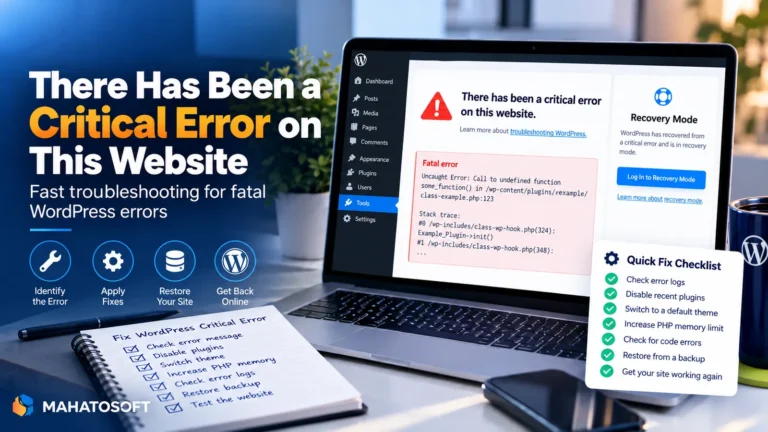
A WordPress 500 internal server error is a generic HTTP status meaning something failed on the server, without WordPress or your browser knowing exactly what. It can look identical to a white screen or a critical error message depending on your server’s configuration, but the causes and fixes overlap heavily. Work through the steps below in order, and you will usually find it within the first few.
Because “500” is a standard web server status code, not a WordPress-specific one, the cause can sit anywhere from a broken .htaccess file to a PHP memory limit to a corrupted core file. This guide checks each in the order most likely to find it fast.
Check your hosting error log first
Most hosts keep a raw PHP error log accessible from the control panel, separate from what WordPress shows you. It often names the exact file and line causing the error before you touch anything else.
Common causes of a WordPress 500 internal server error
| Cause | How common |
|---|---|
| Corrupted .htaccess file | Very common, especially after a plugin change |
| PHP memory limit exceeded | Common on content-heavy or plugin-heavy sites |
| Plugin or theme conflict | Common right after an update |
| Corrupted WordPress core files | Less common, usually after an interrupted update |
| PHP version incompatibility | Common after a hosting-side PHP upgrade |
| Incorrect file or folder permissions | Common after a migration or restore |
1. Regenerate .htaccess
A corrupted .htaccess file is one of the single most common causes of a WordPress 500 internal server error. Connect by SFTP, rename .htaccess to something like .htaccess-old, then go to Settings → Permalinks in wp-admin and click Save to let WordPress generate a fresh default file. If the site loads normally afterward, the old file had a broken or conflicting rule.
2. Raise the PHP memory limit
Add this line to wp-config.php, just above “That’s all, stop editing!”:
define( 'WP_MEMORY_LIMIT', '256M' );
If the error clears, your site genuinely needs more memory than the default allows, often due to a heavy plugin, theme, or a lot of content loading on one page. Ask your host to confirm the server-level PHP memory_limit matches, since the WordPress constant cannot exceed what PHP itself permits.
3. Deactivate plugins to find a conflict
Rename the /wp-content/plugins/ folder by SFTP to disable every plugin at once. If the site loads, rename the folder back, then rename each individual plugin subfolder one at a time, reloading after each, until the error returns. That plugin is the cause.
4. Switch to a default theme
If plugins are not the cause, rename your active theme’s folder in /wp-content/themes/ to force WordPress back to a default theme. A syntax error introduced in functions.php or a template file is a common cause of a WordPress 500 internal server error that only started after a theme edit.
5. Check your PHP version
Plugins occasionally rely on functions removed in newer PHP releases, or syntax older PHP cannot parse. Check your current PHP version under Tools → Site Health → Info or your hosting panel, and compare it against what each plugin and theme’s documentation states as supported. The wp-config.php handbook page also covers related core constants worth checking.
6. Re-upload WordPress core files
If nothing above resolves it, core files may be corrupted, sometimes from an interrupted update. Download a fresh copy of the same WordPress version from wordpress.org and replace the wp-admin and wp-includes folders entirely, without touching wp-content or wp-config.php.
7. Check file and folder permissions
Incorrect permissions, often introduced during a migration or a backup restore, can stop PHP from reading files it needs, producing a 500 error with no more specific message. Standard values are 644 for files and 755 for folders, per the WordPress file permissions handbook; check these match your host’s recommended settings, since a few hosts use slightly different conventions.
8. Ask your host to check server-level limits
If nothing above finds it, ask your host to check for a PHP execution timeout being hit, a resource limit on shared hosting being exceeded, or a server-side configuration error in their own logs that would not be visible from inside WordPress at all. Include the exact time the error started, which speeds up their investigation considerably.
How this differs from similar WordPress errors
A WordPress 500 internal server error, a critical error message, and a white screen of death often share the exact same underlying cause, a PHP fatal error, just displayed differently depending on your server’s error-display configuration and which layer catches it first. If the fixes here do not resolve it, those guides cover a few additional angles worth checking too.
Why some hosts hide the details entirely
Managed WordPress hosts often intercept server errors and show their own generic message instead of the raw PHP error, for security reasons. This makes early troubleshooting harder from your side, but it also usually means their support team already has more detailed logs than you can see yourself. Asking them directly, with the exact time the error occurred, is often faster than trying to diagnose it entirely on your own in that situation.
Preventing it happening again
- Test plugin and theme updates on a staging copy before applying them to a live site.
- Keep a recent backup and a way to restore it without needing wp-admin to be reachable.
- Monitor your site with an uptime checker, so you learn about a 500 error before your customers do.
- Keep WordPress, plugins, themes and PHP itself updated on a regular schedule.
Rather have it fixed for you?
We fix WordPress 500 internal server errors and other website issues from $45, usually the same day, and tell you what caused it. Get your website error fixed or contact us.
WordPress 500 internal server error: quick answers
Will a WordPress 500 internal server error delete my content?
No. It is a server-level failure in loading a page, not a database problem, so your content stays intact. The only step that changes data is restoring an old backup, needed only if nothing else resolves the error.
Why does the WordPress 500 internal server error only affect some pages?
This usually points at a specific plugin, widget, or piece of content only used on those pages, rather than a site-wide configuration issue. Compare what is different about the affected pages to narrow it down faster.
Can a hosting change cause a WordPress 500 internal server error?
Yes, commonly. A PHP version upgrade applied by your host, a changed server configuration, or a migration to new infrastructure can all trigger it even when nothing in WordPress itself was touched.
Why does my error log show nothing useful for a WordPress 500 internal server error?
Some hosts log PHP errors separately from the main site error log, or require error logging to be explicitly enabled. Ask your host directly where PHP fatal errors are recorded for your specific hosting plan.