

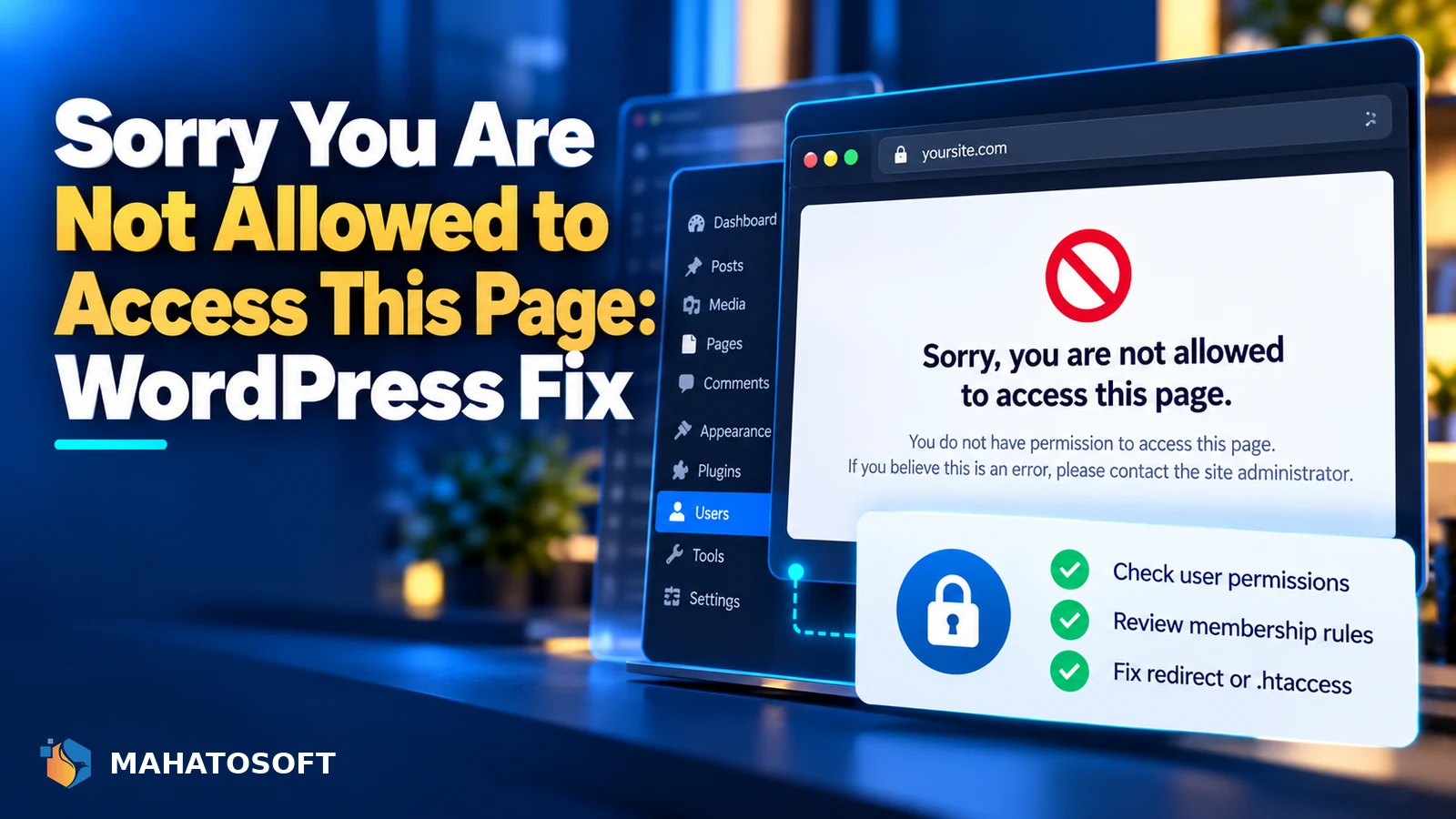
“Sorry you are not allowed to access this page” is WordPress’s generic permission error, shown whenever the system decides the logged-in user, or a logged-out visitor, should not see the page they requested. It is not a bug in the usual sense; it is WordPress correctly enforcing a permission rule, just not always the one you expect.
The message itself gives almost no detail about which rule was triggered, which is what makes this error frustrating to diagnose. The good news is the list of real causes is short, and working through them in order usually finds it quickly.
Check who is actually affected first
Does this happen to every user, only one, or only logged-out visitors? That single detail rules out most of the causes below and tells you where to start.
Common causes of this error
| Who is affected | Likely cause |
|---|---|
| One specific user only | Their role or capabilities were changed, or their session is stale |
| Every logged-in user, including admins | A plugin conflict, a corrupted user role, or a security plugin misfire |
| Only logged-out visitors | A page or post set to Private, or a membership/restriction plugin blocking access |
| Started right after a plugin or theme change | A capability check added by that plugin, or a broken role definition |
| Only on wp-admin, not the main site | Reduced capabilities, or a security plugin restricting admin access by IP or time |
1. The user’s role does not have the required capability
WordPress checks a specific capability, not just a role name, before showing most admin pages and actions. A user’s role may have been changed, intentionally or by a plugin bug, to one with fewer permissions than before, in a way similar to how a WordPress login redirect loop can also trace back to a capability or cookie problem. Go to Users, find the affected account, and confirm their role is what it should be, such as Editor or Administrator rather than Subscriber or Contributor.
2. A plugin is blocking access
Security plugins, membership plugins and some page builders add their own permission checks on top of WordPress’s normal ones. If this started right after installing or updating a plugin, that plugin is the first thing to test. Deactivate plugins one at a time, checking after each one, starting with any security, membership or access-restriction plugin. If you cannot reach wp-admin at all to deactivate plugins from the dashboard, rename the plugins folder via SFTP to deactivate everything at once, similar to troubleshooting a WordPress white screen of death.
3. The page or post is set to Private
A page or post set to Private under its visibility setting is only visible to users with the capability to read private content, usually Editors and Administrators. A logged-out visitor, or a lower-privileged logged-in user, sees this error instead of the content. Check the page’s visibility setting in the editor’s Status & Visibility panel.
4. Corrupted or missing user roles
WordPress stores role definitions and their capabilities in the database, in the wp_options table under a key related to user roles. A bad plugin uninstall, a failed migration, or manual database editing can occasionally corrupt this data, causing capability checks to fail even for an Administrator account. This is less common but explains cases where every user, including a true admin, is blocked.
A plugin that resets user roles to their WordPress defaults can fix this, though it will also remove any custom roles or capability changes you made intentionally, so use it as a diagnostic step rather than a first resort.
5. A stale login session or cookie problem
Occasionally this error appears because of a corrupted or expired authentication cookie rather than an actual permission problem. Log out completely, clear your browser’s cookies for the site, and log back in. If you recently changed your site’s URL or moved to HTTPS, mismatched cookie domain settings can also trigger this symptom.
6. REST API or admin-ajax permission checks
Some page builders and blocks rely on the WordPress REST API or admin-ajax.php to load content inside the editor, and a permission check failing on one of those requests can surface as this exact message inside the editing screen, even though the user can otherwise access the site normally. If this happens specifically while editing, rather than while browsing the live site, a REST API permission conflict from a security plugin is worth checking first. This variant is easy to mistake for a broken editor, when it is really the same sorry you are not allowed to access this page error surfacing in a different place.
7. Multisite network-level restrictions
On a WordPress multisite network, a super admin can restrict specific plugins, themes or admin pages at the network level, separately from a single site’s own role settings. If sorry you are not allowed to access this page appears only on one subsite within a network, and the same account works fine on another subsite, check the network admin settings rather than that individual site’s user list.
The order to check things in
- Confirm which users are actually affected: one, all, or only logged-out visitors.
- Check the affected user’s role and capabilities under Users.
- Check the page or post is not set to Private if logged-out visitors are affected.
- Deactivate plugins one at a time, starting with security and membership plugins.
- Log out fully and clear cookies to rule out a stale session.
- If every user including admins is affected, consider a role corruption issue and use a role-reset plugin as a diagnostic step.
Prevent it from happening again
Test role and capability changes on a staging site before applying them to a live site, and keep a note of any custom roles or capability changes you make, since they are easy to forget about months later when sorry you are not allowed to access this page reappears unexpectedly. The WordPress handbook’s page on common WordPress errors and its reference on roles and capabilities are both useful if you want to understand the permission system this error is enforcing.
Rather have it fixed for you?
We fix this and other WordPress permission and access errors from $45, usually the same day, and tell you exactly what caused it. Get your website error fixed or contact us with your site address.
Sorry you are not allowed to access this page: quick answers
Why do I see “sorry you are not allowed to access this page” as an Administrator?
This usually means a corrupted user role, a plugin conflict adding its own permission check, or a stale login session, since a genuine Administrator role should have access to almost everything by default. Try logging out and back in first, then check for a recent plugin change.
Does this error mean my site has been hacked?
Not usually. It is WordPress’s standard permission system working correctly, just not the way you expect, and almost always traces back to a role, plugin or visibility setting rather than a security compromise.
Can a caching plugin cause this error?
Occasionally, if it caches a page for a logged-out visitor that should only be shown to a logged-in user with the right capability, or serves a cached admin page to the wrong session. Clearing all caching layers is worth trying if the cause is not otherwise obvious, since a stale cached response is one of the odder ways to trigger sorry you are not allowed to access this page for the wrong user.
Why does this only happen on wp-admin, not the rest of the site?
This points to a capability specific to the admin area, or a security plugin restricting wp-admin access by IP address, time of day, or another rule that does not apply to the public-facing site at all.
Discussion
Join the conversation
No comments yet. Share a question or what worked for you.