WordPress stuck in maintenance mode almost always means an update was interrupted partway through, leaving a leftover file that never got cleaned up. The fix takes about two minutes once you know which file to delete. This guide covers that fix plus the less common causes worth checking if the quick one does not work.
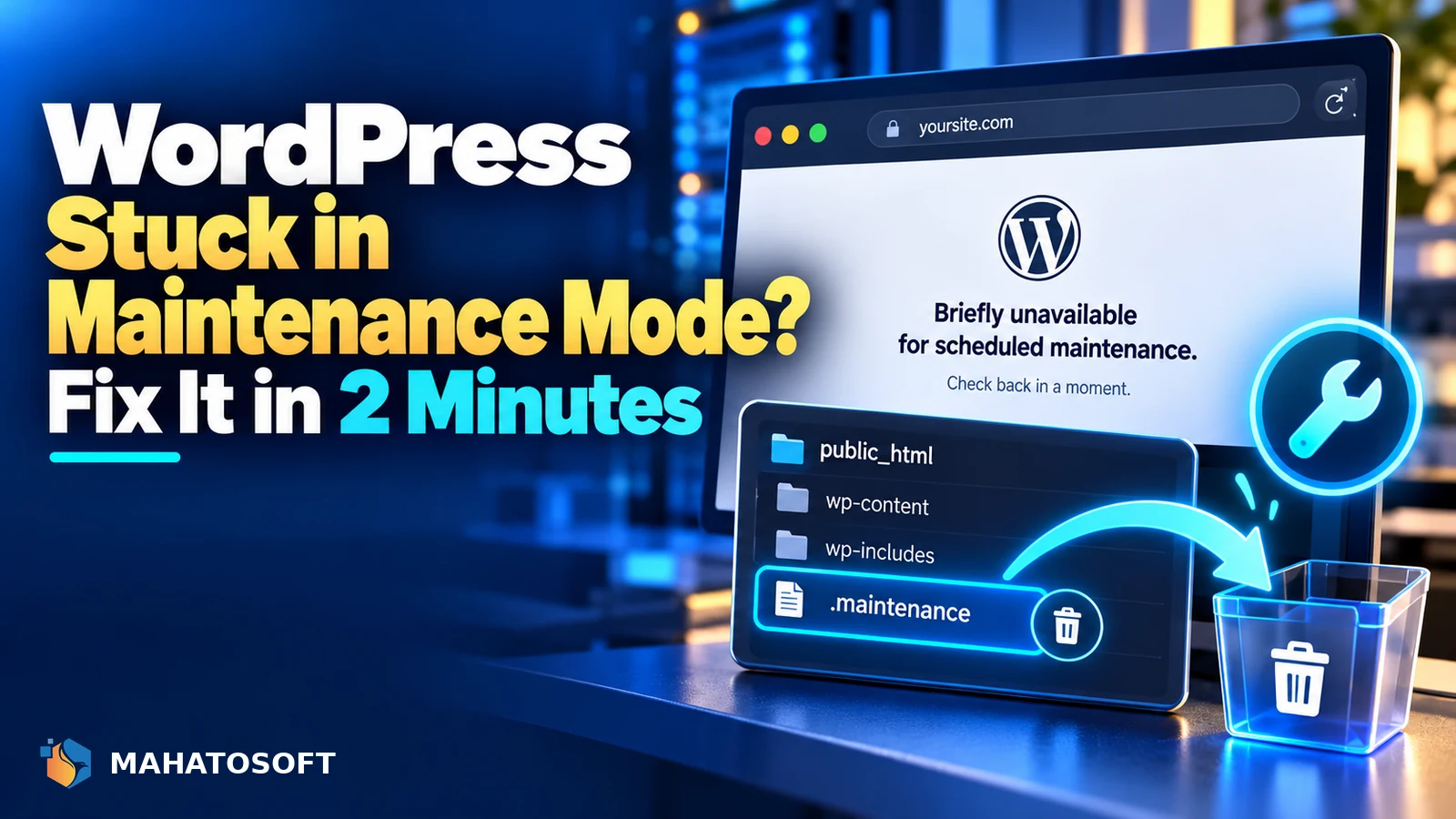
When you update WordPress core, a theme or a plugin, WordPress briefly creates a file called .maintenance in your site’s root folder and shows visitors a simple “Briefly unavailable for scheduled maintenance” message while the update runs. It deletes that file automatically the moment the update finishes. If the update is interrupted, the file is left behind, and your whole site stays in maintenance mode indefinitely.
Back up before you touch any files
The fix below only involves deleting one small file, but take a quick backup first if your host makes it easy. It costs a minute and means you can always undo any change.
The 2-minute fix: delete the .maintenance file
Connect to your site with SFTP or your hosting file manager and go to the root folder of your WordPress install, the same folder that contains wp-config.php and the wp-content folder. Look for a file called .maintenance.
Because it starts with a dot, some file managers hide it by default. Turn on “show hidden files” if you do not see it. Delete the file, then reload your site. In almost every case, this alone fixes WordPress stuck in maintenance mode.
.maintenance
If you have WP-CLI access, the same fix from the command line is even faster:
wp maintenance-mode deactivate
Why WordPress gets stuck in maintenance mode
| Cause | What happened |
|---|---|
| Update timed out | A slow server or large plugin update ran past the connection timeout |
| You navigated away or closed the tab | Interrupted the update process mid-file-write |
| Server error during the update | Ran out of memory or hit a resource limit partway through |
| Two updates running at once | Auto-updates and a manual update triggered together |
If deleting .maintenance does not fix it
Occasionally the update itself did not finish cleanly even after the maintenance file is gone, which shows up as a broken plugin, a missing file, or a critical error instead. Check Plugins and Appearance → Themes in wp-admin for anything showing an “update failed” or incomplete state, and try updating that specific item again manually.
If the site now shows a different error instead of the maintenance message, our guide on “There has been a critical error” covers the next step.
Can’t access wp-admin or your files at all?
If you cannot reach wp-admin because the maintenance message blocks the whole site, and you also cannot reach SFTP, contact your host’s support and ask them to remove the .maintenance file directly from the server. Every mainstream host can do this in a couple of minutes, since it is one of the most common support requests they get.
Alternatively, if you have phpMyAdmin or database access but not file access, you cannot remove this particular file that way, since .maintenance is a file-level check, not a database setting; you need file access of some kind to fix it.
A plugin’s “coming soon” mode looks similar but is different
Some maintenance-mode or coming-soon plugins show their own message that can look identical to the built-in one. If deleting .maintenance does not change anything, check Plugins for one of these active, and deactivate it from wp-admin, or by renaming its folder in wp-content/plugins via SFTP if wp-admin itself is inaccessible.
Confirm the database is not the actual problem
Occasionally what looks like WordPress stuck in maintenance mode is actually a database connection issue that happened to start at the same time as an update, rather than being caused by it. If deleting .maintenance does not change the message at all, or the wording does not match WordPress’s usual maintenance text, check whether the page instead says something about a database connection. Our guide to the error establishing a database connection covers that separate problem, which needs a different fix entirely.
Auto-updates and maintenance mode conflicts
WordPress can automatically update plugins and themes in the background on a schedule you do not control directly, which occasionally overlaps with a manual update you started yourself. Two update processes writing to the same files at once is one of the less common but real causes of a maintenance state that will not clear even after you delete the file once, because a second process recreates it moments later.
If you suspect this, wait two or three minutes after deleting the file before reloading, to give any in-progress background update time to finish, then check again. You can also review Dashboard → Updates for anything still shown as “Updating…”.
Stopping this from happening again
- Update plugins and themes one at a time rather than in a large batch, so a single slow update is less likely to time out.
- Avoid closing the browser tab or navigating away while an update is visibly running.
- If your host’s PHP execution time limit is very low, ask them to raise it, since that is a common cause of interrupted updates on shared hosting.
- Consider WP-CLI for updates on a site with many plugins, since command-line updates are less prone to browser-side interruptions.
The WordPress handbook’s wp-config.php reference is worth a look too, since it documents the constants that control update behaviour if you want to dig further. The handbook’s page on the WP-CLI command-line tool is a good next step if you manage several WordPress sites and want fewer browser-triggered update interruptions overall.
Related errors that can follow an interrupted update
Not every interrupted update leaves WordPress stuck in maintenance mode; sometimes it leaves a different error behind instead. An interrupted update is also a common trigger for other errors covered elsewhere on this site, such as the white screen of death or a full 500 internal server error, if a file was only partly written before the process stopped. If clearing maintenance mode reveals one of these instead of your normal site, those guides pick up from there.
Rather have it fixed for you?
We fix WordPress stuck in maintenance mode and other update-related errors from $45, usually the same day. Get your website error fixed.
WordPress stuck in maintenance mode: quick answers
Is it safe to just delete the .maintenance file?
Yes. It is a small marker file WordPress creates and removes automatically around updates; it does not contain any content or settings, so deleting it manually causes no data loss.
Why is WordPress stuck in maintenance mode after every update?
If this happens repeatedly rather than as a one-off, suspect a server resource limit, such as a low PHP execution timeout, cutting updates off before they finish. Ask your host to check and raise it if needed.
Will I lose content if my site was stuck in maintenance mode?
No, maintenance mode only hides the site from visitors while a file-level marker exists; it does not touch your posts, pages or database. Once removed, your content is exactly as it was before the update started.
Can a plugin update alone cause WordPress to get stuck in maintenance mode?
Yes, updating even a single plugin triggers the same brief maintenance mode as a core update, and an interruption during that update leaves the same leftover file. The fix is identical regardless of what was being updated.