

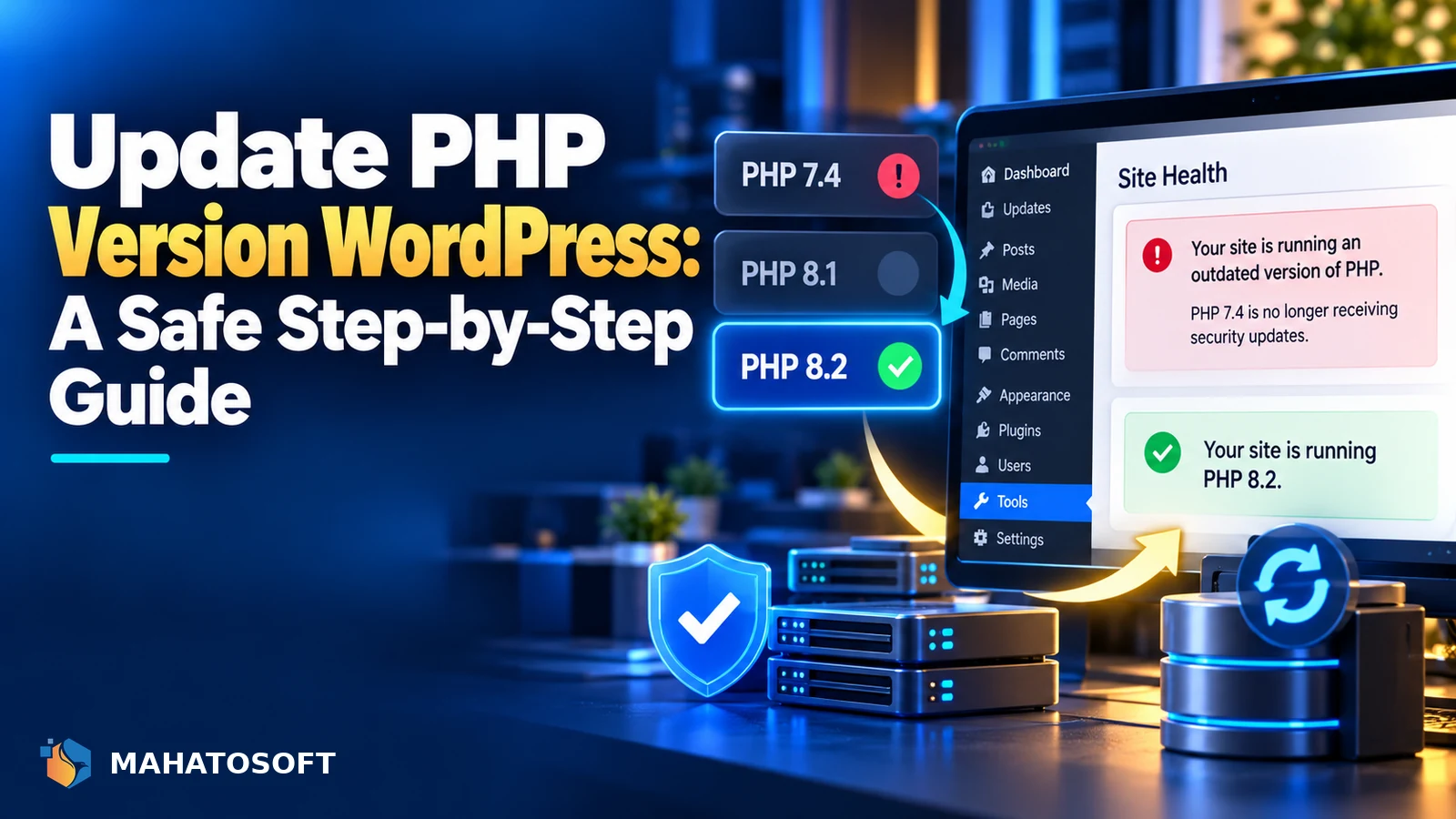
To update PHP version WordPress sites safely, check compatibility first, take a full backup, then switch the version in your hosting panel and test every part of the site immediately afterwards. Done in that order, it is one of the lowest-risk, highest-value maintenance tasks you can do. Skip the checks, and it is one of the easiest ways to break a site outright.
PHP is the programming language WordPress, its themes and its plugins are all written in. Hosts periodically retire old PHP versions, and running an outdated one leaves you exposed to unpatched security issues and missing out on real performance gains newer versions bring.
Back up before you touch anything
Take a full backup of files and database, or confirm your host’s automatic backup covers the last few hours, before changing your PHP version. This is the single step that turns a bad update into a five-minute rollback instead of a support ticket.
Why you should update the PHP version in WordPress
| Reason | What it means for you |
|---|---|
| Security | Unsupported PHP versions no longer receive security patches at all |
| Speed | Newer PHP versions process the same code noticeably faster |
| Plugin compatibility | Modern plugins increasingly require a current PHP version to install at all |
| Hosting requirements | Some hosts retire old PHP versions entirely, forcing the update anyway |
WordPress.org currently recommends running PHP 8.3 or later, though WordPress itself will still technically run on older, unsupported versions. Running an unsupported PHP version is one of the most overlooked security gaps on an otherwise well-maintained site.
When should you update PHP version WordPress hosting uses?
The best time is whenever your current version enters security-only support, and ideally before that, once you have confirmed your plugins and theme support the newer release. Waiting until a version reaches full end of life, with no security patches at all, leaves the site exposed for longer than necessary.
1. Check your current PHP version
Go to Tools → Site Health → Info → Server in your WordPress dashboard, or check your hosting panel directly. Site Health also flags an outdated PHP version under its recommended improvements, along with the specific version your host is running.
2. Check plugin and theme compatibility first
Before switching, check that your active theme and every active plugin support the PHP version you are moving to. Most plugin listings on WordPress.org show a “Requires PHP” line, and premium plugin changelogs usually mention PHP compatibility for major releases. A plugin that has not been updated in a long time is the most likely thing to break.
- Update every plugin and your theme to their latest versions first, since older releases are less likely to support newer PHP.
- Check any custom code, such as a child theme’s
functions.phpor a code snippets plugin, for deprecated PHP syntax. - Note which plugins are unmaintained or rarely updated; these are the ones to test most carefully.
3. Test on staging if you have it
If your host offers a staging environment, clone the site, switch PHP there, and click through the key pages, the admin dashboard, and checkout if you run WooCommerce. This catches most problems before a visitor ever sees them. If you do not have staging, do the update at a low-traffic time and be ready to roll back immediately. A staging test is the single best way to update PHP version WordPress sites without any visitor ever noticing the change happened.
4. Change the PHP version
Most hosts let you change the PHP version from their control panel, often under a section called “PHP Version,” “PHP Configuration” or “Select PHP Version” in cPanel-based hosting. Managed WordPress hosts sometimes handle this from a dedicated dashboard instead. Select the new version and save; most hosts apply it within a few seconds, with no downtime for the change itself.
5. Test everything immediately afterwards
Reload the homepage, log in to wp-admin, open a post in the editor, and if you run WooCommerce, add a product to the cart and reach the checkout page. Watch for a critical error or a white screen, both common symptoms of a plugin that is not compatible with the new PHP version.
If something breaks, the fastest fix is usually reverting the PHP version back to the previous one while you investigate, rather than leaving the site broken during troubleshooting.
6. What to do if something breaks
Turn on WP_DEBUG temporarily to see the exact PHP error and which file it points to. This usually names the plugin responsible directly in the error message. Deactivate that plugin, confirm the site recovers, then look for an updated version, a compatible alternative, or contact the plugin developer.
7. Roll back if you need to
If the issue cannot be resolved quickly, switch the PHP version back to the previous one in your hosting panel. This is instant on almost every host and buys you time to fix the underlying plugin issue without leaving the live site broken in the meantime.
A note for WooCommerce and multisite
If you run WooCommerce, pay extra attention to the checkout and any payment gateway plugins when you update PHP version WordPress installs that process real orders, since a broken checkout costs money every hour it is down, not just traffic. Test a full order, including a real or sandbox payment, before considering the update finished.
On a multisite network, PHP applies to the whole network at once, not per site. Test a sample of sites across the network rather than only the main one, since a plugin active on one subsite but not another can behave differently after the switch.
Keep PHP updated as routine maintenance
Check your PHP version at least twice a year, and any time you see a security notice about an older PHP version losing support. The official PHP supported versions page lists exactly when each version’s security support ends. Treat updating PHP the same way you treat updating plugins: routine, not optional. Sites that update PHP version WordPress installs on a fixed schedule rarely face the emergency, all-at-once update that causes the most breakage.
Rather have it done for you?
We update the PHP version in WordPress safely, test everything and fix any compatibility issues, from $45, usually the same day. Get your website fixed or contact us with your site address.
Update PHP version WordPress: quick answers
What PHP version should WordPress use?
WordPress.org currently recommends PHP 8.3 or later for the best security and performance. Check your specific plugins and theme are confirmed compatible with that version before switching a live site.
Will updating my PHP version break my WordPress site?
It can, if a theme or plugin relies on outdated PHP syntax that a newer version no longer supports. This is why testing on staging, or at least backing up first, matters more than the update itself.
How do I know if a plugin supports a newer PHP version?
Check the plugin’s WordPress.org listing for its “Requires PHP” line, or the changelog of a premium plugin for PHP compatibility notes. An actively maintained plugin usually states this clearly.
Can I update the PHP version in WordPress myself?
Yes, on almost every host it is a setting you can change yourself in the hosting control panel, without needing developer help. The risk is entirely in what happens afterwards if something is incompatible, which is why backups and testing matter more than the click itself when you update PHP version WordPress uses.
Discussion
Join the conversation
No comments yet. Share a question or what worked for you.